
Tracking business mileage in Keepr
Log a trip in seconds, let Keepr apply HMRC's tiered AMAP rates, and watch the claimable total flow into your tax estimate.
To log a business trip in Keepr, open Expenses from the sidebar and click Log Mileage. Fill in the date, where you went, how many miles, and your vehicle. Keepr applies the correct HMRC rate automatically, calculates the claimable amount, and the total flows straight into your tax estimate — no manual maths.
What counts as business mileage
HMRC allows you to claim a flat rate per mile for journeys driven for your business, instead of working out actual fuel + wear-and-tear costs. The flat rates already cover fuel, insurance, MOT, depreciation, and repairs proportional to business use — you don't claim those separately on top.
| Counts as business mileage | Doesn't count |
|---|---|
| Driving to a client meeting | Your normal commute to a fixed workplace |
| Trips between two work sites | Personal errands (even if you stop on the way) |
| Picking up business supplies | Lunch out, gym, school run |
| Driving to a temporary work location | Trips you've already claimed actual fuel costs for |
Logging a trip
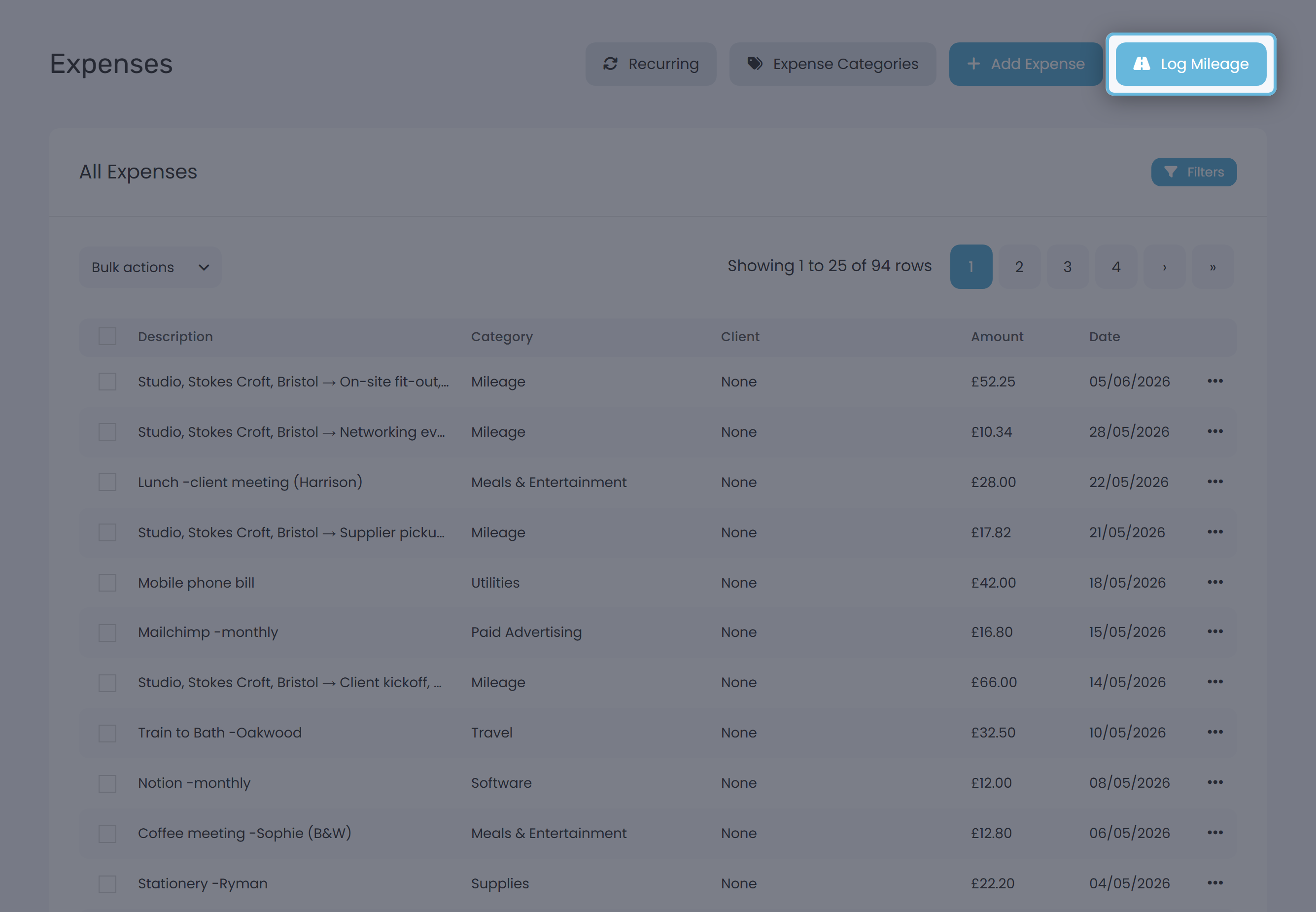
- Open Expenses from the sidebar. The list shows everything that reduces your tax bill — receipts, mileage, the lot.
- Click Log Mileage in the top-right (sits next to Add Expense).
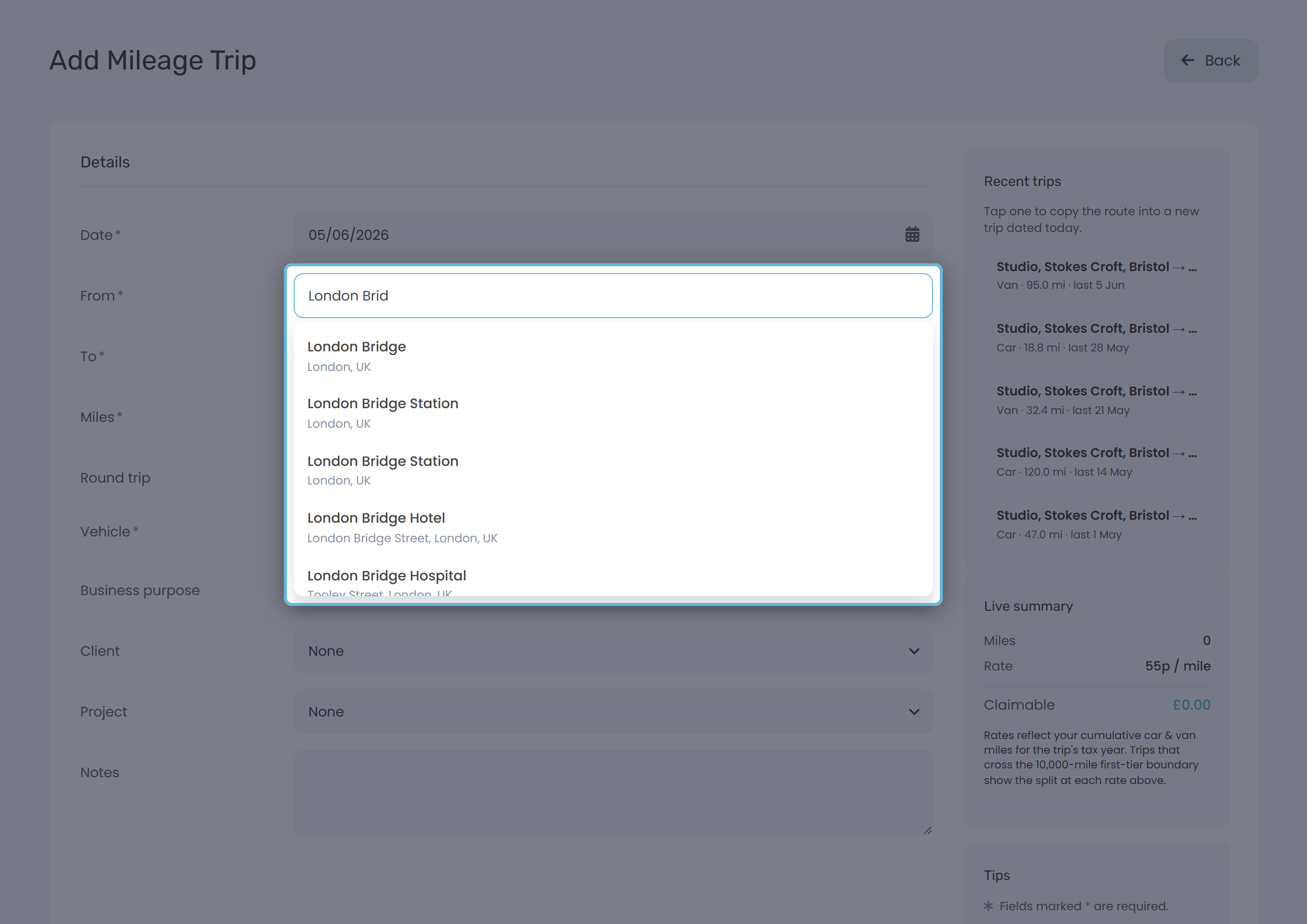
- Pick a Date, then start typing into From and To. Address suggestions appear as you type — choosing real addresses lets Keepr work out the distance for you. Prefer to type freehand? Just enter a postcode or label like "Office → Client site" and skip the suggestions.
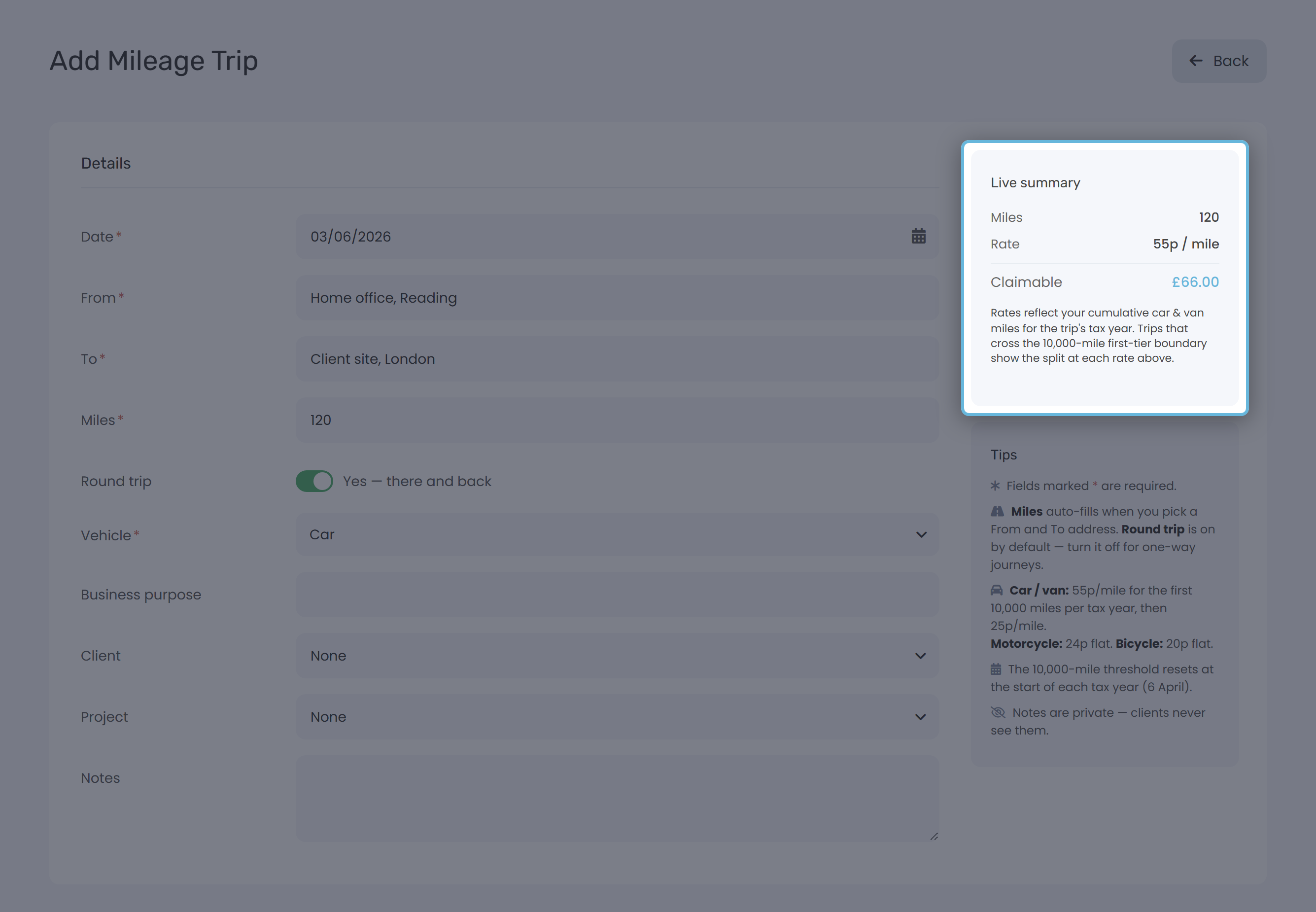
- Check the Miles field. Picking real addresses for both From and To auto-fills it as a round trip (the one-way distance, doubled). For a one-way journey, turn off the Round trip toggle. If you typed freehand, enter the round-trip business miles yourself.
- Pick the Vehicle type. The applicable rate appears in the Live summary card on the right.
- Optionally add a Business purpose, link a Client or Project, and note anything HMRC might ask about later.
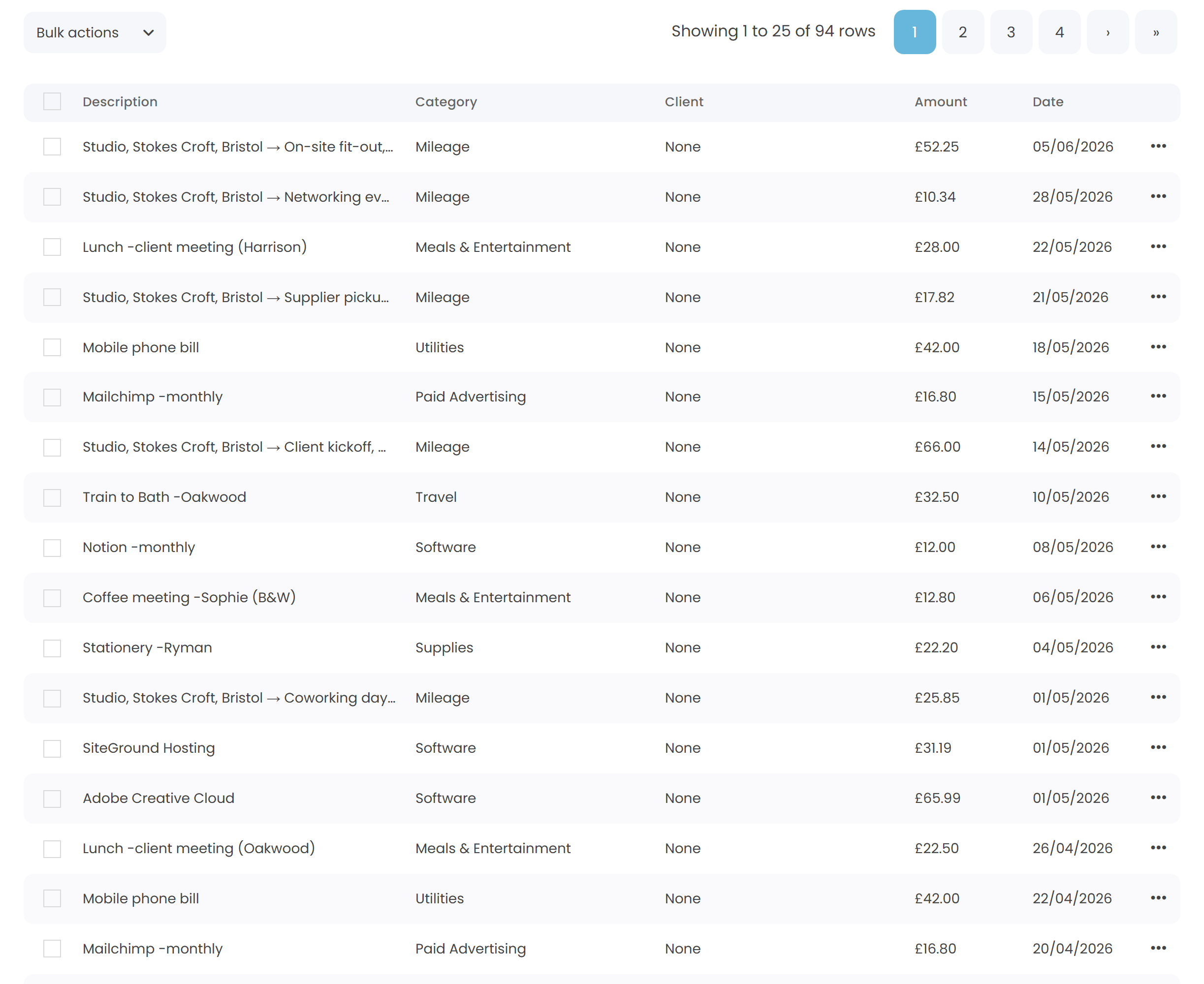
- Click Save. The trip appears in your unified Expenses list alongside regular expense rows.
HMRC AMAP rates (UK)
The Approved Mileage Allowance Payment (AMAP) rates are HMRC's flat per-mile figures. The car and van first-tier rate rose from 45p to 55p on 6 April 2026, the first change since 2011, and Keepr keeps them in sync with the registry.
| Vehicle | First 10,000 miles/year | Above 10,000 |
|---|---|---|
| Car / van (from 6 Apr 2026) | 55p | 25p |
| Car / van (before 6 Apr 2026) | 45p | 25p |
| Motorcycle | 24p | 24p (no tier) |
| Bicycle | 20p | 20p (no tier) |
The 10,000-mile threshold is per tax year (6 April → 5 April) and applies to cars and vans combined. The first-tier car/van rate rose from 45p to 55p with effect from 6 April 2026. Motorcycles and bicycles have a flat rate with no tier drop.
How the tier split works
Keepr tracks your cumulative car/van miles across the current tax year. As soon as the total crosses 10,000 miles, the per-mile rate on new entries drops from 55p to 25p automatically (45p to 25p on trips dated before 6 April 2026).
Worked example
You drive 50 miles to a client site, 50 miles back. Vehicle is a car, you've already logged 8,000 miles this tax year. The trip date falls in the 2026-27 tax year so the 55p first-tier rate applies.
| Field | Value |
|---|---|
| Miles | 100 |
| Vehicle | Car |
| Cumulative miles this tax year | 8,000 (under threshold) |
| Rate applied | 55p |
| Claimable | £55.00 |
Where the claimable amount goes
Every saved mileage entry adds to your tax-year claimable total, shown as a summary band at the top of Expenses whenever you have at least one trip logged.
It also flows automatically into: