
Customising your invoice
Set your invoice numbering, default terms, template, brand colour, font, and logo so every invoice you send looks like yours.
Everything that controls how your invoices look and read lives in one place: Settings → Invoices. You can change the numbering, set default payment terms, pick a template, and - on Pro - add your accent colour, font, and logo. Free and Pro users both have full control over numbering and default terms; the visual branding is Pro-only.
Where to find invoice settings
- Click your name in the top-right corner of any page and choose Settings.
- Open the Invoices tab.
The Invoices tab is organised top-to-bottom: Numbering, Default Terms, Invoice Template, Branding, Logo, then a live Preview that updates after each save. One green Save Invoice Settings button at the bottom saves everything except the logo, which uploads on its own.
Invoice numbering
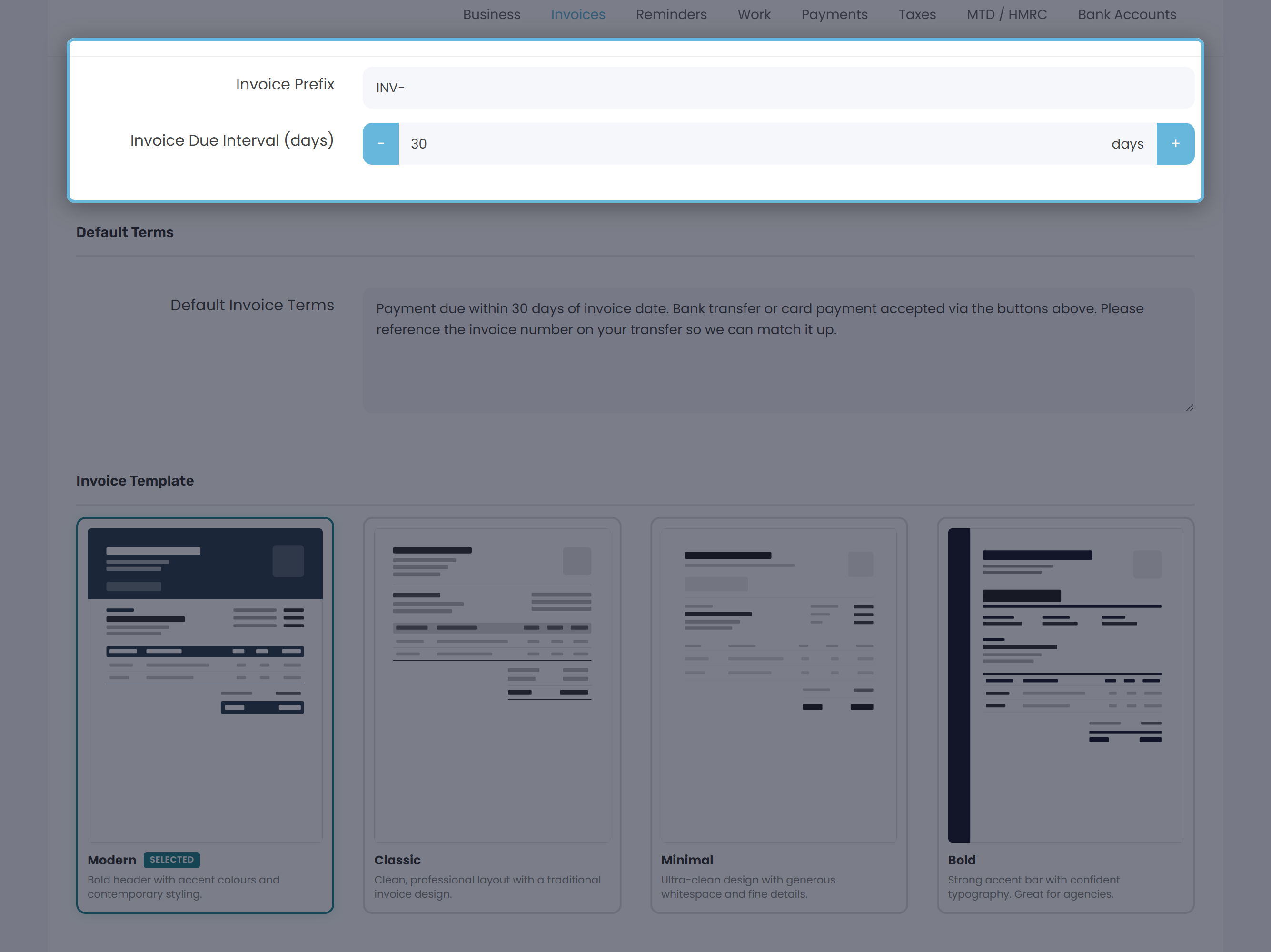
- Invoice Prefix - the text Keepr puts in front of the running number. Defaults to
INV-, so your invoices startINV-0000001. Change it to anything you like (for example,2026-or your initials). - Invoice Due Interval (days) - how many days after the invoice date the due date should fall. When you set an invoice date on a new invoice, the due date auto-fills to that date plus your interval. You can still override it on the invoice itself.
Default invoice terms
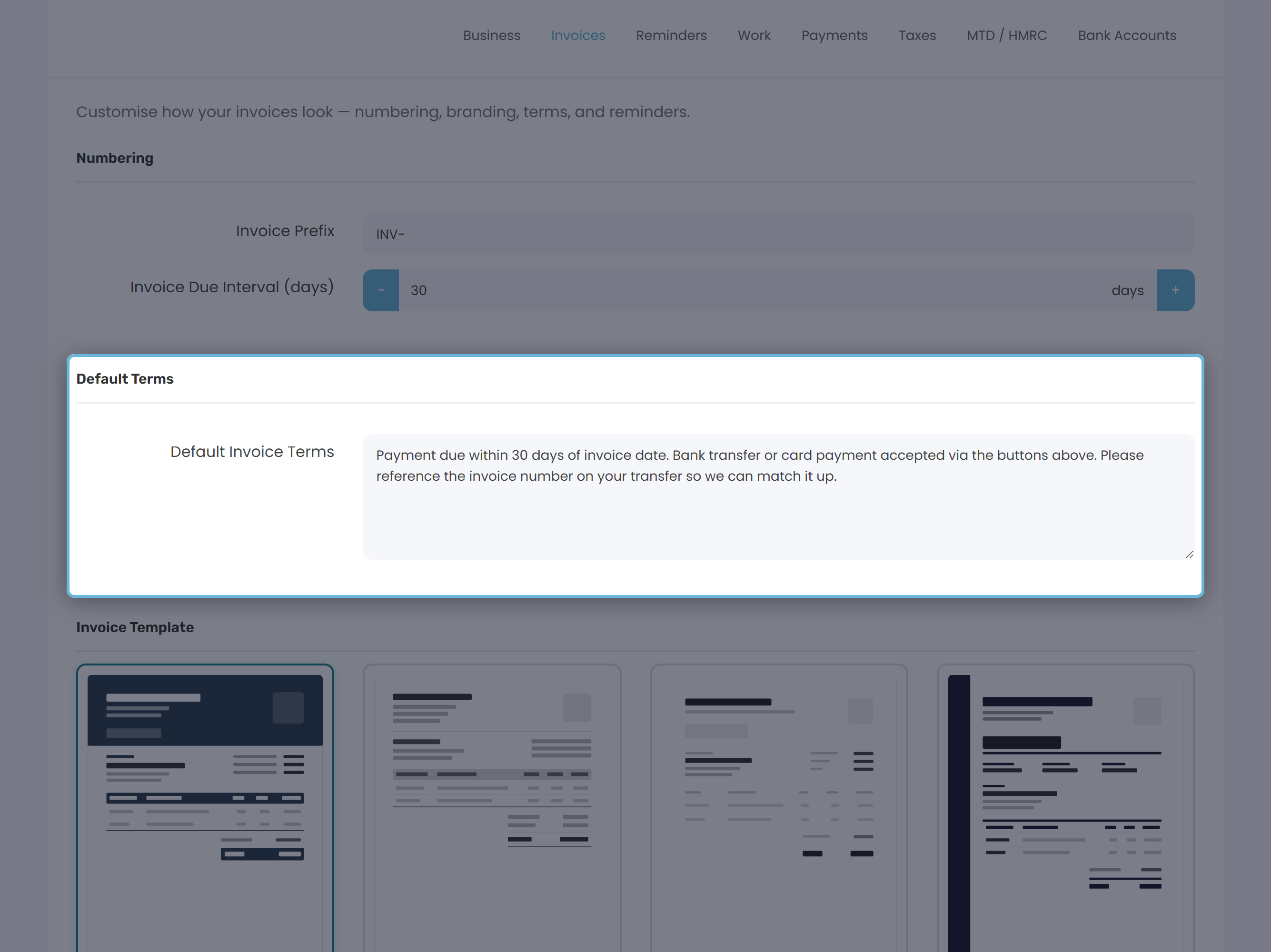
Default Invoice Terms is a free-text box that Keepr pre-fills into the Terms field on every new invoice you create. Typical content: payment window, bank details, late-payment policy, thanks. Whatever you put here appears on the invoice PDF your client receives.
Invoice template
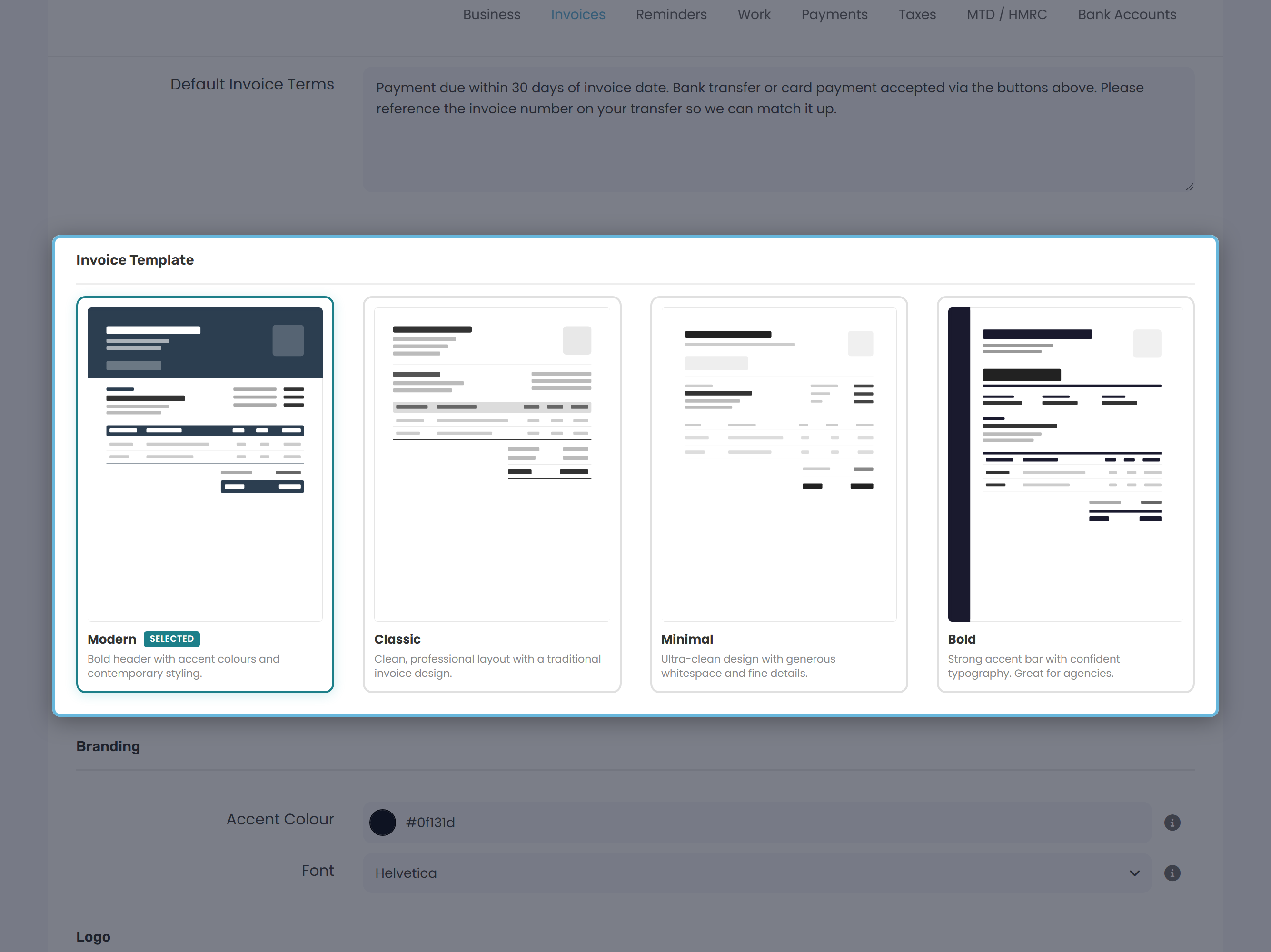
The template gallery shows every PDF design Keepr supports. Click a card to select it, then save. Free users are locked to the Modern template; Pro users can choose any.
Branding: colour and font (Pro)
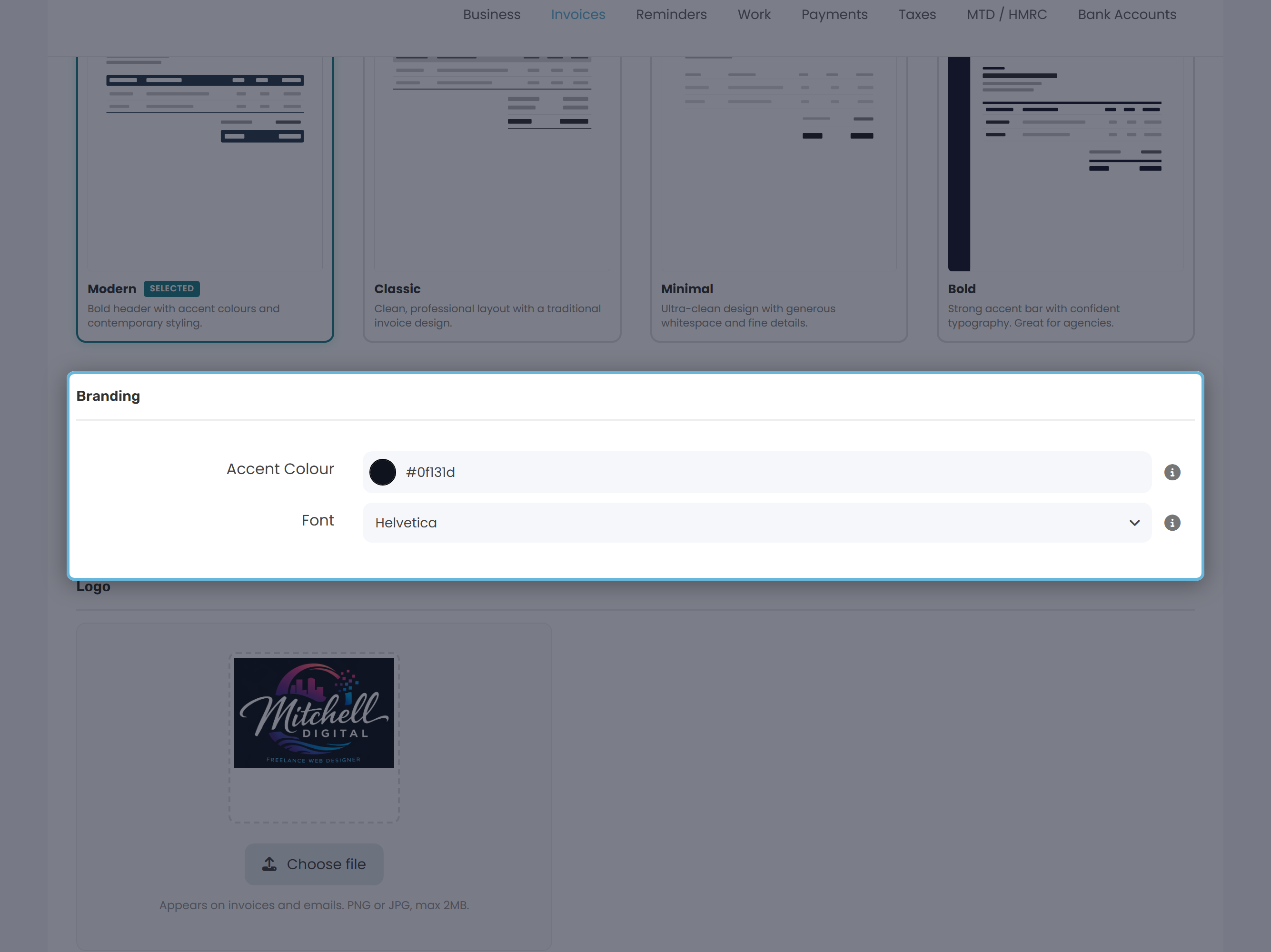
- Accent Colour - a single brand colour used as the accent on the invoice PDF and as the header band on your invoice emails. The colour picker accepts any hue.
- Font - the font used on the invoice PDF. Choose from Helvetica, Georgia, Courier, or Times New Roman.
Logo (Pro)
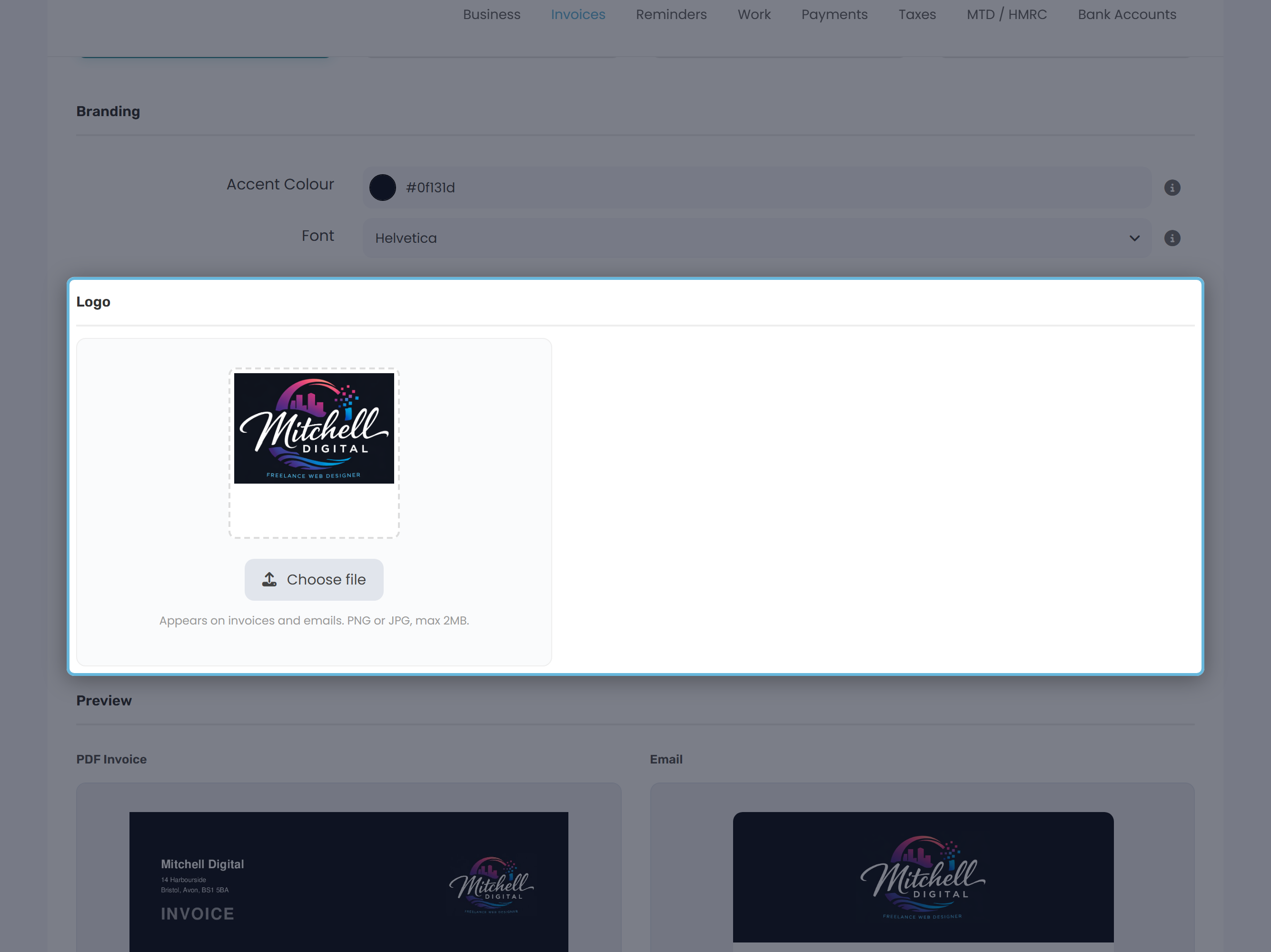
- Click Choose file and pick your logo image. PNG or JPG, max 2MB.
- Wait for the upload progress bar to finish. The thumbnail updates to show the uploaded image.
- To swap it out later, click Change. To go back to no logo, click Remove.
Preview
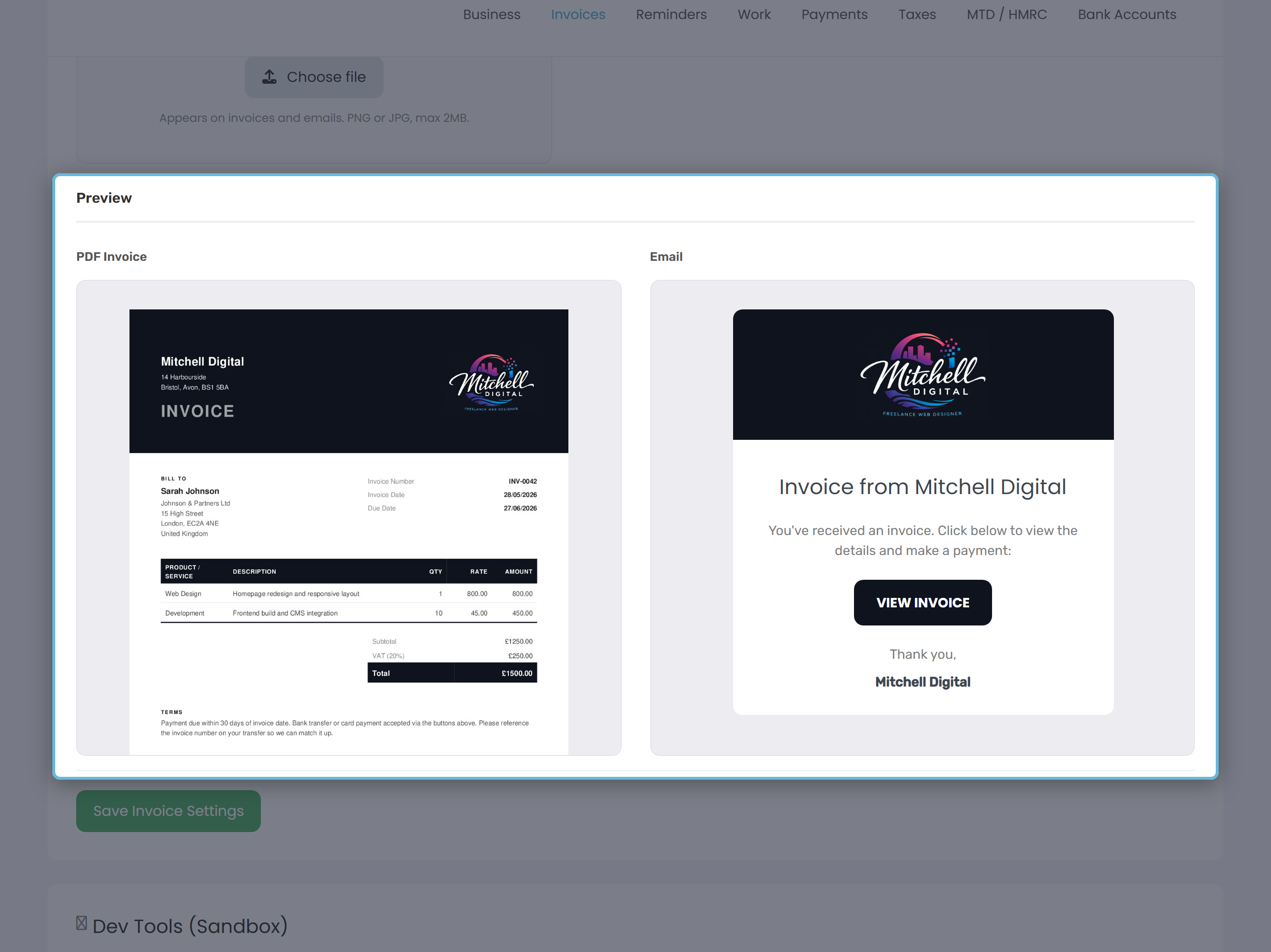
At the bottom of the Invoices tab is a two-up preview: the rendered invoice PDF on the left, the invoice email on the right. Both refresh after you click Save Invoice Settings, so you can adjust colours and fonts and immediately see the result without leaving the page.
Per-invoice Terms & Notes
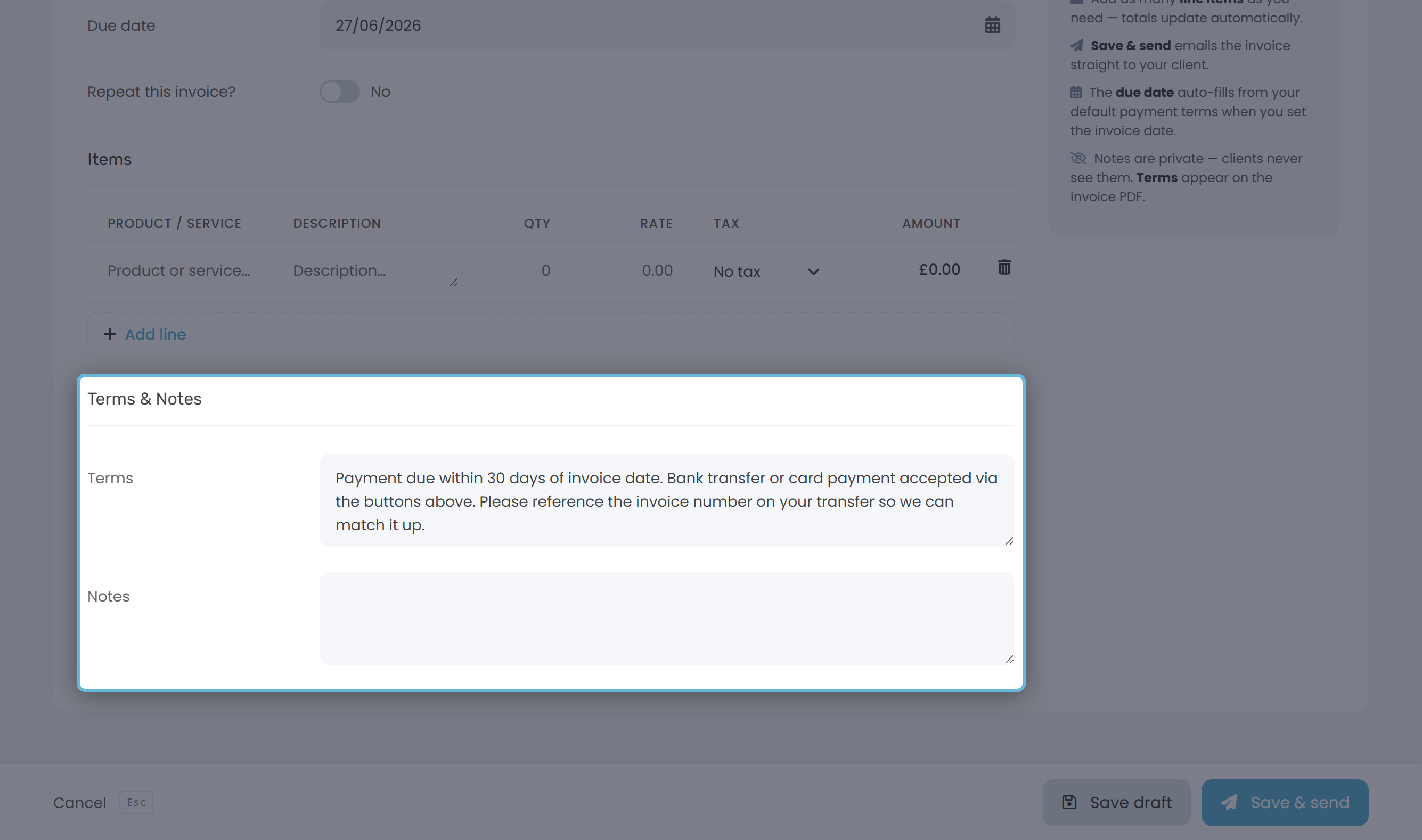
On the Add or Edit Invoice form, scroll past the line items to find the Terms & Notes section. There are two text areas, and they behave very differently:
| Field | Where it appears |
|---|---|
| Terms | Shown on the invoice PDF your client receives. Pre-filled from your Default Invoice Terms; you can edit it for a single invoice without changing the default. |
| Notes | Private - for your own reference only. Never appears on the invoice PDF or in any email to the client. |
Free vs Pro at a glance
| Setting | Free | Pro |
|---|---|---|
| Invoice prefix and numbering | Full control | Full control |
| Default terms (and per-invoice override) | Yes | Yes |
| Per-invoice Notes (private) | Yes | Yes |
| Invoice template | Modern only | Any template |
| Accent colour | Fixed dark navy | Your choice |
| Font | Helvetica only | Helvetica, Georgia, Courier, Times New Roman |
| Company logo on PDF + email | No (Keepr logo on email) | Yes |
| Keepr email footer | Shown | Removed |