
What your client sees when you send an invoice
A walkthrough of the email, the public invoice page, and the status updates from your client's side of the screen.
When you hit Save & send on an invoice, Keepr emails your client a short message with a button that opens a public invoice page. They don't need a Keepr account to view it or pay. This guide walks through exactly what they see, and how Keepr feeds that activity back to you.
The email that lands in their inbox
Emails are sent from invoices@mailer.keepr.co.uk, with replies routed back to the business email in your profile. The subject is always:
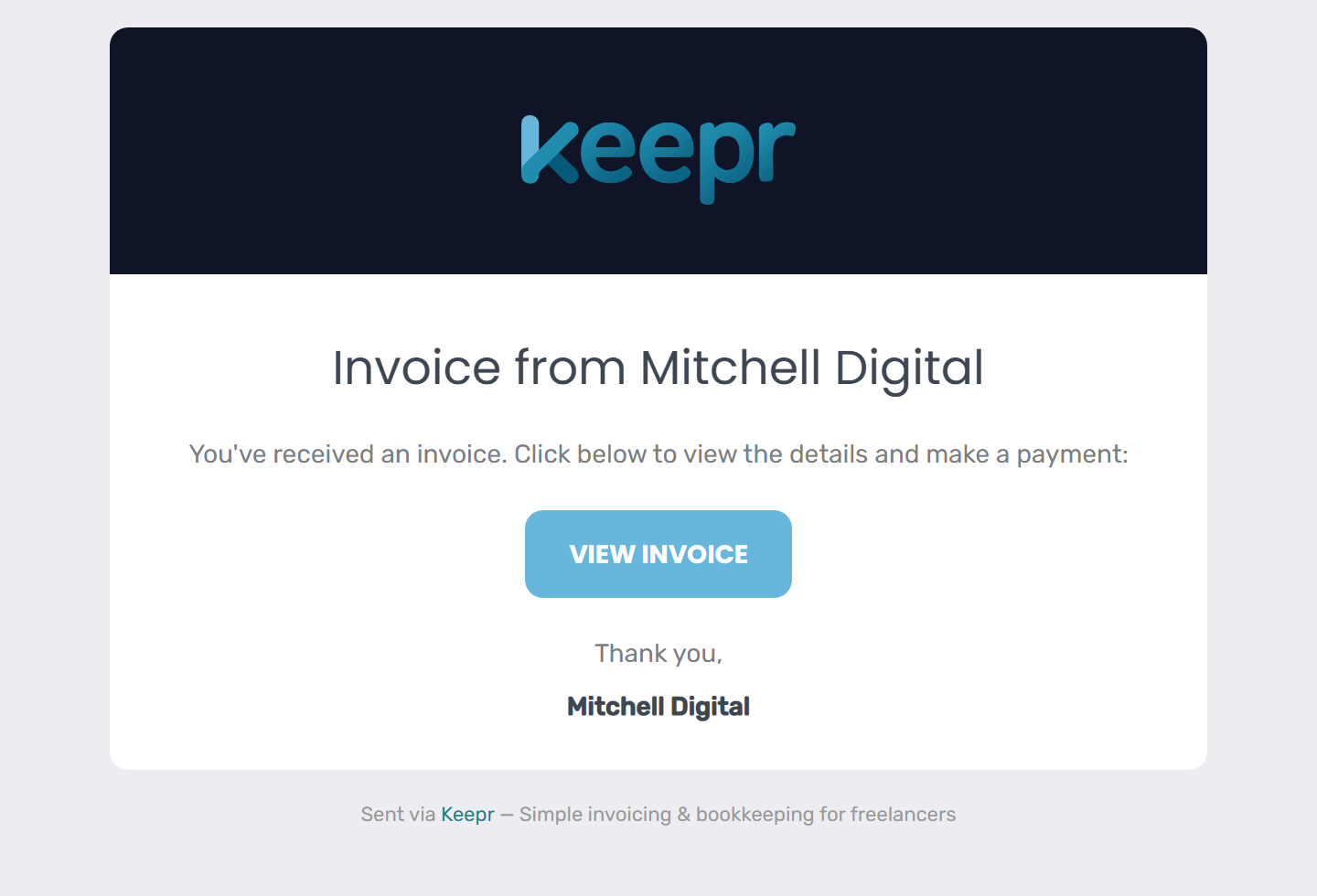
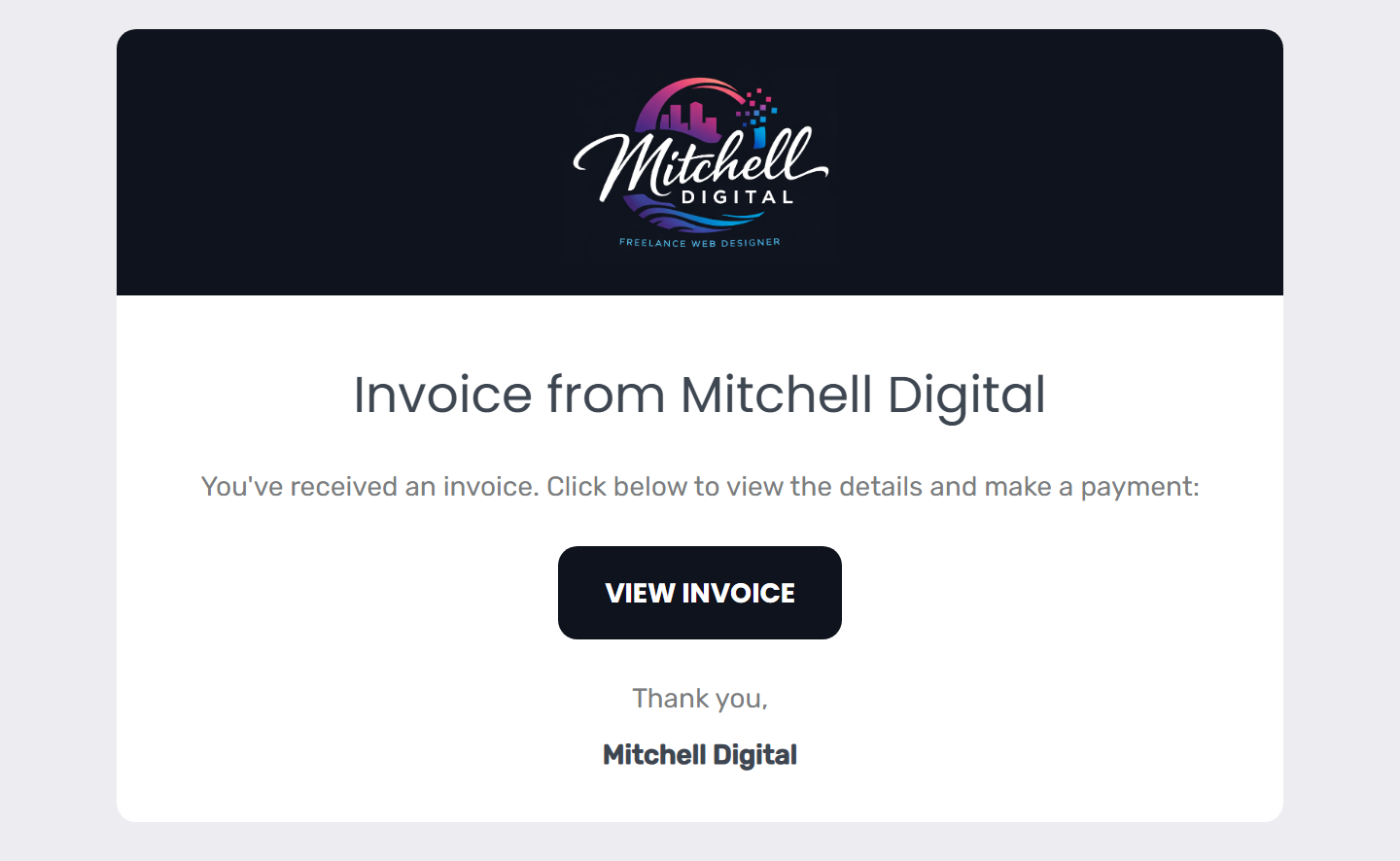
Inside the email there's one short line - "You've received an invoice. Click below to view the details and make a payment" - followed by a VIEW INVOICE button. Sign-off: "Thank you, {your company name}". Clients can scan it in two seconds and tap through.
On the Free plan
Free-plan emails use a generic Keepr template: Keepr-navy header band with the Keepr logo, a blue button, and a small footer line that reads "Sent via Keepr - Simple invoicing & bookkeeping for freelancers". Clean and professional, but the branding belongs to Keepr.
On the Pro plan
Pro emails swap the Keepr branding for yours: the header band and button pick up your accent colour, the header logo is the one you uploaded under Settings → Invoices, and the "Sent via Keepr" footer is removed. The email looks like it came from your business, not from an invoicing app.
The public invoice page
Clicking VIEW INVOICE takes them to a URL like /invoice/{token}/. The token is a long random string unique to that invoice - anyone with the link can view it, but nothing else in your account is exposed. No login, no sign-up, no friction.
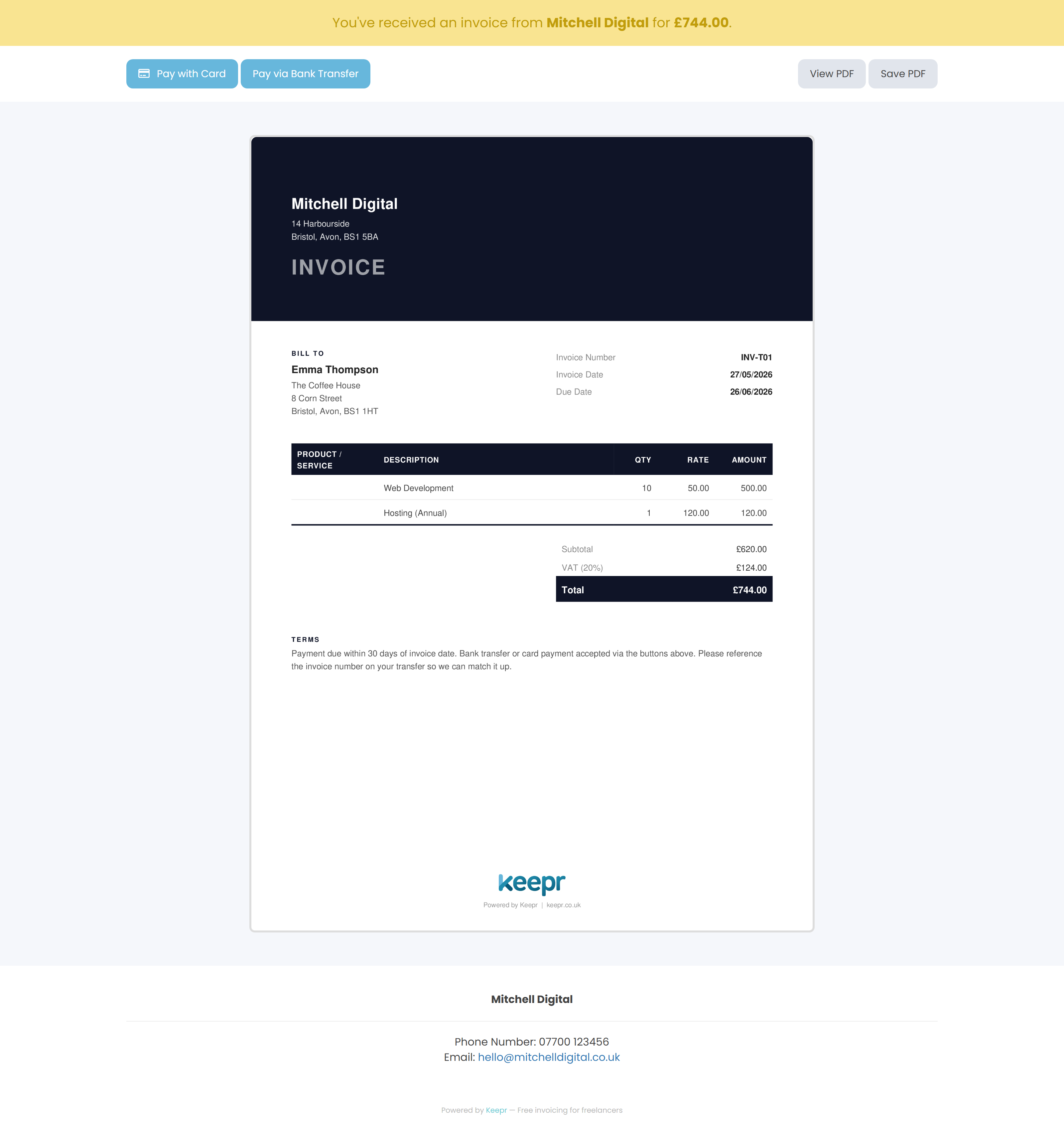
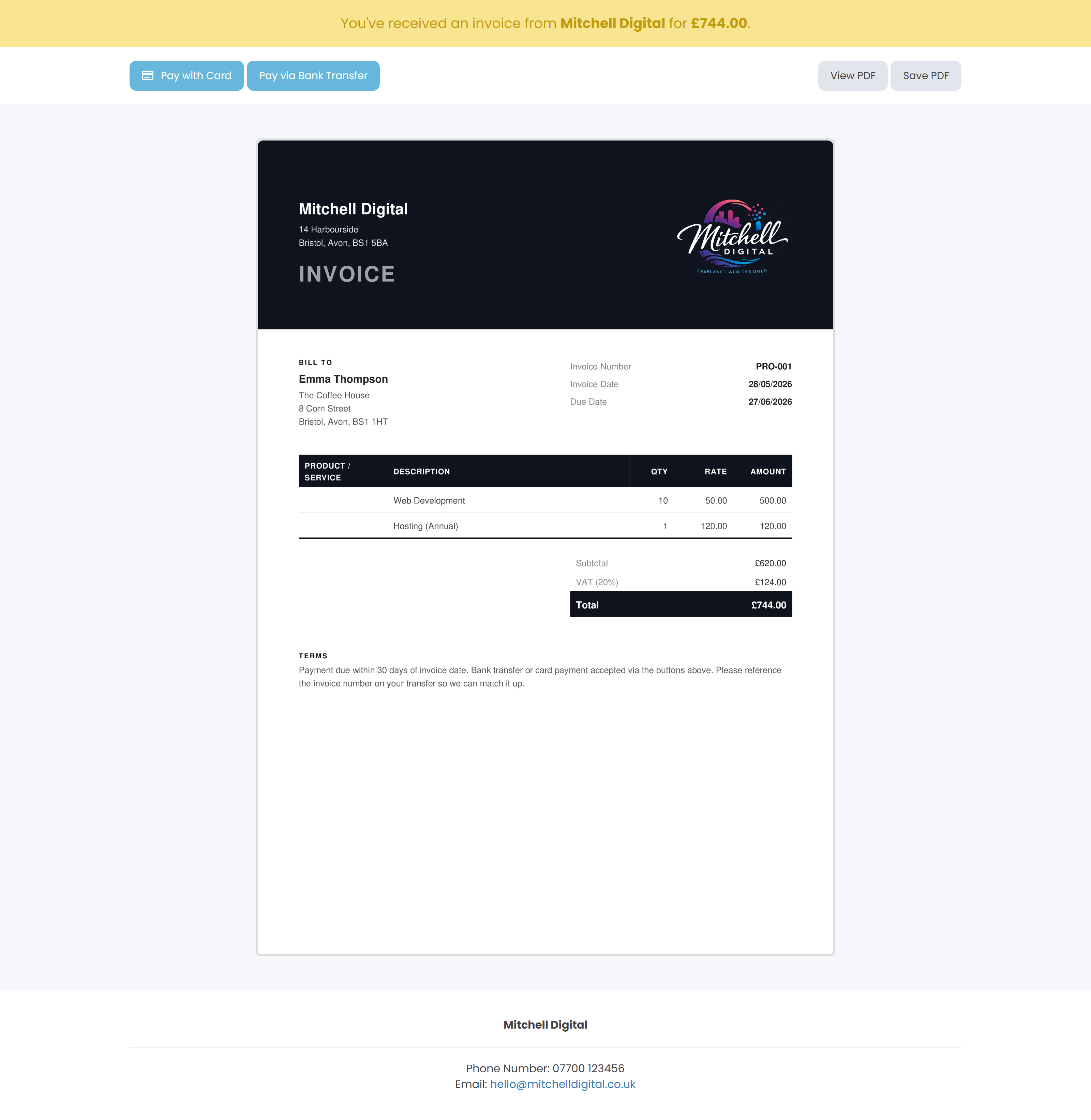
A coloured status banner sits at the top - e.g. "You've received an invoice from {your company} for £600" - with the full invoice (logo, line items, totals, terms) below.
The Pay with Card button
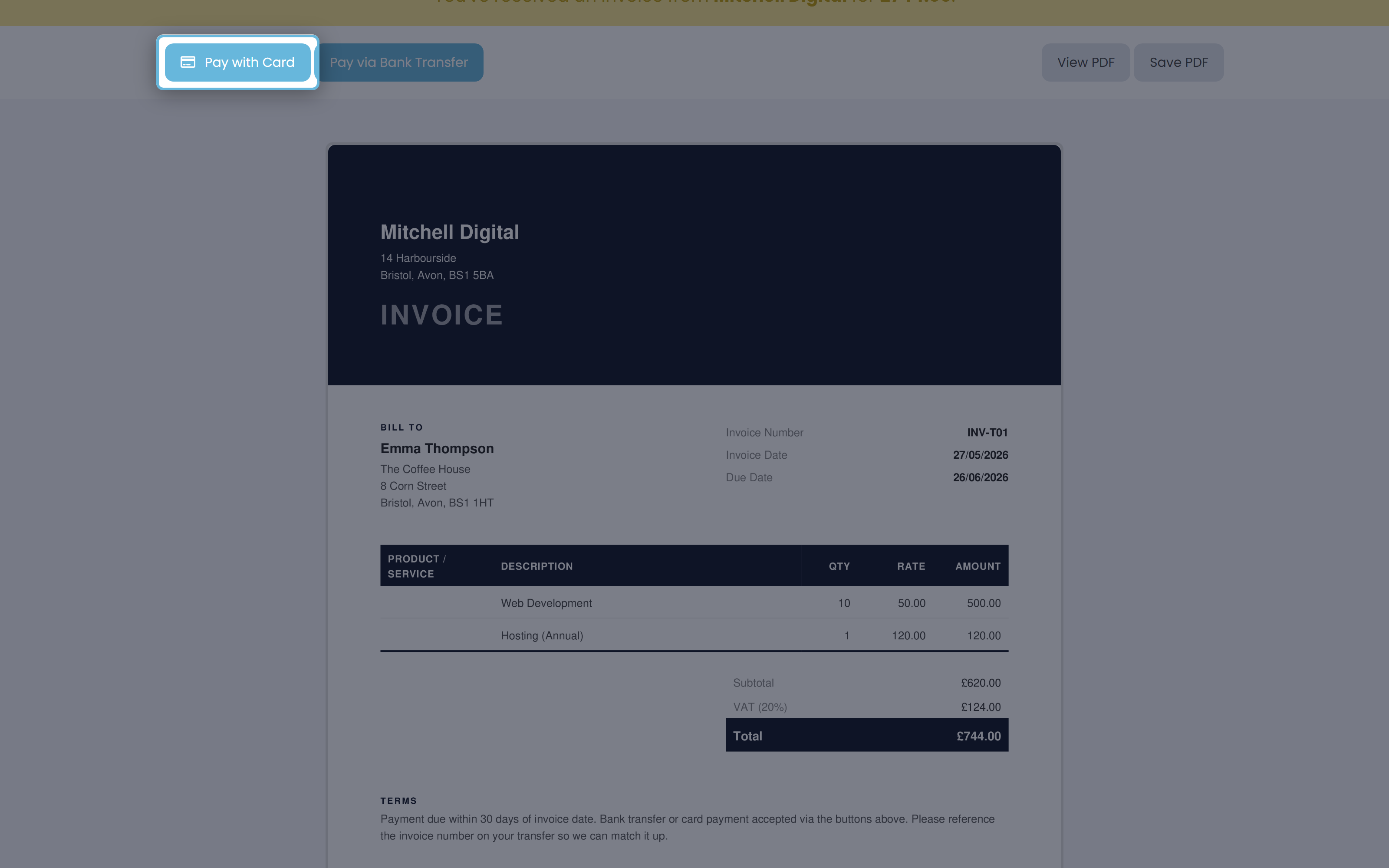
If you've connected Stripe under Settings → Payments, the public invoice page shows a Pay with Card button that sends the client to Stripe Checkout.
How Pro branding changes the invoice page
On Pro the same invoice picks up your branding: your logo appears in the top header (on Free the header is empty even if you've uploaded one), the dark header bar switches to your chosen accent colour, and the "Powered by Keepr | keepr.co.uk" footer at the bottom is removed. Pro also unlocks three extra templates (Classic, Minimal, and Bold) and three extra fonts (Georgia, Courier, Times) under Settings → Invoices — Free is locked to the Modern template in Helvetica.
What you see on your end: status changes
As your client clicks through and pays, the invoice status updates on your side:
| Status | What triggered it |
|---|---|
| Sent | Keepr emailed the invoice to your client (right after you hit Save & send). |
| Viewed | Your client opened the public invoice link for the first time. |
| Paid | The full amount has been recorded - typically by Stripe after a successful card payment. |
| Partial | Some of the amount has been recorded, but not the full total. |
The Sent → Viewed jump is the useful one for chasing - you know whether the client has actually opened the link, separately from whether they've paid.
When they pay
After a successful Stripe payment, Keepr marks the invoice Paid automatically. Stripe tells Keepr the moment the payment succeeds, and as a backup Keepr also re-checks with Stripe after the client returns from the payment page in case the first message is delayed. Whichever lands first records the payment; the other does nothing. You don't need to reconcile anything manually.
Reminders: free vs Pro
If the client doesn't pay, the next nudge depends on your plan.
{client_name}, {invoice_number}, {amount_due}, and {days_overdue} so the wording sounds personal.Worked example
You invoice Acme Ltd for £600 from Bright Studio. You hit Save & send:
| On their side | On your side |
|---|---|
| Email lands. Subject: "New invoice from Bright Studio". | Status: Sent. |
| They click VIEW INVOICE, see the public invoice page. | Status: Viewed. |
| They click Pay with Card and pay through Stripe. | Stripe tells Keepr. Status: Paid. |
| Green banner: "Thank you! Your payment of £600 has been received." | Payment recorded automatically against the invoice. |