
Adding manual time entries in Keepr
Forgot to start the timer? Log past work by typing the start and end times - Keepr saves it alongside your tracked hours.
Keepr has a built-in stopwatch, but you don't have to start it every time. If you forgot to hit Start - or you're catching up from a notebook, calendar or chat log - switch the timer into manual mode and type the start and end times by hand. The entry lands in your time list right alongside your tracked hours, with the same hourly rate snapshot and the same inline editing.
When to use manual entries
Manual mode is for logging work after you've done it. Two big use cases: you forgot to start the timer (you're three hours into a client job before you realise the stopwatch isn't running), or you're logging from notes - a notebook entry like “Acme call 10:00-10:45”, your calendar, a chat-message timeline. Manual entries let you transfer all of that into Keepr without pretending to time-travel.
Switch into manual mode
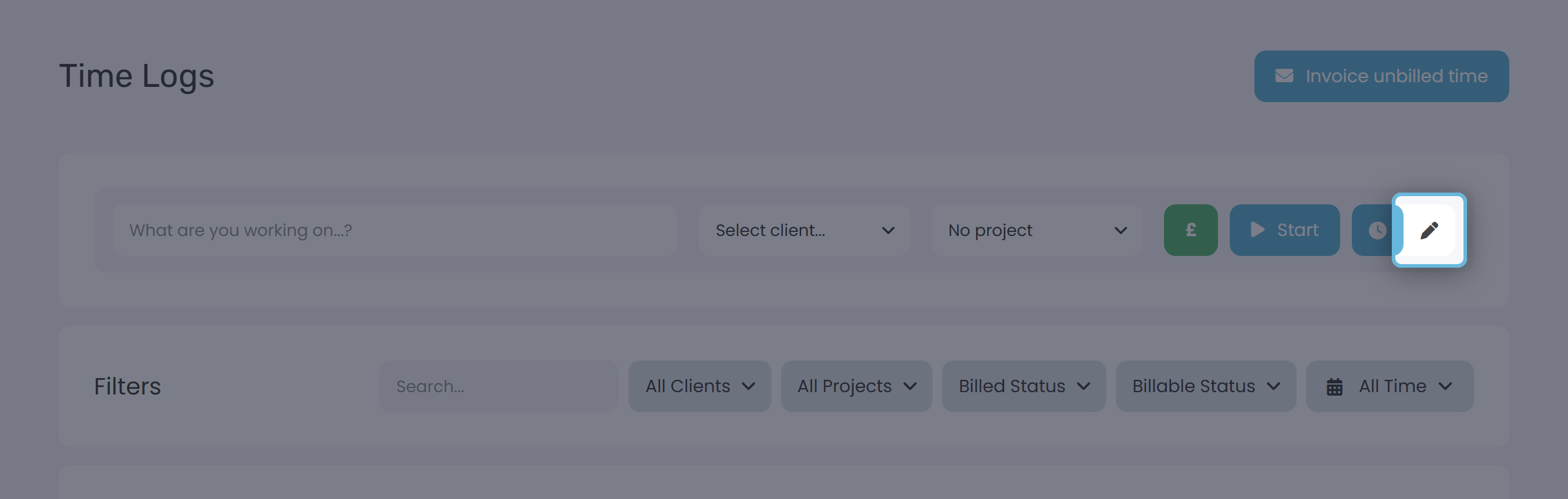
- Open Time in the sidebar (the clock icon).
- Look at the right-hand side of the timer row. You'll see a small vertical strip with two icons - a clock and a pen.
- Click the pen icon. The timer row re-renders into the manual entry form. The clock icon switches you back to stopwatch mode.
Fill in the manual form
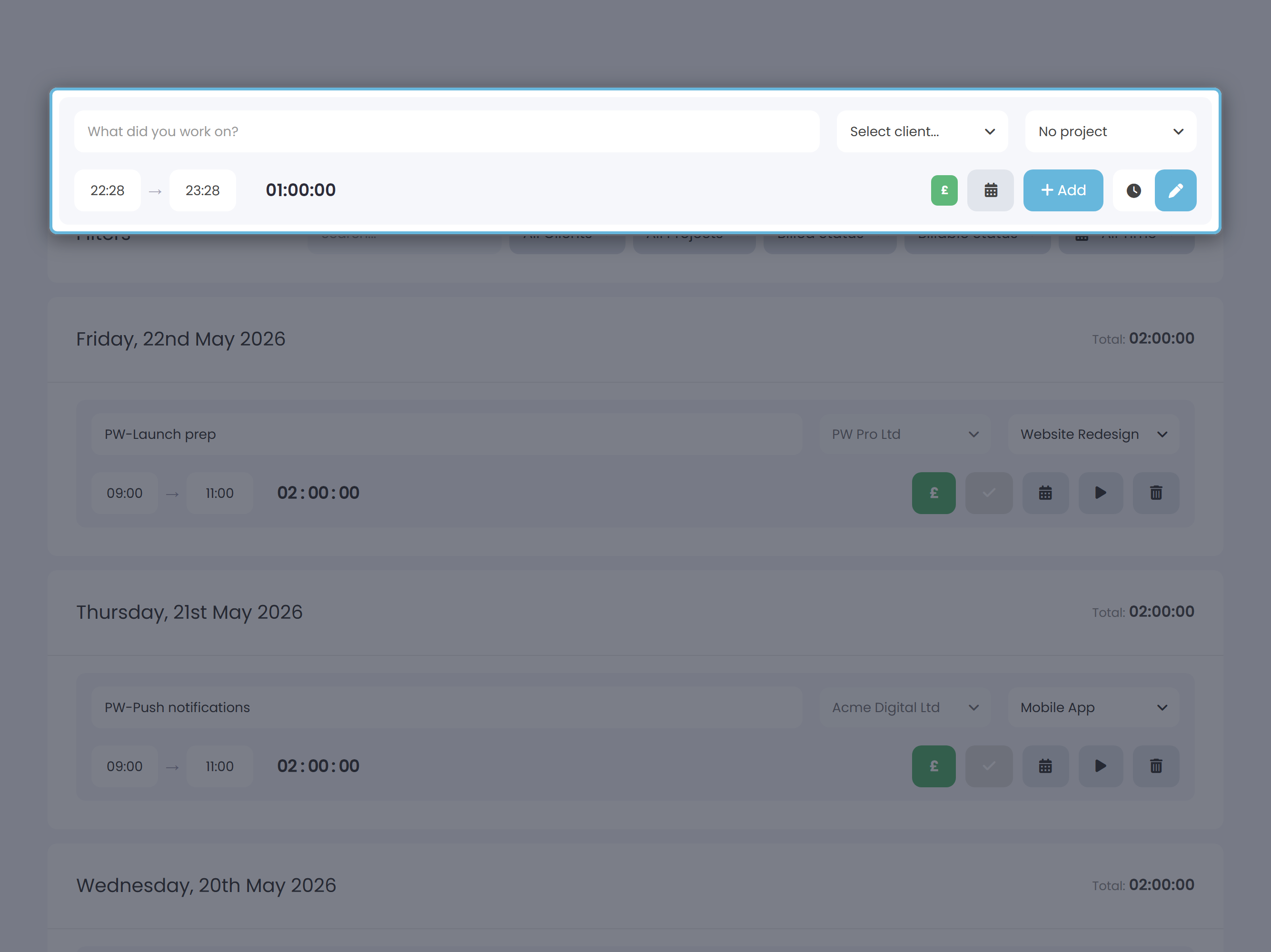
The fields, left to right:
| Field | What goes in it |
|---|---|
| Description | What you worked on. Required. |
| Client | Optional. Live-search dropdown, with + Add new if the client doesn't exist yet. |
| Project | Optional. Choosing a project auto-fills its client and applies the project's billable default. |
| Start | Time the work began, in HH:MM 24-hour format. Pre-fills with an hour ago. |
| End | Time the work finished, in HH:MM 24-hour format. Pre-fills with now. |
| Duration | Auto-calculated from Start and End. Read-only - it ticks as you change either time. |
| £ toggle | Green for billable, grey for non-billable. Default: billable. |
| Date (calendar icon) | The date the work happened. Defaults to today; click it to pick a different day. |
Worked example
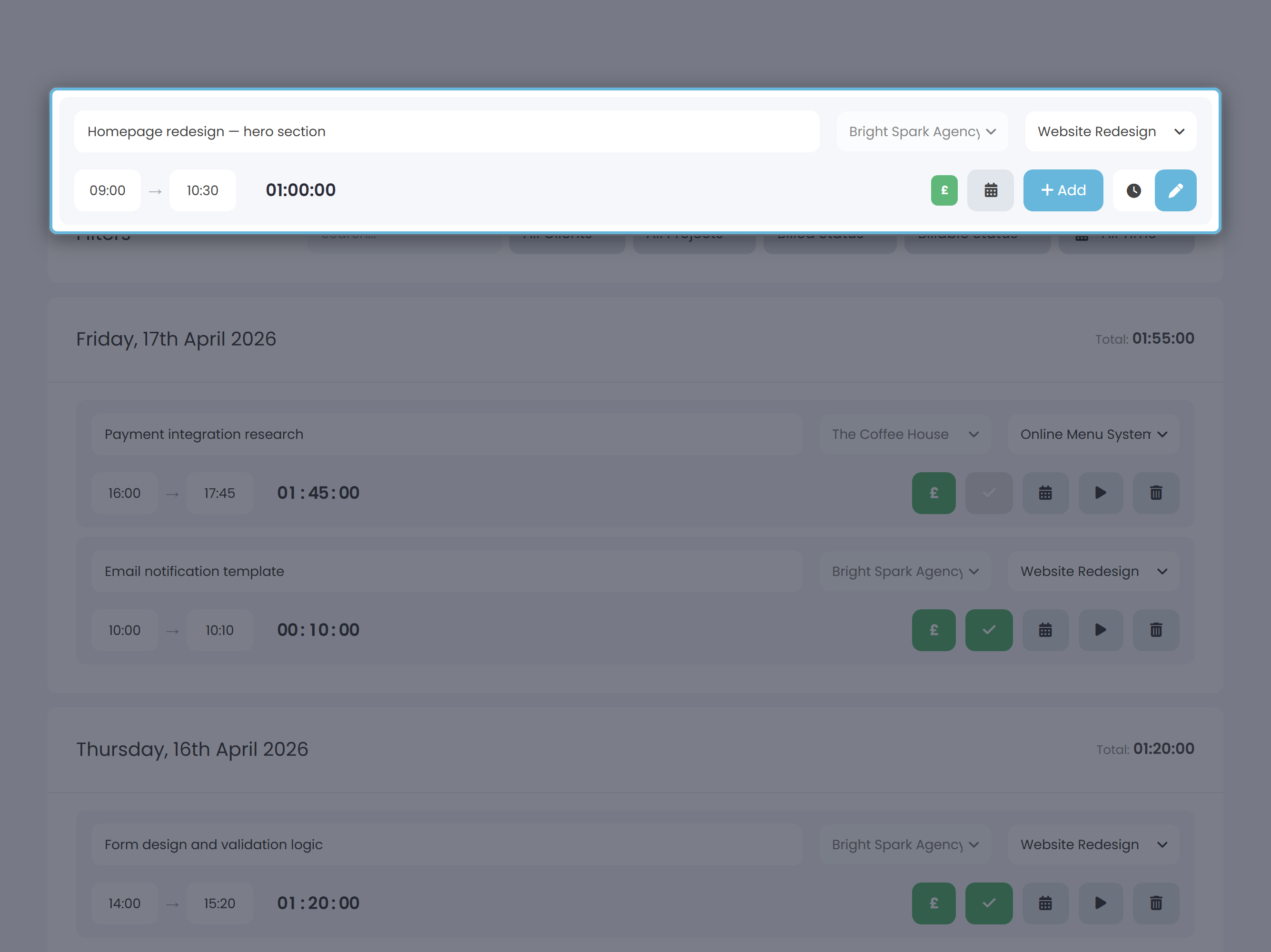
Yesterday a freelance designer worked from 14:00 to 16:00 on Acme - Website redesign - two hours of billable design work she didn't track at the time because she was deep in Figma. To log it after the fact:
- On the Time page, click the pen icon to switch to manual mode.
- Type Homepage mockups as the description, pick the Website redesign project (the Acme client auto-fills).
- Type 14:00 in Start and 16:00 in End. The Duration field shows
02:00:00. - Click the calendar icon, pick yesterday, then click Add. The entry slots into the time list under yesterday's date group.
Because the Acme project has a project hourly rate of £45, the entry is stamped at 2 × £45 = £90, ready to roll onto her next Acme invoice - same outcome as if she'd used the stopwatch in real time.
What happens when you click Add
The entry appears in the time list straight away - no refresh needed - in the date group for whichever date you picked. The form then clears for the next entry: description empties, client and project reset, Start and End jump back to “an hour ago” and “now”, billable goes back to on. You stay in manual mode, so catching up on a whole day of past work is quick.
Editing a manual entry
Once it's saved, a manual entry looks identical to a timer-tracked entry - Keepr doesn't distinguish the two. That means every editing trick that works on tracked time works here too:
| Click this | To do this |
|---|---|
| The description text | Edit what was worked on. Saves on blur. |
| The client or project dropdown | Change which client/project the entry belongs to. |
| The Start or End time | Adjust the times in the time-only picker. |
| £ button | Toggle billable / non-billable. |
| tick button | Toggle billed (whether the entry is on an invoice yet). |
| calendar icon | Move the entry to a different date. |
| ▶ play icon | Start a fresh timer using this entry's description, client and project. |
| trash icon | Delete the entry (with a confirmation prompt). |
Hourly rate and billable status
Manual entries follow the same rules as timer entries. The hourly rate cascade is project → client → account default - Keepr picks the first level with a value greater than zero and stamps that rate onto the entry the moment it saves, so raising your prices later doesn't rewrite history. Billable sets “I plan to charge for this”; billed tracks “this is on an invoice already” (Keepr flips it for you when you use Invoice unbilled time). Full cascade-and-snapshot detail in How to track time on a project - no exceptions for manual entries.