
How to start a project in Keepr
Group a client's work under a named project so your tasks, time and invoices all roll up in one place.
A project in Keepr is a named container for one piece of work: Logo + brand book for Acme Digital, July retainer for Smith & Co, Kitchen extension for the Patels. Once a project exists, every task, time log and invoice you tie to it rolls up into the same place - so you can answer “what's happening with Acme?” or “did I make money on that brand book?” without hunting. Setting one up takes about a minute.
Open the Add Project form
- In the sidebar, click + Add new... to reveal the quick-add menu.
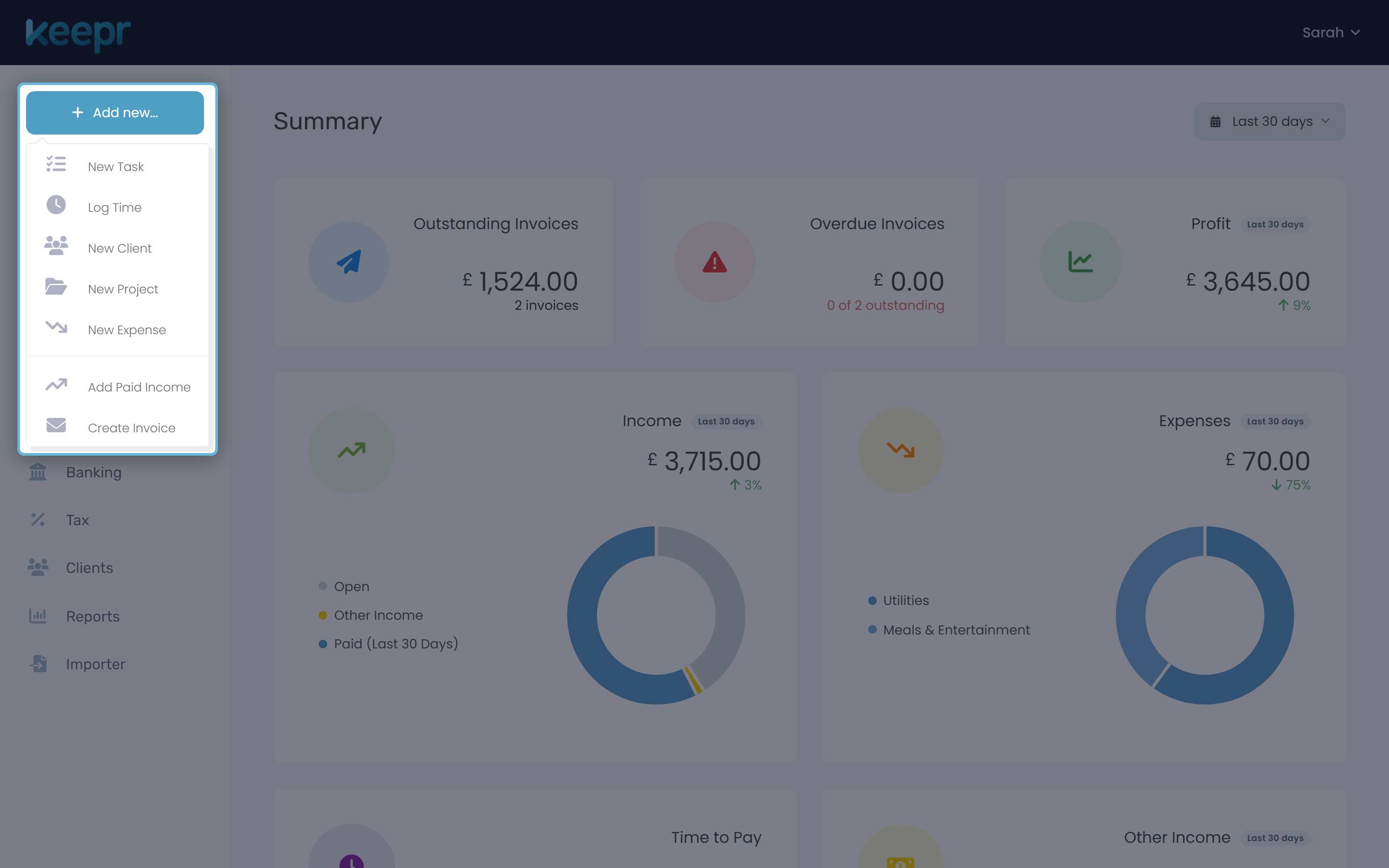
- Choose New Project (the folder icon). Keepr takes you to the Add Project page.
Fill in the two required fields
Only two fields are marked with a red asterisk: Project name and Client. Status is required too but defaults to Active, so you don't normally touch it.
- Type the Project name. Keep it short and recognisable - this is what shows up in dropdowns when you log time or create an invoice. Logo + brand book beats Acme job 2026.
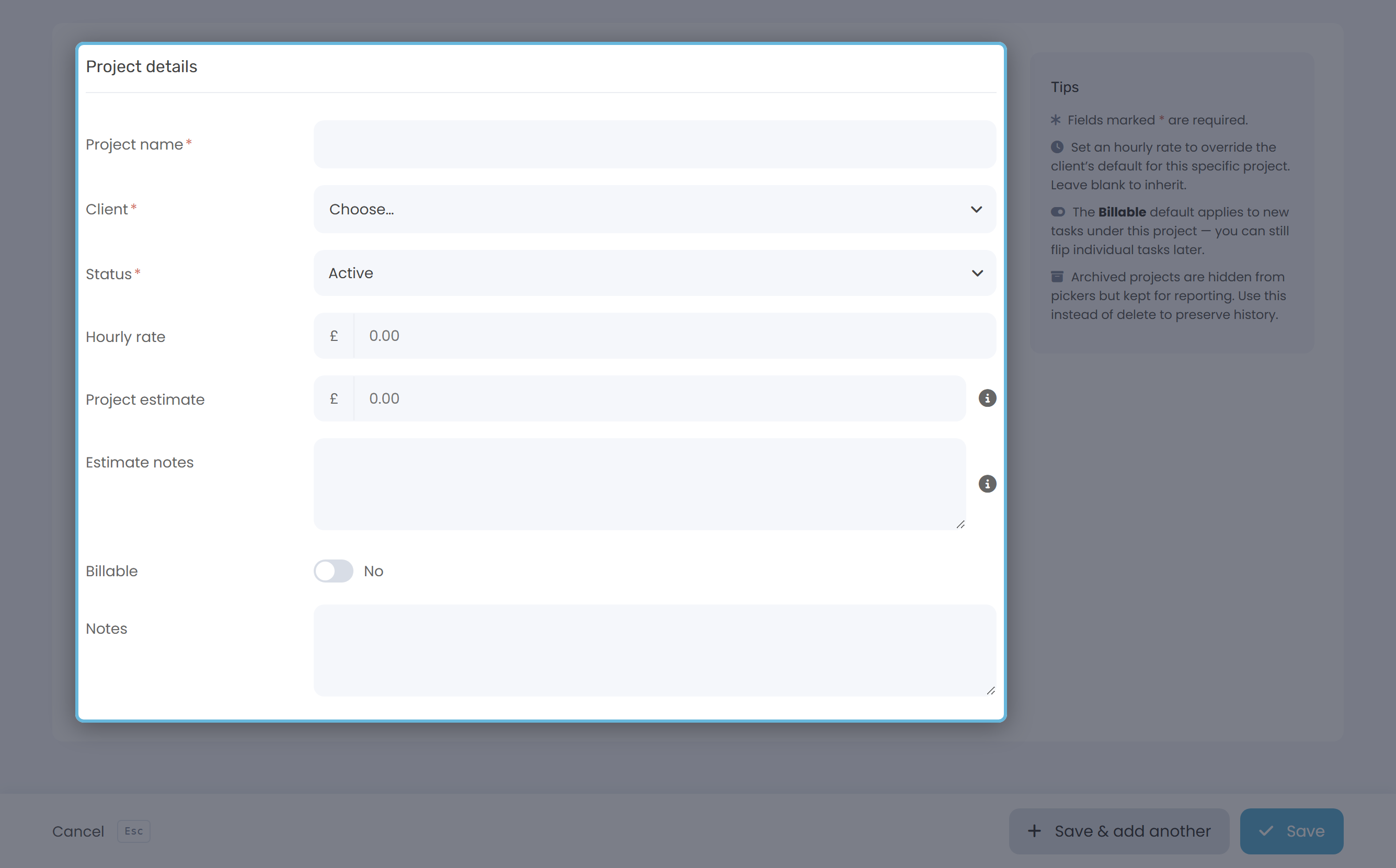
- Pick the Client from the dropdown. If they're not in Keepr yet, click + Add New Client at the top of the dropdown to create them on the spot without losing what you've typed.
Set an estimate (optional, but worth it)
The Project estimate is the agreed value of the work - the number you quoted the client. It's optional, but two things become much more useful once it's filled in:
Project Profitability - Keepr compares your estimate against the hours you actually log and flags projects where you've under-quoted. Invoice from project - you can generate a draft invoice for the agreed amount in two clicks instead of typing it from scratch.
- Type the agreed value into Project estimate - just the number, no currency symbol.
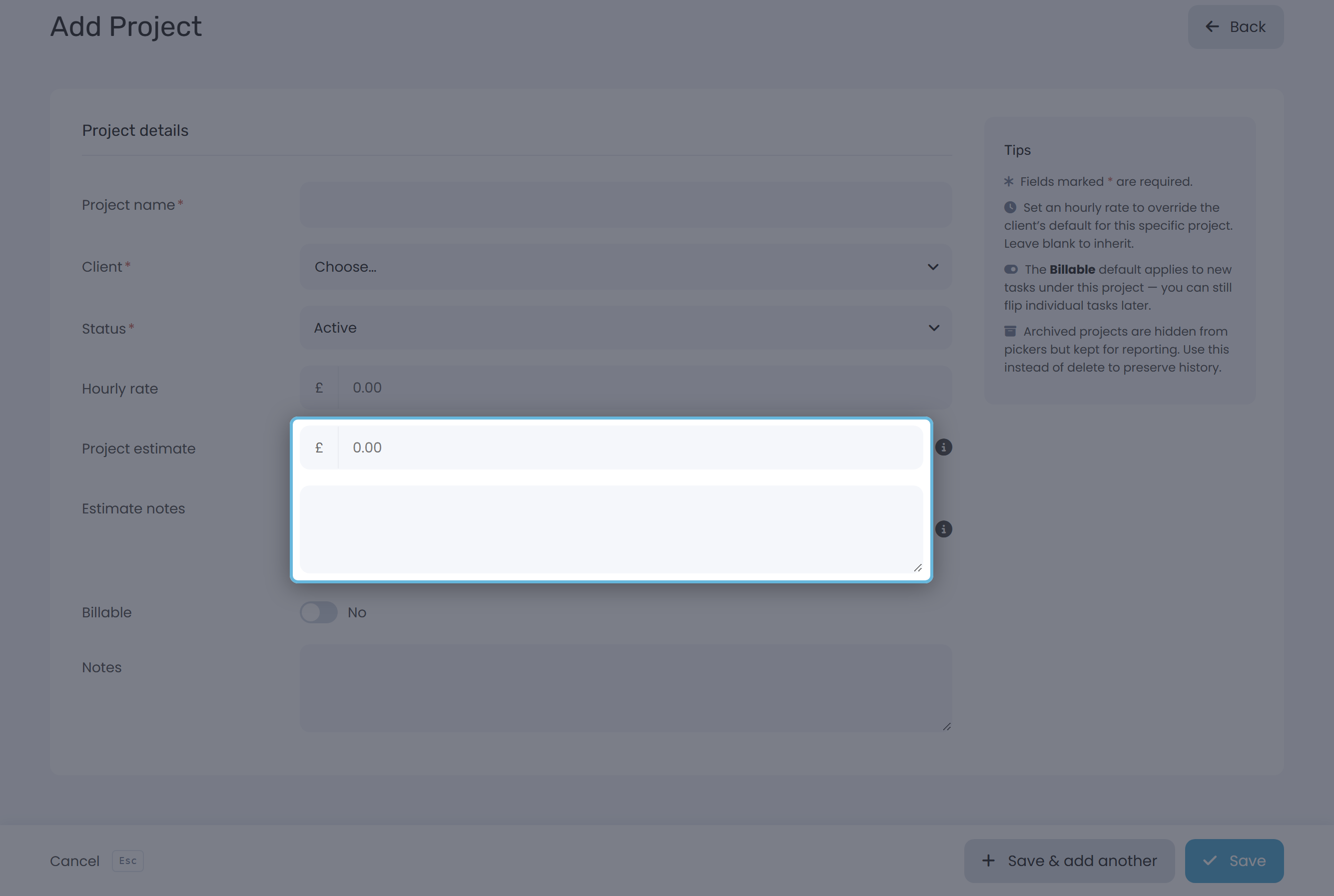
- Use Estimate notes to write down what's actually included. Scope reminders save arguments later: what's in, what isn't, how many rounds of revisions, what counts as extra.
Hourly rate, billable default, notes
The remaining fields are all optional. Skip them on day one if you like; you can fill them in later by clicking the project in your list.
| Field | What it does |
|---|---|
| Hourly rate | Overrides the client's default rate for time logged on this project. Leave blank to inherit the client rate (and that falls back to your default if the client doesn't have one). The field is read-only - click Change next to it to set a new rate. |
| Billable | Yes/No toggle that controls the default for new tasks under this project. You can still flip individual tasks later. |
| Notes | Free-form notes - meeting summaries, login URLs, anything you want kept with the project. |
Worked example
You're a web designer setting up the Acme brand-book job.
| Field | Value |
|---|---|
| Project name | Logo + brand book |
| Client | Acme Digital |
| Status | Active |
| Hourly rate | (blank - inherits Acme's client rate) |
| Project estimate | £2,000.00 |
| Estimate notes | Logo concepts (3 rounds), final logo files, 1-page brand book PDF. Doesn't include print collateral or social templates. |
| Billable | Yes |
Save and link your work
Hit Save at the bottom of the form. Keepr drops you back on the project list with a green confirmation toast. From here, three things plug into the project:
- Tasks - when you create a task (+ Add new... → New Task), pick this project in the Project dropdown. Existing tasks can be re-pointed by editing them.
- Time entries - the timer on the Time page has a Project picker. Choose this project before you hit Start, and Keepr ties the hours to it. Manual time logs work the same way.
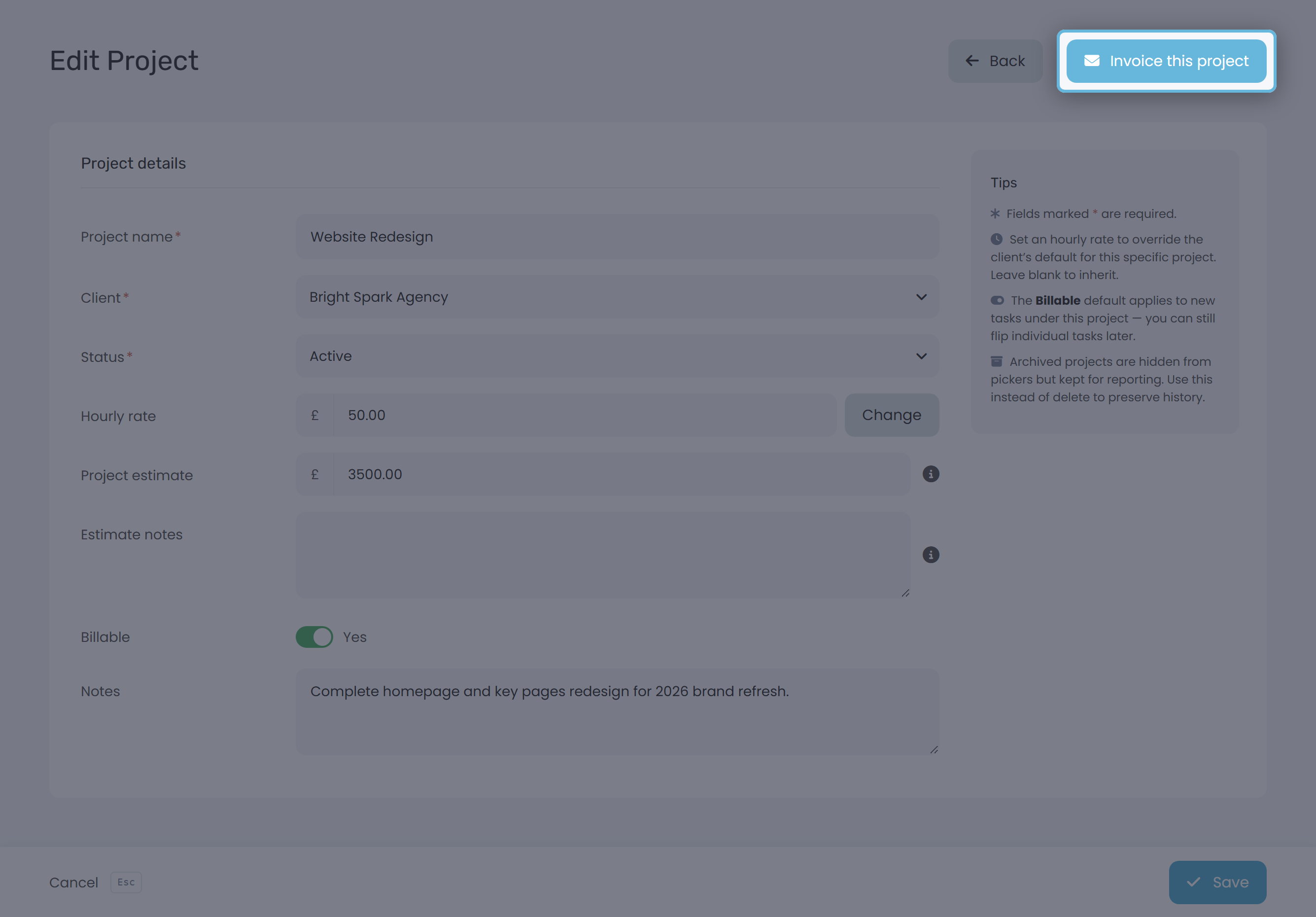
- Invoices - open the project, click Invoice this project next to the Back button. Keepr opens Add Invoice pre-filled with this client and the estimate as a single line.
Active vs archived
When a project finishes, edit it and switch Status from Active to Archived. Archived projects disappear from the Project pickers on the Task form, the Time page and the Invoice from Project list - so they stop cluttering your day-to-day - but they stay in your reports for history.
Editing a project later
Open your projects list at Projects, click the row, and you'll land on the same form titled Edit Project. Change anything - estimate, rate, billable default, status - and hit Save again. Everything already linked to the project (tasks, time, invoices) stays linked.