
Welcome to Keepr - a 5-minute tour
What Keepr does, what's on your dashboard, and what to do next - in the time it takes to make a cup of tea.
Welcome to Keepr. This is a quick tour - by the end you'll know what Keepr does, what's on your dashboard, and which page to open next. Give it five minutes.
What Keepr is
Keepr is a bookkeeping and invoicing tool for UK freelancers, sole traders, and small limited-company directors. It bundles invoices, expenses, other income, time tracking, tasks, projects, clients, reports, and an HMRC tax estimate into one place - no row limits on the Free tier.
Your dashboard
The page you're looking at now is the Summary - your dashboard. Top right there's a period selector (default Last 30 days) that controls the time-windowed cards. Below the cards is a 6-month Profit & Loss chart.
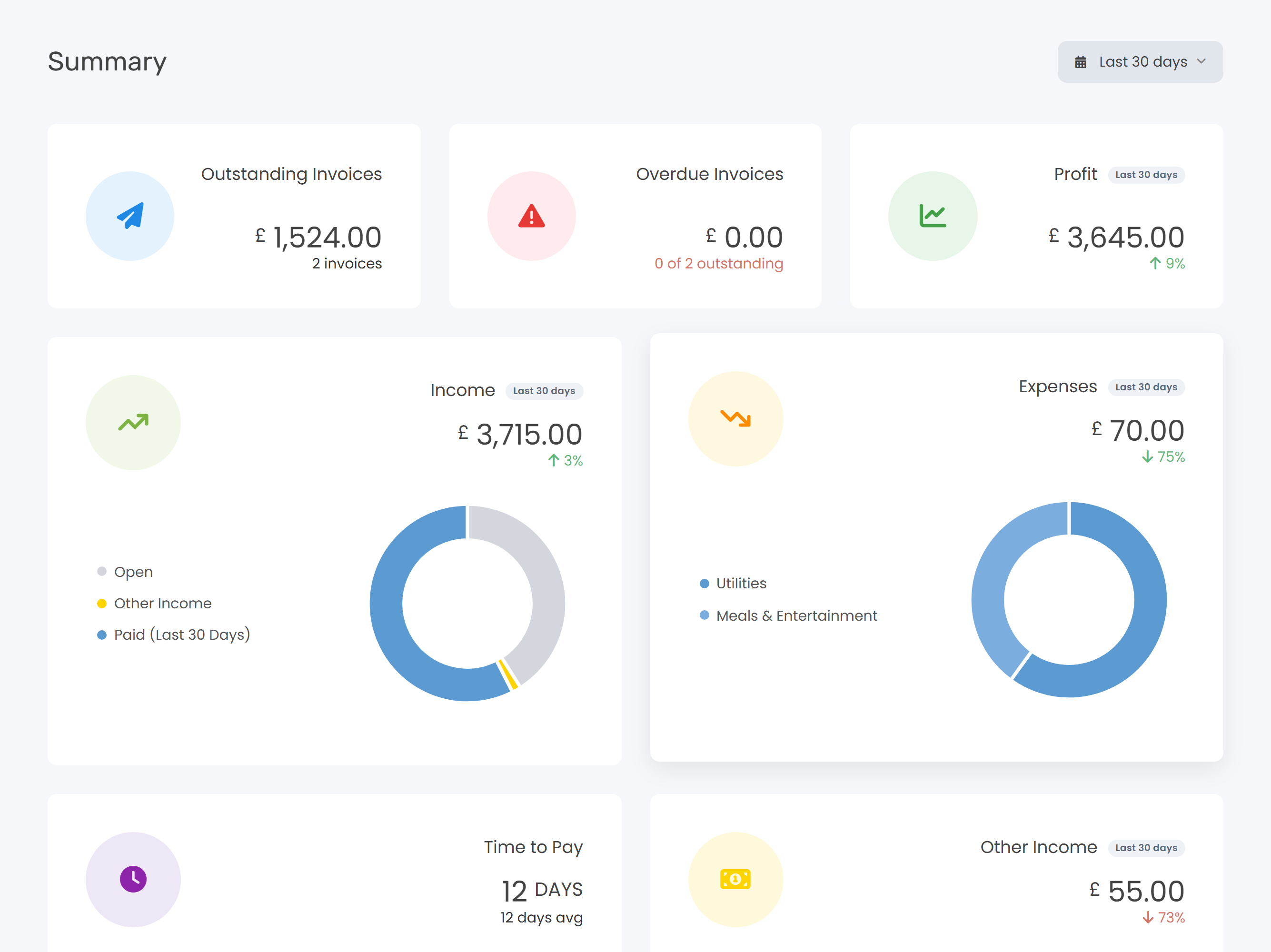
Here's what each card means:
| Card | What it shows |
|---|---|
| Outstanding Invoices | Sent invoices not yet paid. |
| Overdue Invoices | Sent invoices past their due date. |
| Profit | Income minus expenses for the period. Opens Profit & Loss. |
| Income | Invoices and other income for the period, with a status donut. |
| Expenses | Total expenses for the period, with a top-categories donut. |
| Time to Pay | Average days from invoice to payment. |
| Other Income | Non-invoice income (ad-hoc payments) for the period. |
| Time Tracked | Hours tracked in the period, broken down by project. |
| Unbilled Time | Billable time you haven't yet put on an invoice. |
| Tax Estimate | Estimated HMRC bill. Self Assessment for sole traders, Corporation Tax for limited companies. |
The sidebar
The menu down the left is the main way you'll move around Keepr. Here's a one-liner for each item:
| Menu item | What it's for |
|---|---|
| Summary | The dashboard you're on now. |
| Today | Your AI-built daily work plan, drawn from your tasks. |
| Time | Start and stop the timer, edit time entries, see daily totals. |
| Tasks | Your to-do list, with priorities, due dates, and projects. |
| Income | Every invoice and other income payment in one list. |
| Expenses | Log expenses, manage categories, and (on Pro) set up recurring ones. |
| Tax | Making Tax Digital submissions to HMRC. |
| Clients | Your client directory - names, addresses, rates. |
| Reports | Profit & Loss, tax summary, revenue by client, time summary, and more. |
| Importer | CSV import for clients, invoices, and expenses. |
Invoices don't get their own menu item - they live inside Income alongside other types of income. You'll see them all together in one list.
The + Add new button
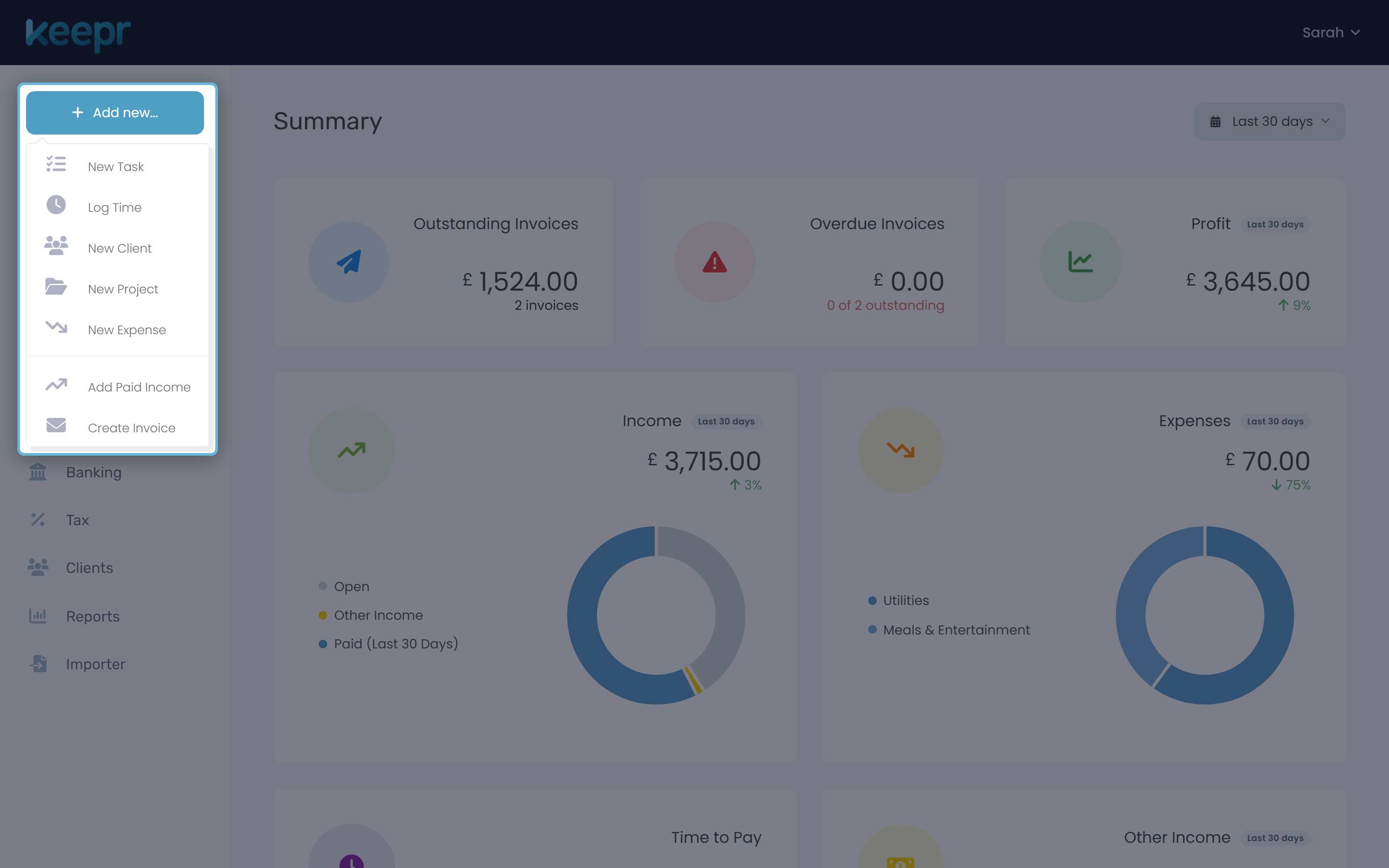
At the top of the sidebar there's a blue + Add new... button. This is the fastest way to create anything in Keepr from any page.
Pro vs Free at a glance
Free is genuinely unlimited - no caps on anything. The only difference between Free and Pro is automation:
| Free | Pro | |
|---|---|---|
| Price | £0 forever | £9/mo, or £7/mo billed annually |
| Clients, invoices, expenses, tasks, time | Unlimited | Unlimited |
| All reports | Included | Included |
| Stripe payment links on invoices | Yes (2.5% + 20p fee) | Yes (1.5% + 20p fee) |
| Recurring invoices | Manual only | Automatic |
| Payment reminders | Manual resend | Automatic on a schedule |
| Receipt OCR (auto-fill from photo) | - | Included |
| Custom invoice branding | - | Included |
Where to go next
There's no single right order, but most new users find this sequence painless:
- Start with Setting up your business profile. Invoices won't send without your address filled in.
- Then send your first invoice - a couple of minutes once your profile is set.
- When the receipts land, learn how to record an expense.
- If you bill by the hour, set up time tracking on a project.
- Got a regular client? Try recurring invoices (Pro).
- Once you've got some data in, look at reading your Profit & Loss.