
Setting up your business profile in Keepr
Add your company name, address, contact email, and tax details so they appear on every invoice you send.
Your business profile is the company information that appears on every invoice, email, and report Keepr creates. Open Settings → Business from the account menu in the top-right, then fill in your company name, address, business email, and postcode. Setup takes about two minutes.
Where to find Settings
- Click your name in the top-right corner of any page.
- Choose Settings from the dropdown menu. The page opens with the Business tab active.
The eight Settings tabs
It helps to know what each tab is for before you start. You only need the Business tab to complete your profile.
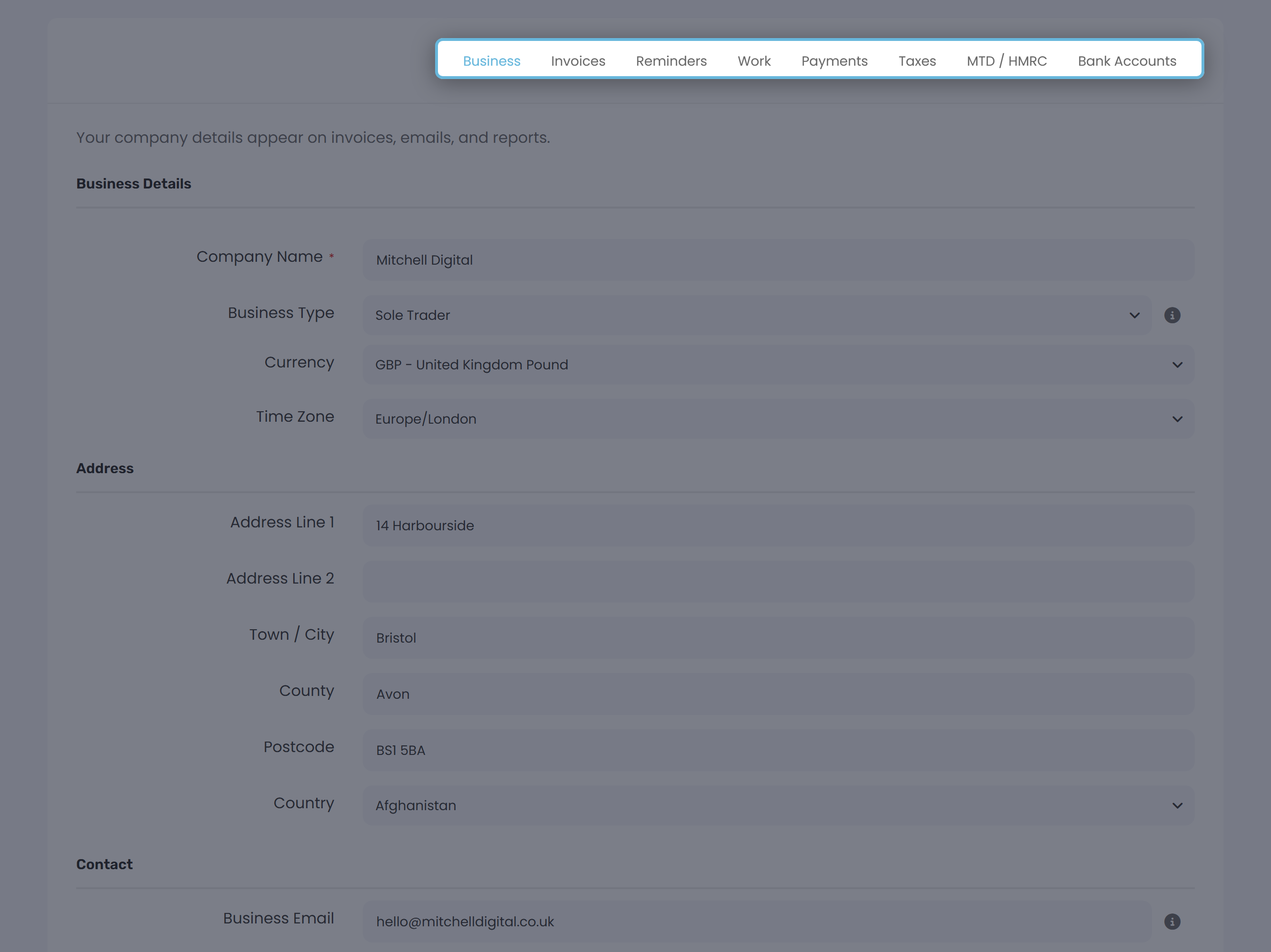
| Tab | What it controls |
|---|---|
| Business | Company name, address, contact email and phone, currency, VAT number. |
| Invoices | Invoice numbering, default terms, template, branding (Pro), logo (Pro). |
| Reminders | Automatic chase-up emails for unpaid invoices (Pro only). |
| Work | Work day and project settings. |
| Payments | Stripe Connect - accepting card payments on invoices. |
| Taxes | Your tax rates list (e.g. VAT 20%). |
| MTD / HMRC | Making Tax Digital connection (shown when eligible). |
Filling in the Business tab
The Business tab has four sections: Business Details, Address, Contact, and Tax Information. Work through them top to bottom.
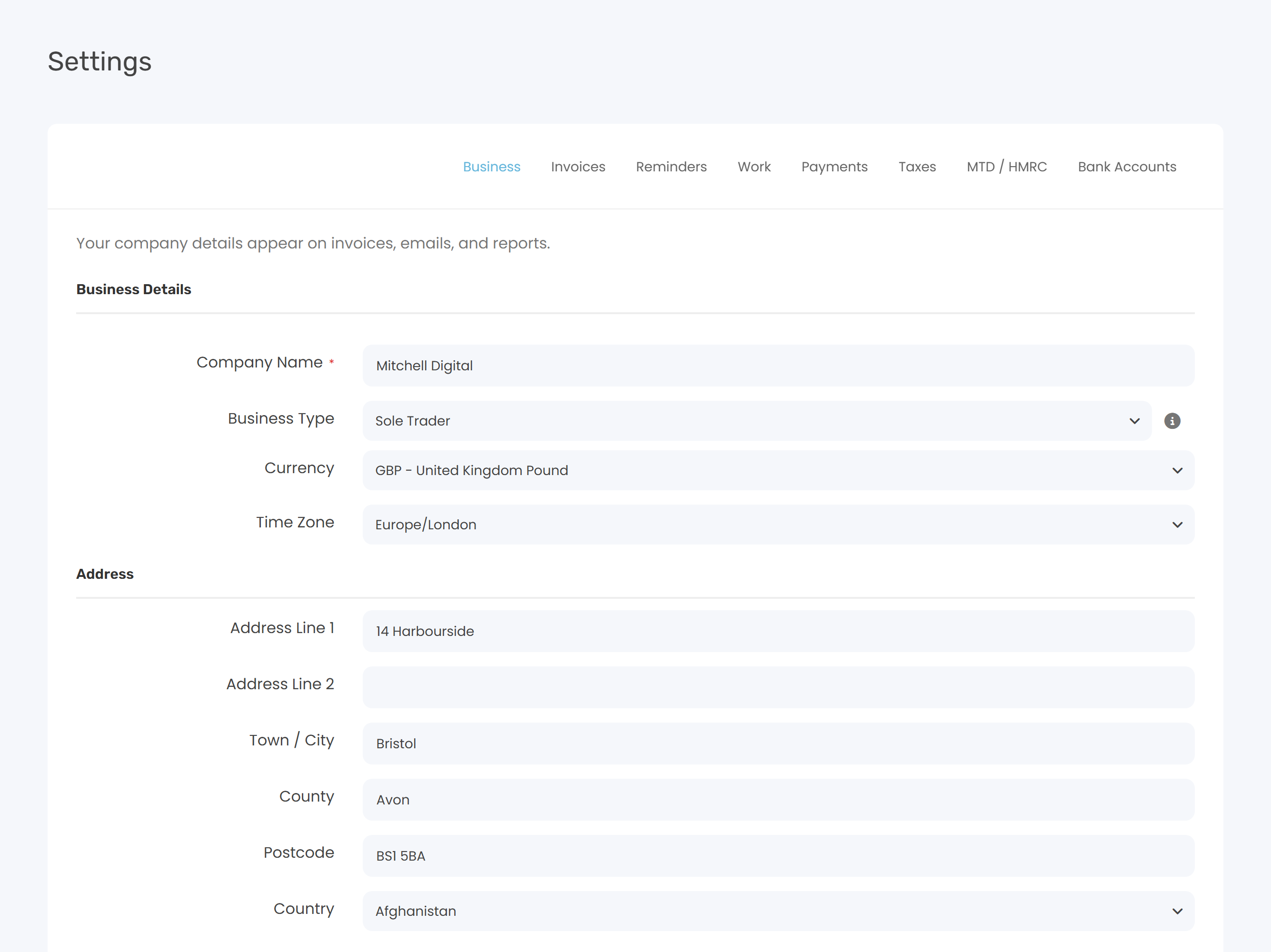
Business Details
- Company Name - the trading name shown at the top of every invoice. Marked with a red asterisk because it is required.
- Business Type - choose Sole Trader or Limited Company. This affects which tax features Keepr shows you (for example, the Self Assessment estimate for sole traders or the Corporation Tax estimate for limited companies).
- Financial Year End - only appears if you chose Limited Company. Pick the day and month your accounting year ends (for example, 31 March).
- Currency - the currency your invoices are issued in. Defaults to your account currency.
- Time Zone - controls dates and times throughout the app. Defaults to Europe/London.
Address
Fill in your registered business address. If you trade from home, use your home address. Country defaults to United Kingdom.
- Address Line 1 - house number and street.
- Address Line 2 - optional second line.
- Town / City.
- County - optional.
- Postcode.
- Country.
Contact
- Business Email - shown on invoices so clients know how to reach you about billing. This is different from your Keepr login email.
- Business Phone - optional. Shown on invoices if you provide one.
Tax Information
VAT Number - only fill this in if you are VAT-registered with HMRC. When set, your VAT number appears on every invoice. Leave it blank if you are not registered.
The four fields you must complete before sending invoices
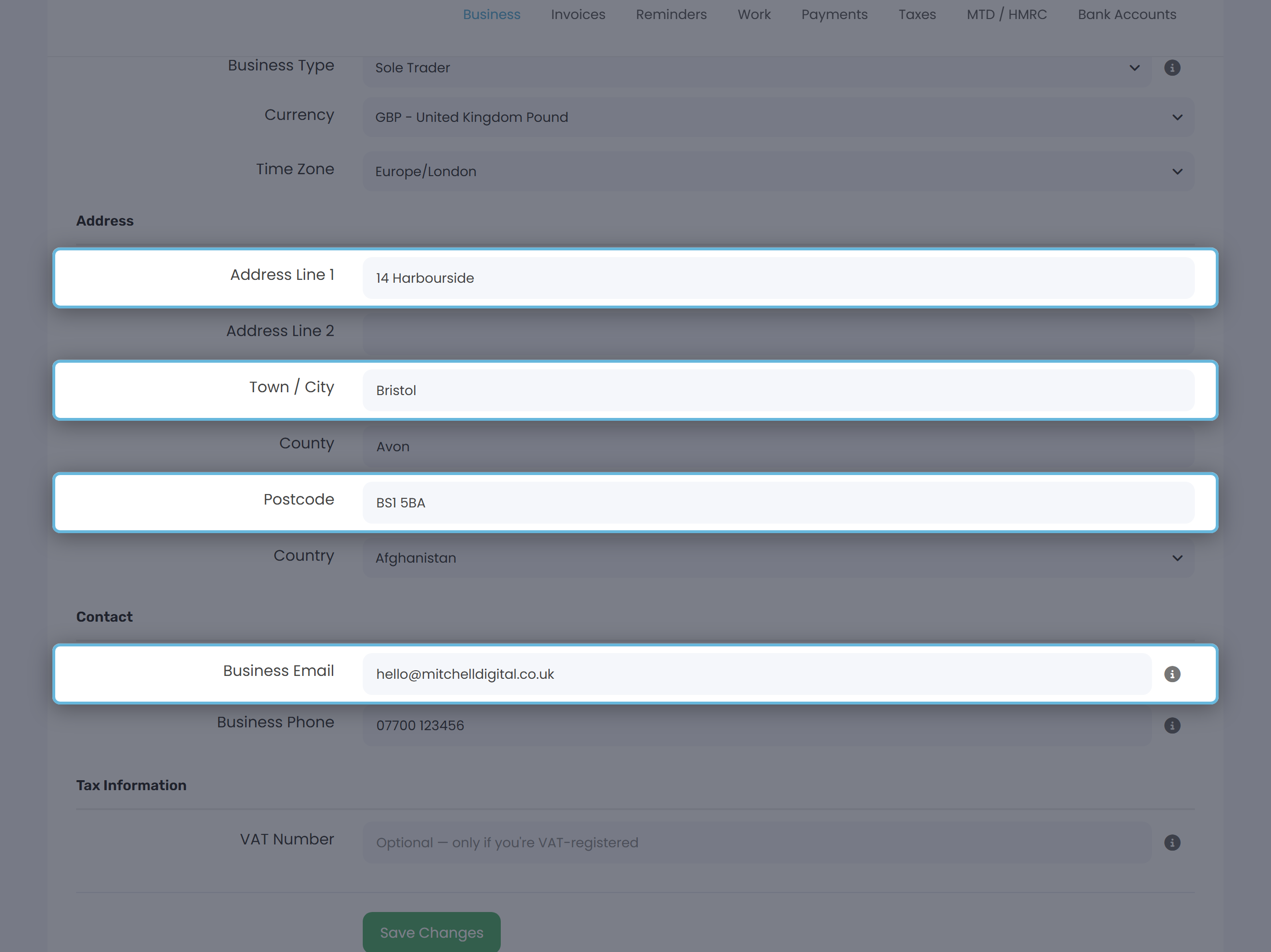
Keepr only marks Company Name with a red asterisk on the form, but the invoice-send check will block you if any of these four are empty:
| Field | Why it's required |
|---|---|
| Business Email | Used as the reply-to address when you send invoices. |
| Address Line 1 | Appears in the invoice header. |
| Town / City | Appears in the invoice header. |
| Postcode | Appears in the invoice header. |
Branding your invoices (Pro)
The Business tab itself is identical for Free and Pro users. The settings that change how your invoices look live on the Invoices tab. Free users get the Modern template; Pro users can also set:
- Invoice Template - pick from the full template gallery.
- Accent Colour - your brand colour, applied to the PDF and email header.
- Font - Helvetica, Georgia, Courier, or Times New Roman.
- Logo - upload a PNG or JPG up to 2MB.