
Setting up recurring invoices in Keepr
Bill the same client on a repeating schedule. Keepr writes and emails each new invoice for you.
To set up a recurring invoice in Keepr, create an invoice as normal - then flip the Repeat this invoice? toggle on the form to Yes. Pick a start date and a recurrence (for example, every month), then save. Keepr stores the invoice as a template and generates each new one on schedule, emailing it to your client automatically.
How to set one up
Create an ordinary invoice and tick a box that says do this one again every month (or week, or year). The invoice you just filled in becomes the first one in the schedule.
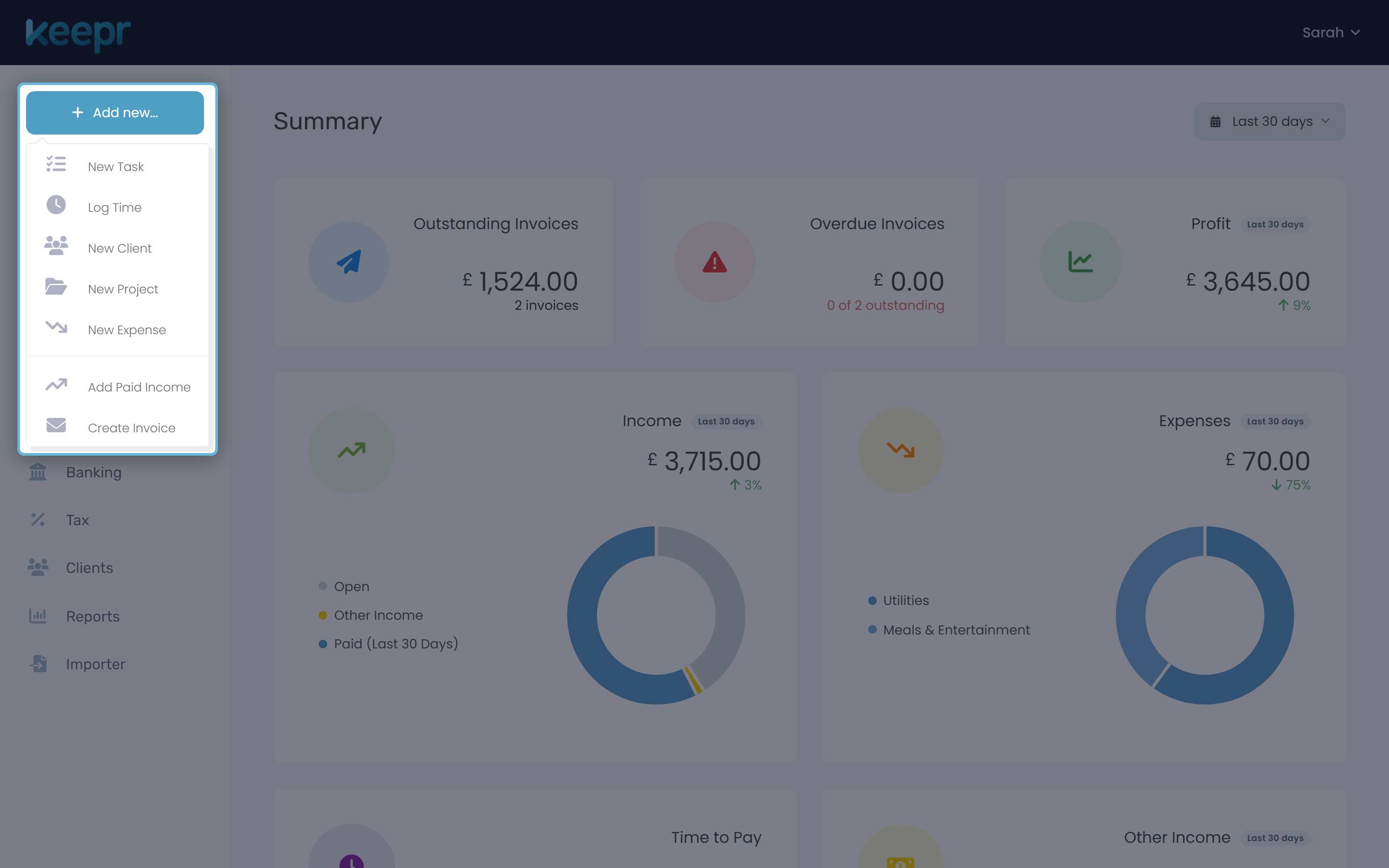
- Click + Add new in the sidebar and choose Create Invoice.
- Pick the Client. If they're not saved yet, click + Add New Client to add them inline.
- Fill in your line items just like any other invoice - product or service, description, quantity, rate, tax. The amounts you set here will be repeated on every future invoice.
- Find the Repeat this invoice? toggle and flip it to Yes. Three new fields appear: Start date, Recur every, and How many times.
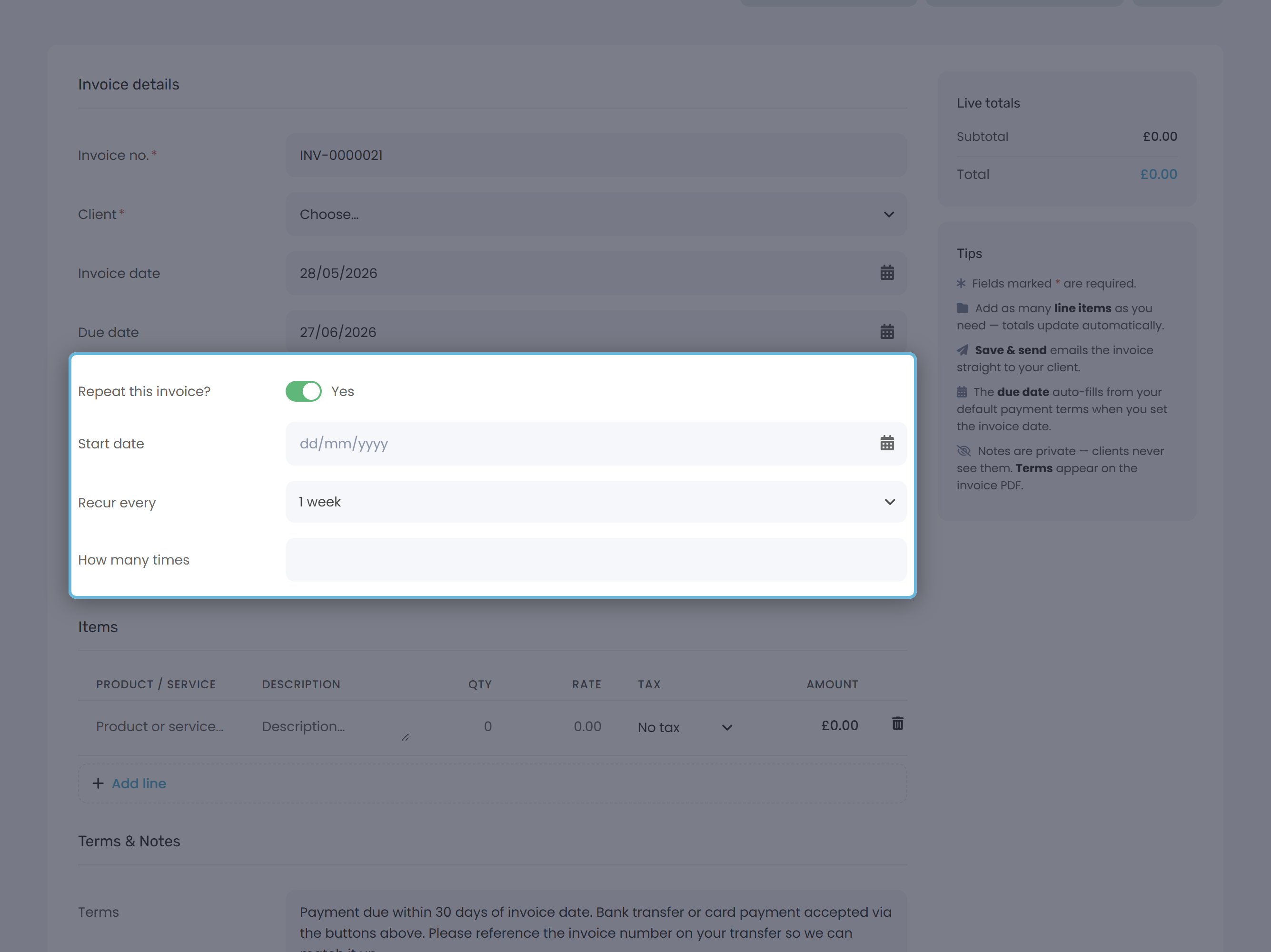
- Set Start date to when the first invoice should go out, pick a Recur every interval (for example, 1 month), and leave How many times blank for an open-ended schedule (or type a number to cap it).
- Click Save as normal. Keepr does two things in one go: it creates this first invoice and starts the recurring schedule. The invoice you just saved is the first one in the series.
Schedule options
The Recur every dropdown covers everything from a weekly round to a multi-year subscription:
| Interval | Typical use |
|---|---|
| 1 week, 2 weeks, 3 weeks | Weekly services like cleaning, tutoring, or coaching. |
| 1 month, 2 months, 3 months, 6 months | Retainers and subscriptions. |
| 1 year, 2 years, 3 years | Annual licences or long-cycle agreements. |
How many times is optional. Leave it blank for an open-ended schedule that runs until you turn it off. Type a number (for example, 12) to cap the run after that many invoices.
A worked example
You're a freelance designer on a £400 monthly retainer with Acme Ltd. Create a new invoice, pick Acme Ltd as the client, and add one line: Monthly retainer, qty 1, rate £400, tax VAT 20%. The invoice total comes to £480.
Flip Repeat this invoice? to Yes. Set Start date to the 1st of next month, Recur every to 1 month, and leave How many times blank. Save.
On the 1st of every month from now on, Keepr creates a fresh invoice with the same line, the same total, and emails it to Acme. You don't lift a finger.
Starting in the past (backfill)
If you pick a Start date that's already gone, Keepr fills in the missing invoices for you so your records line up. Each backfilled invoice is created as a draft - nothing is auto-emailed to the client. You review them and decide what to send.
Starting today
If your start date is today, the first invoice goes out immediately when you save. Keepr double-checks with a popup: Send the first invoice today? Click Yes, send it to confirm, or No, change date to push it back.
How Keepr generates each invoice
Every day, Keepr checks each schedule you've got running and asks: is it time to issue the next one? When it is, Keepr:
- Creates a new invoice with a fresh invoice number, copying the lines, totals, terms and notes from the original.
- Sets the invoice date to the recurrence date and the due date to one week later.
- Emails it to the client - provided the client has an email address saved. If they don't, the invoice is created but the email step is skipped, so you can send it manually.
Seeing every active schedule
To see every recurring schedule you have running in one place, open the Income page and click the Recurring button. The list shows every schedule with its status, recurrence and last-issued date.
| You want to... | Do this |
|---|---|
| Pause the schedule | Open any invoice in the series, flip Repeat this invoice? to No, save. |
| Resume it | Flip Repeat this invoice? back to Yes on a linked invoice and save. |
| Change every future invoice | Edit the template at Recurring Invoices. Future invoices use the new values. |
| Fix one specific invoice | Edit it from Invoices. The template isn't touched. |