
Setting up tax preferences in Keepr
Add the tax rates you charge - usually VAT - so they're one click away on every invoice line and expense.
If you charge your customers tax - most often UK VAT - Keepr needs to know the rates you use before it can offer them on invoices and expenses. You set this up once in Settings → Taxes, and every invoice line and expense form from then on has a Tax dropdown with your rates ready to go.
Where the Taxes tab lives
- Click your name in the top-right corner of any page and choose Settings.
- Click the Taxes tab - it's the sixth tab along, after Business, Invoices, Reminders, Work, and Payments.
What a tax rate is in Keepr
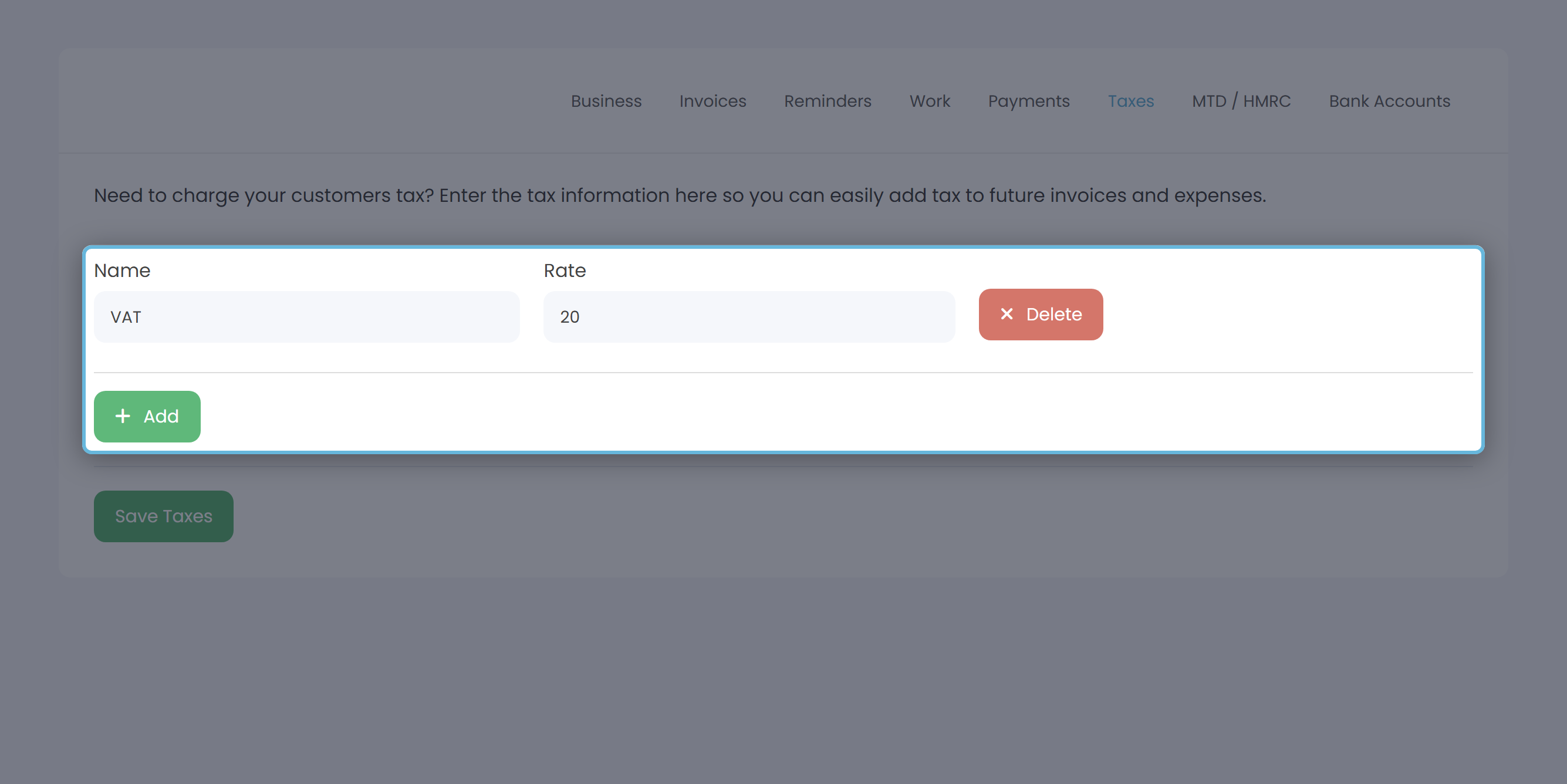
A tax rate in Keepr is just a label plus a percentage - for example, the name VAT paired with the rate 20. Whatever you type as the Name is exactly what appears in your Tax dropdowns later, so keep it short and recognisable. Keepr has no built-in concept of VAT or any specific jurisdiction; you name the rates, you choose when to apply them.
Adding a tax rate
- On the Taxes tab, fill in the first empty row. Name - what you want to call the rate (e.g. VAT). Rate - the percentage as a number, with no
%sign (e.g.20for 20%). - To add another rate, click the green + Add button below the list. A new blank row appears.
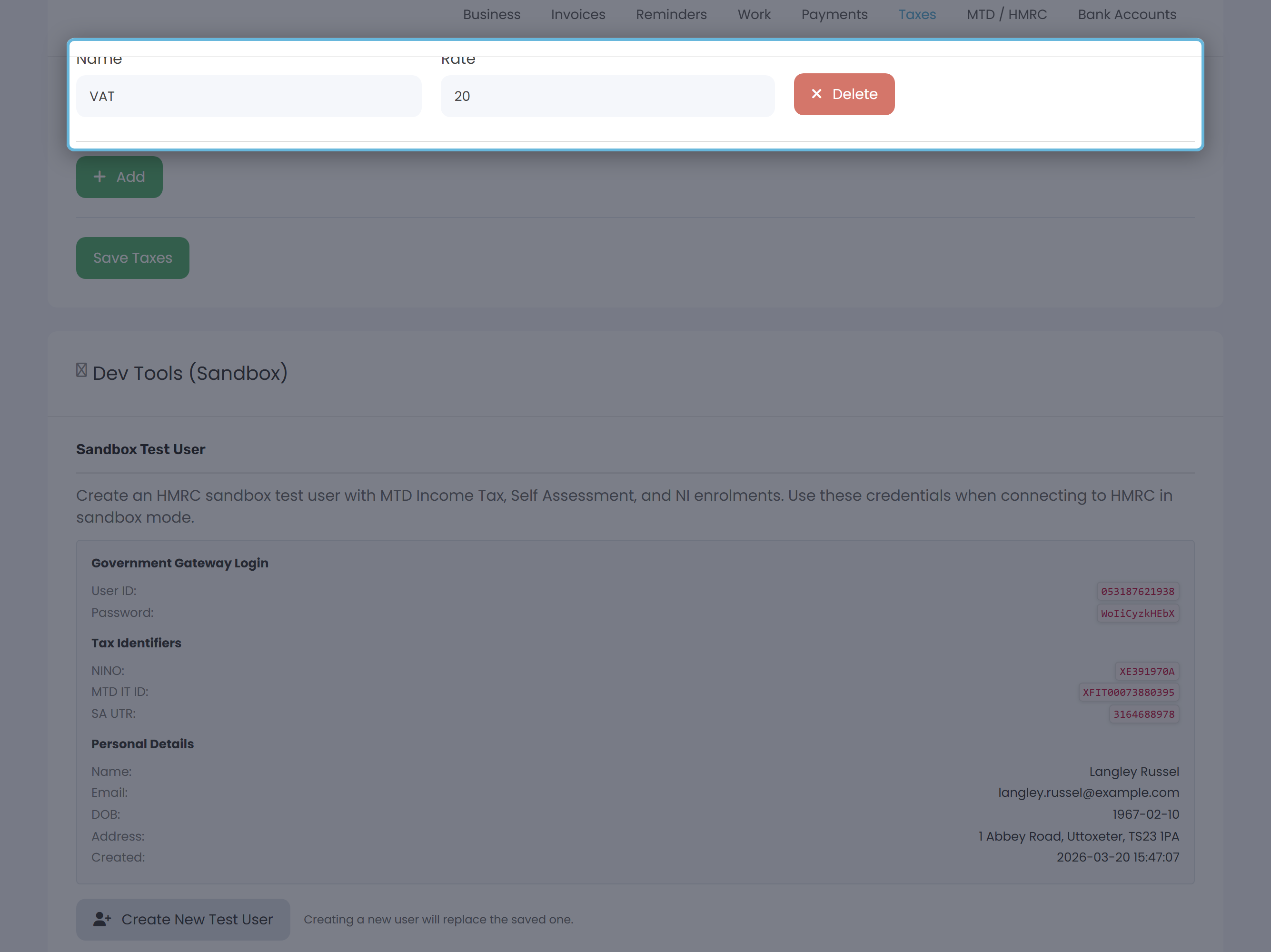
- Click the green Save Taxes button at the bottom.
Worked example: a VAT-registered freelancer
Say you're a UK freelancer who's just crossed the VAT threshold and registered with HMRC. Most of your work is charged at the standard rate, but you occasionally invoice for something that qualifies for the reduced rate. You'd set up two rates:
| Name | Rate |
|---|---|
| VAT | 20 |
| Reduced VAT | 5 |
From now on, every invoice line and expense gives you VAT - 20%, Reduced VAT - 5%, and - No Tax as choices in its Tax dropdown.
Where your rates show up
On invoices
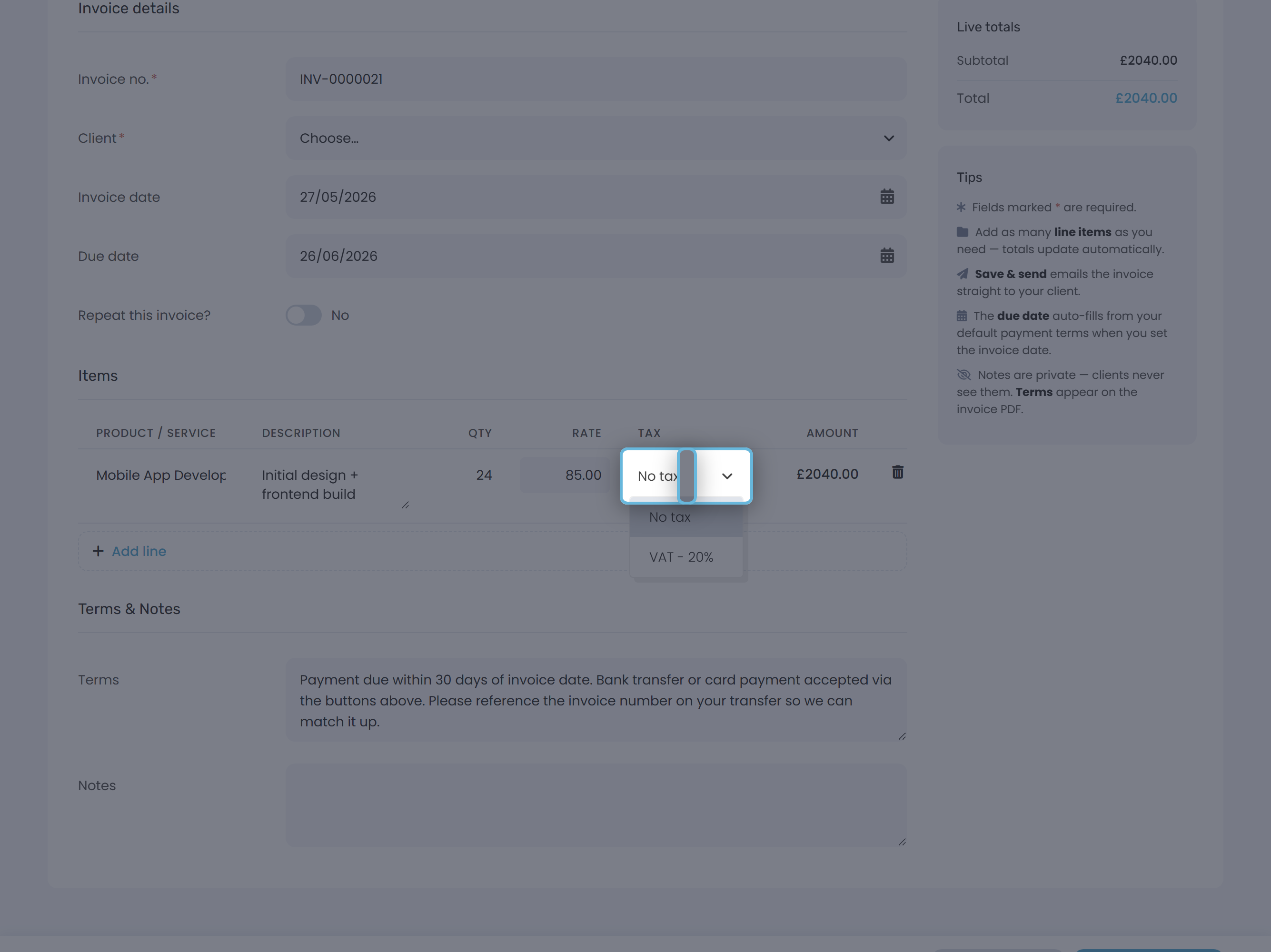
Each invoice line has its own Tax dropdown. Pick a rate per line - different lines can use different rates. The totals card and the rendered PDF group lines by tax name, showing a separate total per rate (two lines tagged VAT aggregate into a single VAT (20%) row).
On expenses
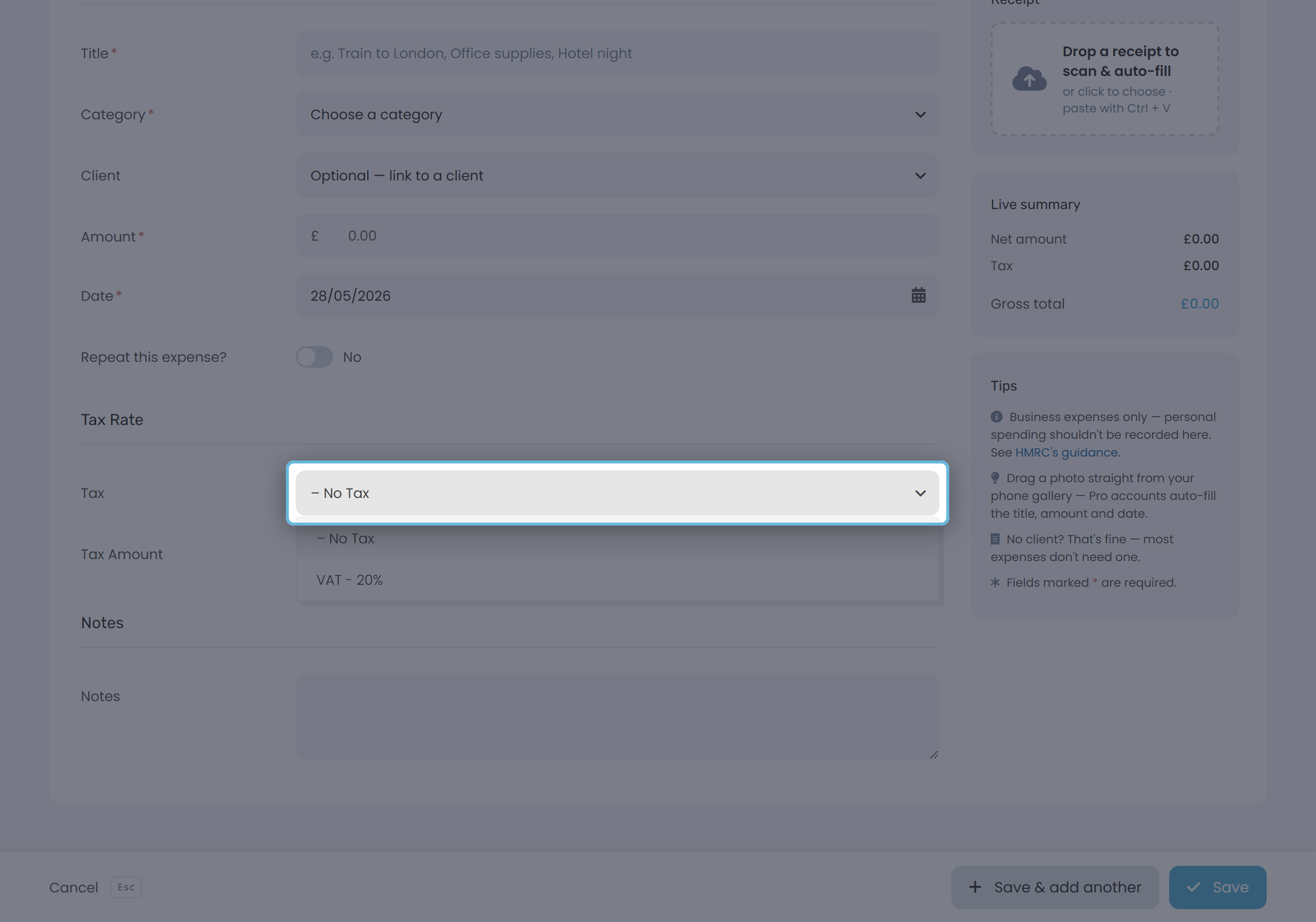
The Add Expense form has a single Tax dropdown that uses the same list. Pick a rate and the live summary recalculates: tax is added to the net amount you entered, so net + tax = gross. Leave it on - No Tax for expenses you can't reclaim VAT on (or if you're not VAT-registered).
Editing or removing a rate
- To rename or change a percentage, just edit the row in place and click Save Taxes.
- To remove a rate, click the red Delete button on its row. Keepr asks "Are you sure you want to delete this tax item?" - choose Yes, then click Save Taxes.
What this tab does not control
The Taxes tab is only about the tax rates you apply on invoices and expenses. A few related things live elsewhere:
| Setting | Where it lives |
|---|---|
| Business type (sole trader / limited company) | Settings → Business - see Setting up your business profile. |
| Financial year end (limited companies) | Settings → Business. |
| Your VAT number (shown on invoices) | Settings → Business, Tax Information section. |
| MTD connection to HMRC | Settings → MTD / HMRC (shown when eligible). |
| Self Assessment income tax bands | Built in - Keepr uses HMRC's published bands. |
A quick note on UK VAT
You only need to register for VAT once your VAT-taxable turnover passes £90,000 in any rolling 12-month period (HMRC's threshold from 1 April 2024). The UK has three main rates: standard (20%), reduced (5%) for things like domestic energy, and zero-rated (0%) for most food, books, and children's clothing. Most freelancers only ever use the standard rate.