
How to send your first invoice in Keepr
From a fresh Keepr account to an invoice landing in your client's inbox in under five minutes.
To send your first invoice in Keepr, open the + Add new menu in the sidebar, pick Create Invoice, choose a client, add at least one line item, then click Save & send. Keepr emails the invoice to your client and tracks when they open it.
This guide walks you through every step, including the two things that catch first-timers out: your business address and your client's email.
Before you start: two boxes to tick
Keepr needs a few details before it will send an invoice on your behalf. If anything is missing, the Save & send button will stop you and point you to the right settings page.
| What's needed | Where to add it |
|---|---|
| Business Email, Address line 1, Town / City, Postcode | Settings → Business tab |
| Your client's email address | Clients → open the client → edit |
Step 1: Open the Add Invoice form
- Click the + Add new button at the top of the left sidebar.
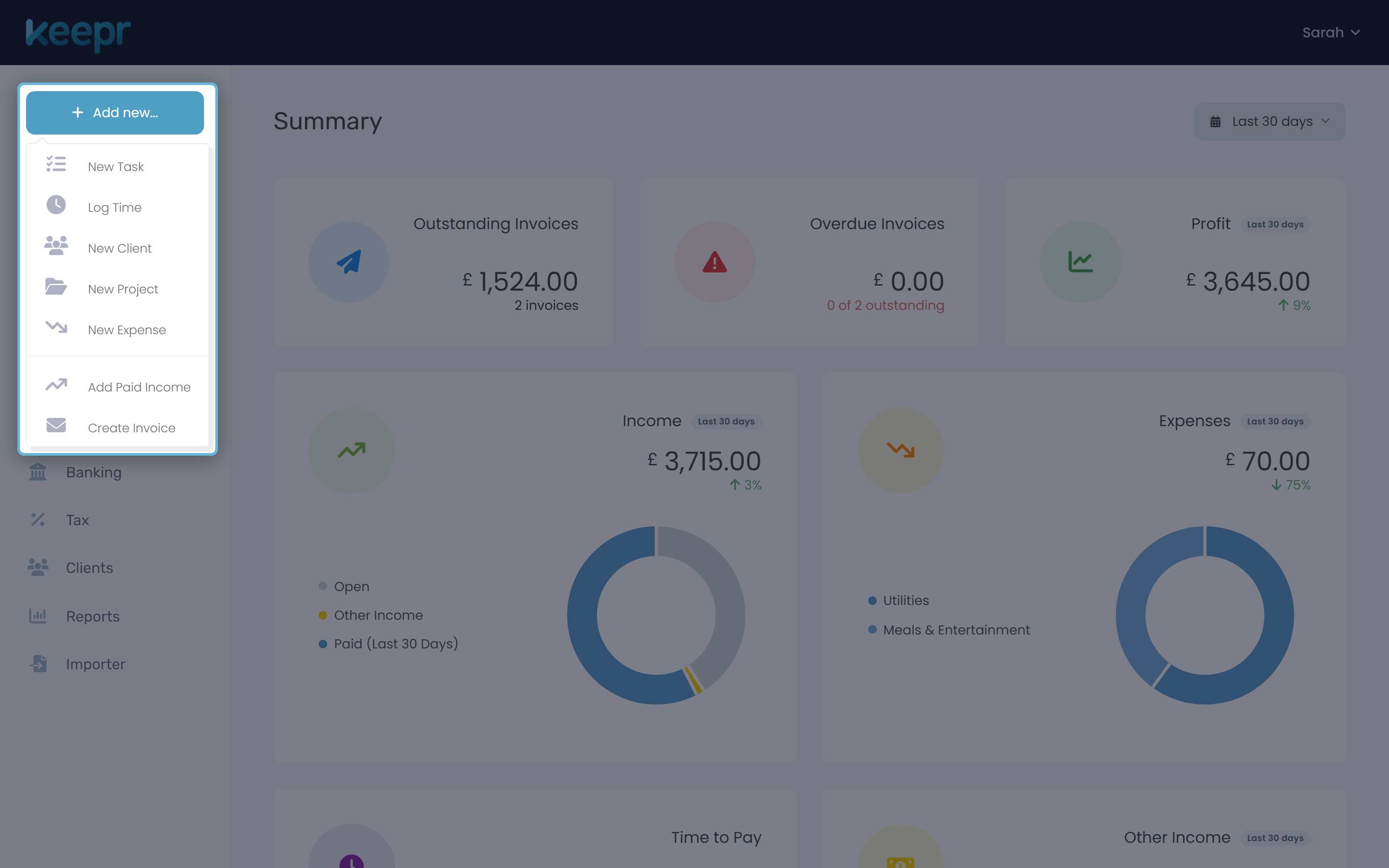
- Choose Create Invoice from the menu.
- You land on the Add Invoice page at Add Invoice.
Step 2: Fill in the invoice details
The first section is Invoice details. The invoice number (something like INV-0000001) is filled in for you. You shouldn't need to touch it.
- Click the Client dropdown. It shows "Choose..." until you pick one.
- If your client is already saved, type a few letters in the Start typing... box and select them. If not, click + Add New Client, type the client's name, and submit. Keepr selects them for you and stays on the invoice form.
- Check the Invoice date. The Due date auto-fills based on your default payment terms once you set the invoice date.
Step 3: Add your line items
Each line item is one thing you're charging for. The columns are Product / Service, Description, Qty, Rate, Tax, and Amount.
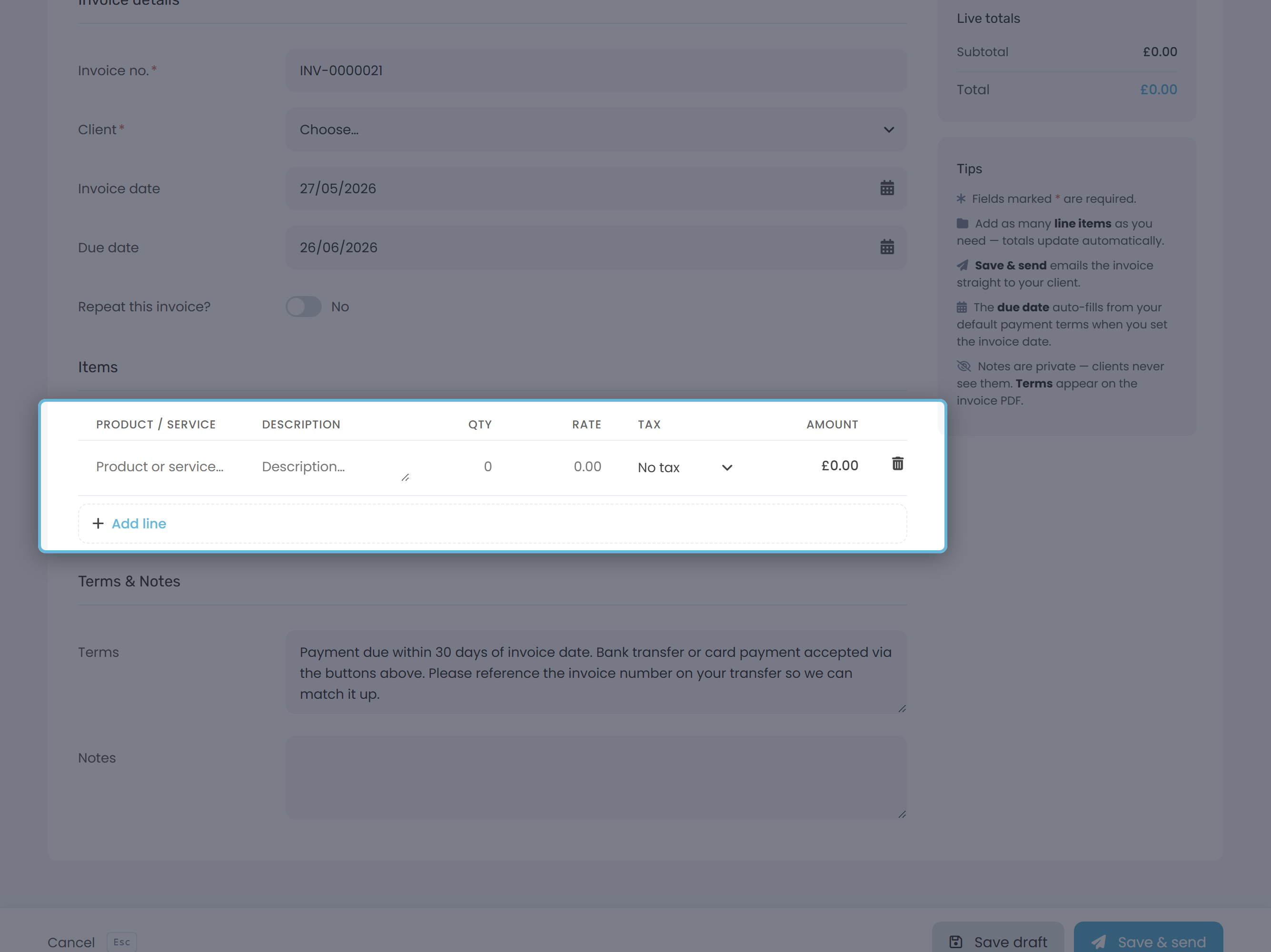
- Type what you did into Product / Service (for example, "Logo design").
- Add a short Description if you want to spell out what the client is paying for.
- Set Qty and Rate. The Amount column fills itself in - it's quantity times rate.
- If you charge VAT or another tax, pick it from the Tax column.
- Need another row? Click + Add line below the table. To remove a row, click the trash-can icon at the end of it.
Step 4: Check the Live totals card
On the right of the page sits the Live totals card. It updates every time you change a row, showing Subtotal, a row per tax rate (for example "VAT (20%)"), and the Total.
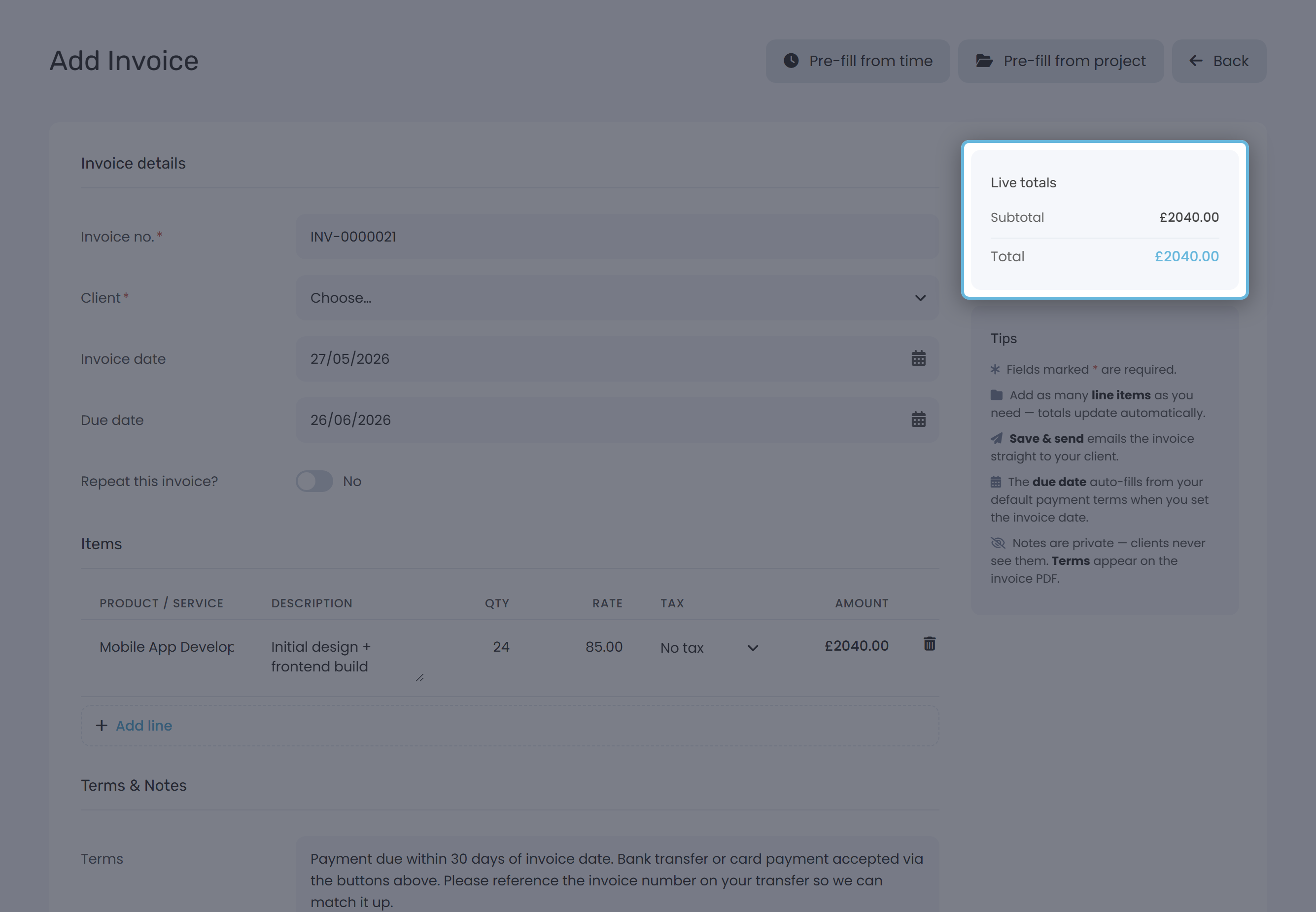
A worked example: 1 logo at £400, plus 2 hours of revisions at £50, with VAT at 20%. Subtotal £500, VAT £100, Total £600.
Step 5: Save & send
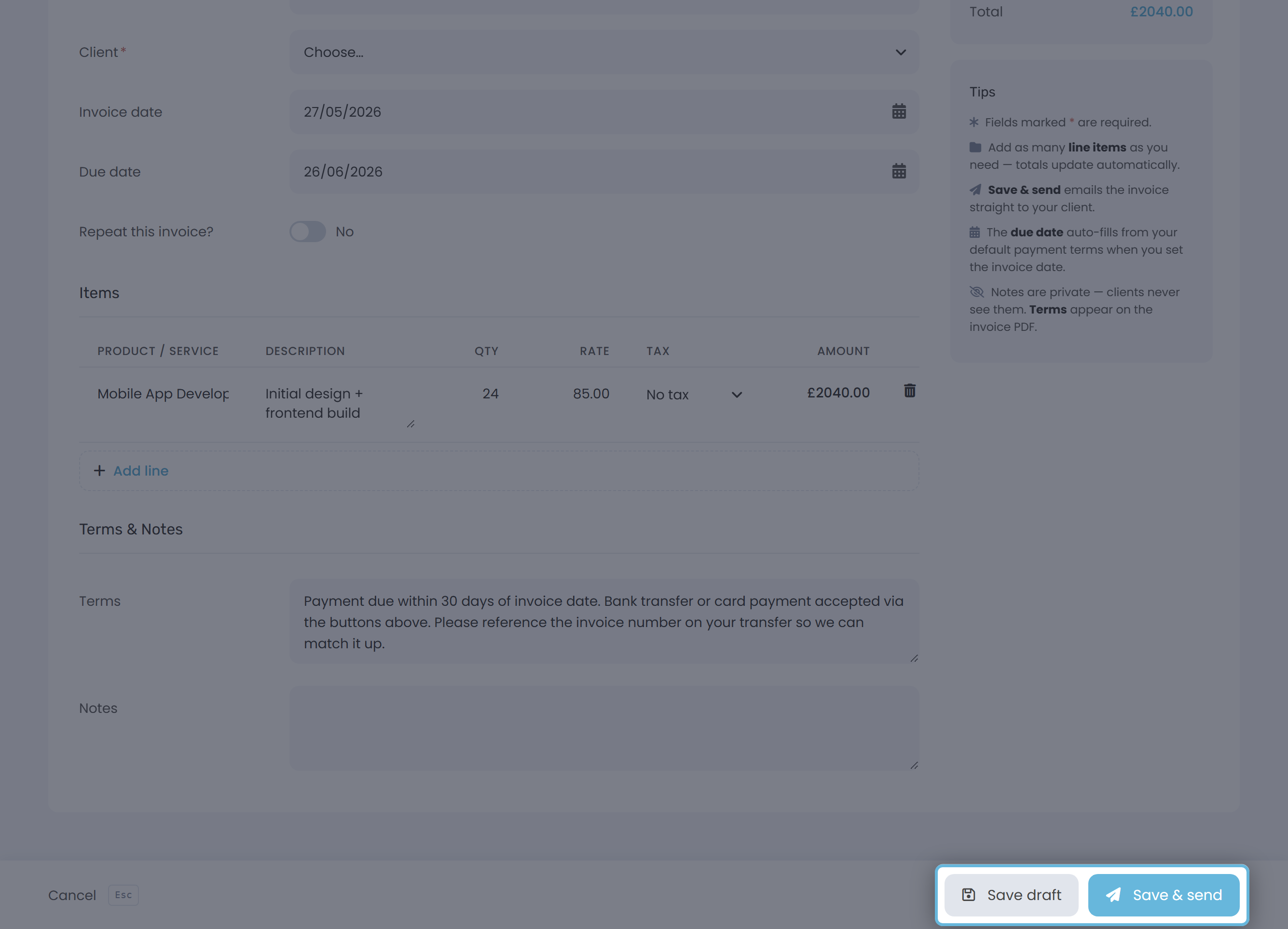
At the bottom of the page is a sticky bar. On the right you'll see Preview, Save draft, and Save & send. (Preview only appears once the invoice has been saved at least once.)
| Button | What it does |
|---|---|
| Save draft | Saves the invoice without emailing the client. You can come back and edit it. |
| Save & send | Saves the invoice and emails it to the client straight away. |
| Preview | Opens a preview in a new tab. Only appears once the invoice has been saved at least once. |
Click Save & send. If everything checks out, you'll see "Invoice INV-XXXXXXX saved and sent" and you'll be taken back to your invoices list.
What happens after you send
Every invoice has a status. Yours moves through these as the client interacts with it:
| Status | Meaning |
|---|---|
| Draft | Saved but not emailed yet. |
| Sent | Keepr has emailed the invoice to your client. |
| Viewed | The client has opened the invoice link. |
| Paid | The full amount has been recorded against the invoice. |
| Partial | Some of the invoice has been paid. |
Your client gets an email with a link to a public invoice page. They don't need a Keepr account to view it or pay.
Editing or resending an invoice
Need to fix a typo? Open the invoice and click Edit. Saving an edit does not automatically email your client again - but the public link they already have always shows the latest saved version.
To nudge a client manually, use the Resend button on the invoice. That triggers a fresh email.
Getting paid by card
If you connect Stripe under Settings → Payment processors, invoices of £50 or more show a Pay with Card button on the public invoice page. Stripe charges 1.5% + 20p per UK card transaction. Keepr adds its own fee on top: 1% on the Free plan, 0% on Pro.