
Setting up recurring expenses in Keepr
Log a repeating business cost once and let Keepr add it to your books every week, month or year.
To set up a recurring expense in Keepr, add an expense as normal - then flip the Repeat this expense? toggle to Yes. Pick a start date and a recurrence (for example, every month), then save. Keepr saves the schedule and logs each new copy automatically, with the same title, amount, tax and category.
Set one up from the expense form
If you've never recorded an expense before, see How to record an expense first.
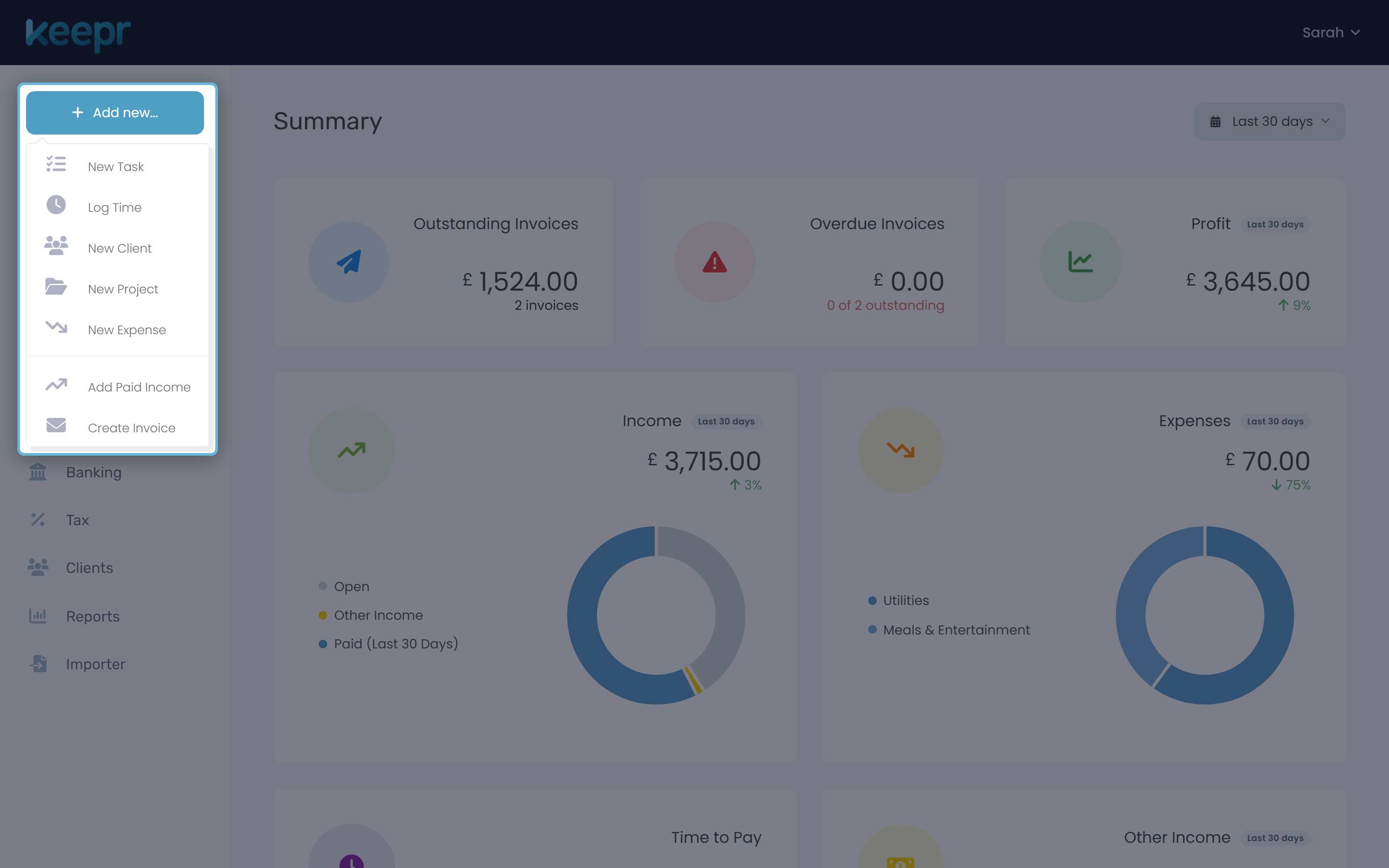
- Click + Add new... in the sidebar and choose New Expense.
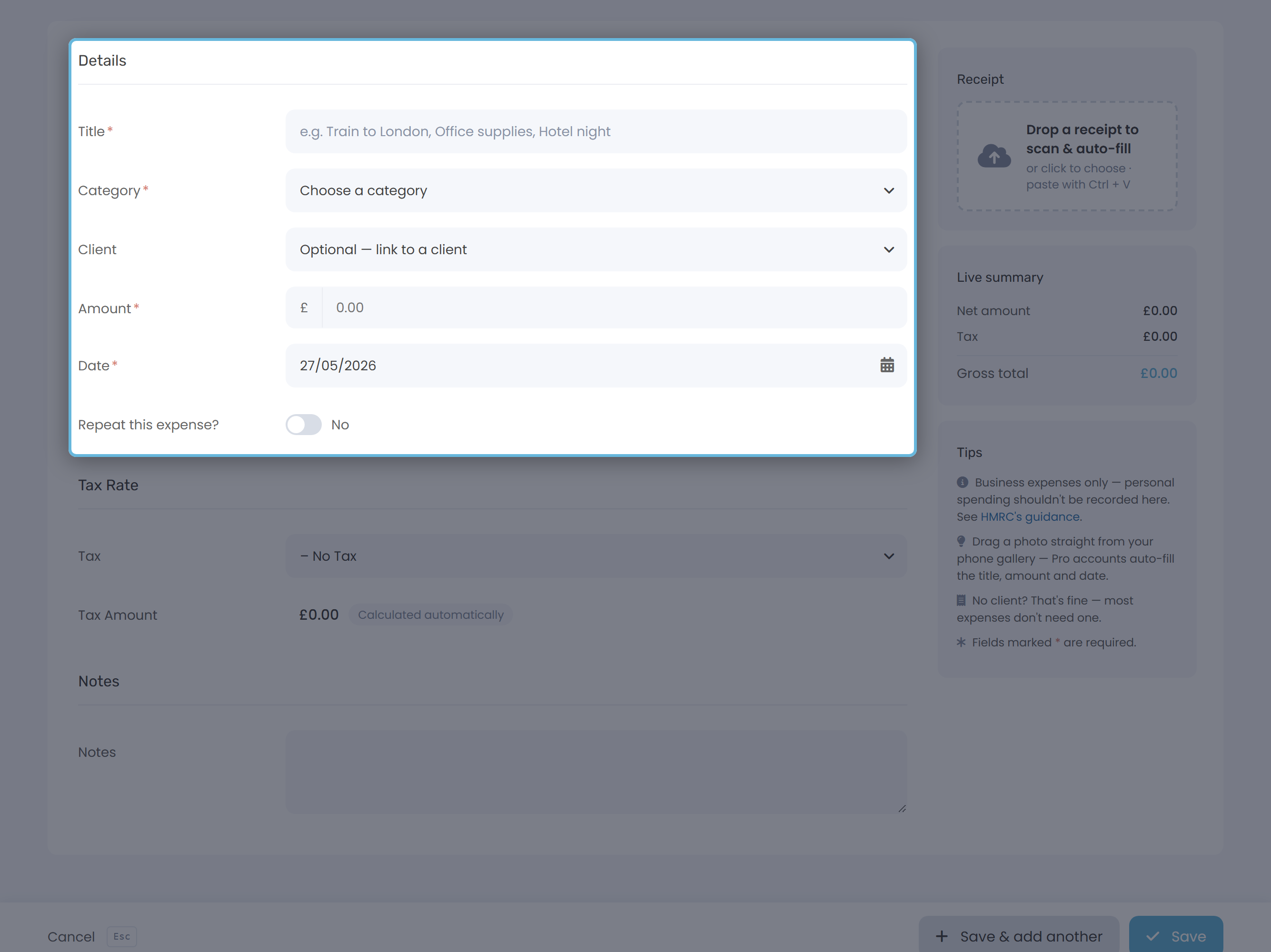
- Fill in the four required fields under Expense Details: Title, Category, Amount and Date. The values you set here will be reused on every future copy.
- Pick a Tax rate if the cost has VAT or another tax on it. Keepr works out the tax amount for you.
- Find the Repeat this expense? toggle and flip it to Yes. Three new fields appear: Start date, Recur every and How many times.
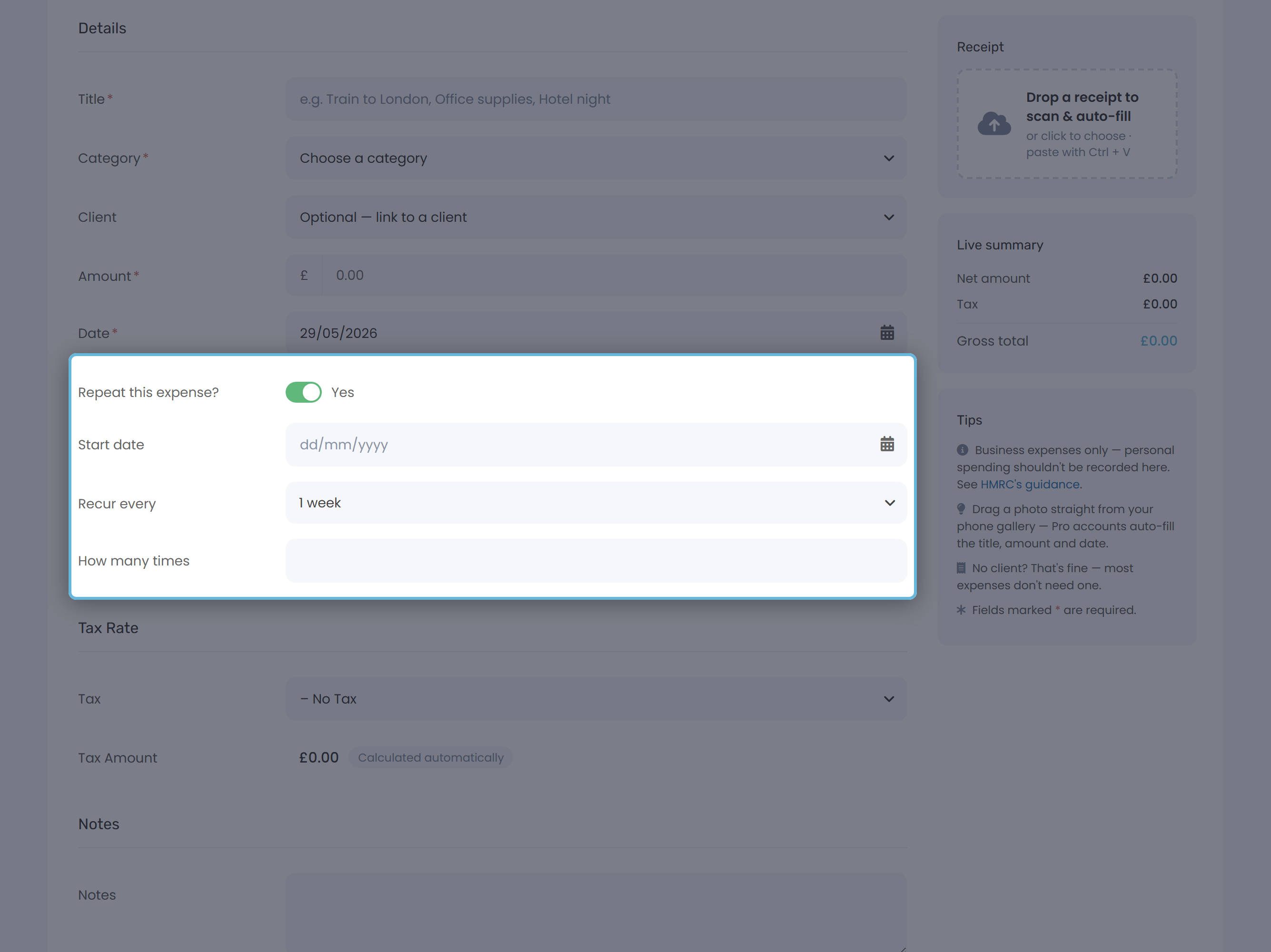
- Set Start date to when the first copy should be logged, pick a Recur every interval (for example, 1 month), and leave How many times blank for an open-ended schedule (or type a number to cap it).
- Click Save as normal. Keepr does two things in one go: it logs this first expense and starts the recurring schedule. The expense you just saved is the first one in the series.
Schedule options
The Recur every dropdown covers everything from a weekly travel pass to a multi-year licence:
| Interval | Typical use |
|---|---|
| 1 week, 2 weeks, 3 weeks | Travel passes, regular delivery rounds. |
| 1 month, 2 months, 3 months, 6 months | Software subscriptions, office rent, insurance instalments. |
| 1 year, 2 years, 3 years | Annual licences, domain renewals, professional memberships. |
How many times is optional. Leave it blank for an open-ended schedule that runs until you turn it off. Type a number (for example, 12) to cap the run after that many copies.
A worked example
You pay £55 a month for Adobe Creative Cloud. Add a new expense: title Adobe Creative Cloud, category Software, amount £55.00, today's date.
Flip Repeat this expense? to Yes. Set Start date to today (or the date your subscription renews), Recur every to 1 month, and leave How many times blank. Save.
Every month from now on, Keepr logs a fresh £55 Adobe expense for you. It shows up in your expense list, your Profit & Loss report and your tax estimate automatically - no copy-paste, no missed months.
Starting in the past (backfill)
If you pick a Start date that's already gone, Keepr generates the missing copies straight away so your records line up. The form shows a heads-up panel under the date when this is about to happen: "Since you've chosen a past date, Keepr will automatically generate all missed expenses to keep your records accurate."
Keepr is also careful about not duplicating expenses you've already logged manually. If a matching expense already exists in one of the backfill months, Keepr links it to your new schedule instead of creating a second copy.
How Keepr generates each copy
Every day, Keepr checks each recurring expense you've got running and asks: is it time to log the next copy? When it is, Keepr creates a new expense with the same title, category, amount, tax rate, tax amount and notes as the one you set up, dated to the recurrence date.
Managing your schedules
Most of the time you'll never need to leave the expense form. But if you want to see every recurring schedule you have running in one place, open the Recurring Expenses page. It lists every schedule with its status, recurrence and last-logged date.
| You want to... | Do this |
|---|---|
| Pause a schedule | Open any expense in the series, flip Repeat this expense? to No, save. (Or open the schedule from Recurring Expenses and switch its Status to Inactive.) |
| Resume it | Flip Repeat this expense? back to Yes on a linked expense and save. |
| Change every future copy | From the Expenses page, click the Recurring button and open the schedule. Future copies use the new values. |
| Fix one specific copy | Edit it from your Expenses list. The schedule isn't touched and future copies stay on the original values. |