
Adding a client in Keepr
How to add a client to Keepr, whether you're setting up properly from the start or just need a name to attach to the invoice you're drafting right now.
Clients are the people you bill. Once a client exists in Keepr, you can attach invoices, expenses, projects, tasks and time entries to them, and Keepr remembers their address, hourly rate and currency so you don't retype it. The only field you must fill in is the Organisation name.
Three ways to add a client
Pick whichever fits where you are in your workflow:
- The full form. Go to Add Client directly. This is the route to take when you're setting up a new client properly and have their details to hand.
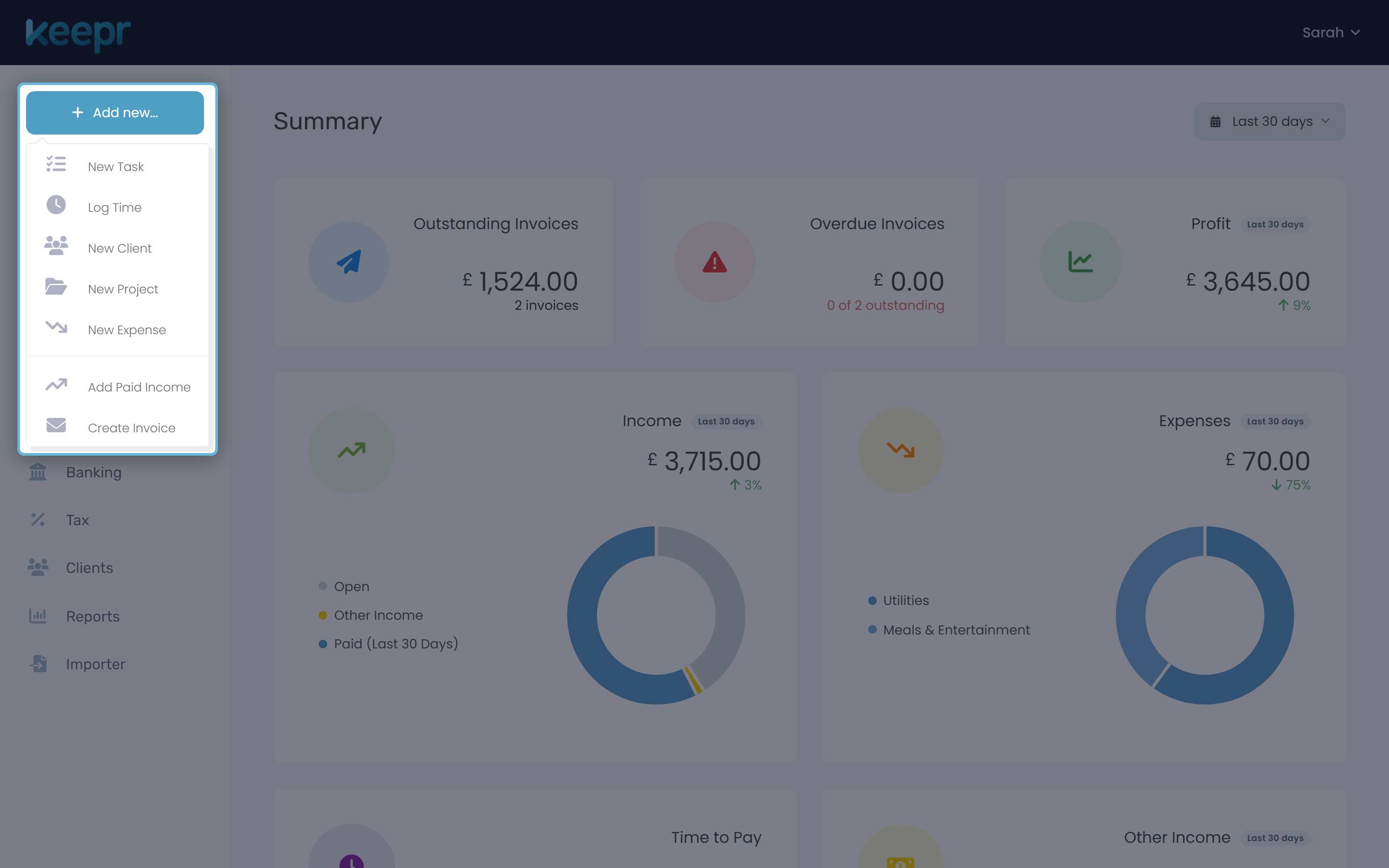
- The sidebar quick-add menu. Click + Add new... at the top of the sidebar, then choose New Client. Same destination as above, handy if you're on a different page.
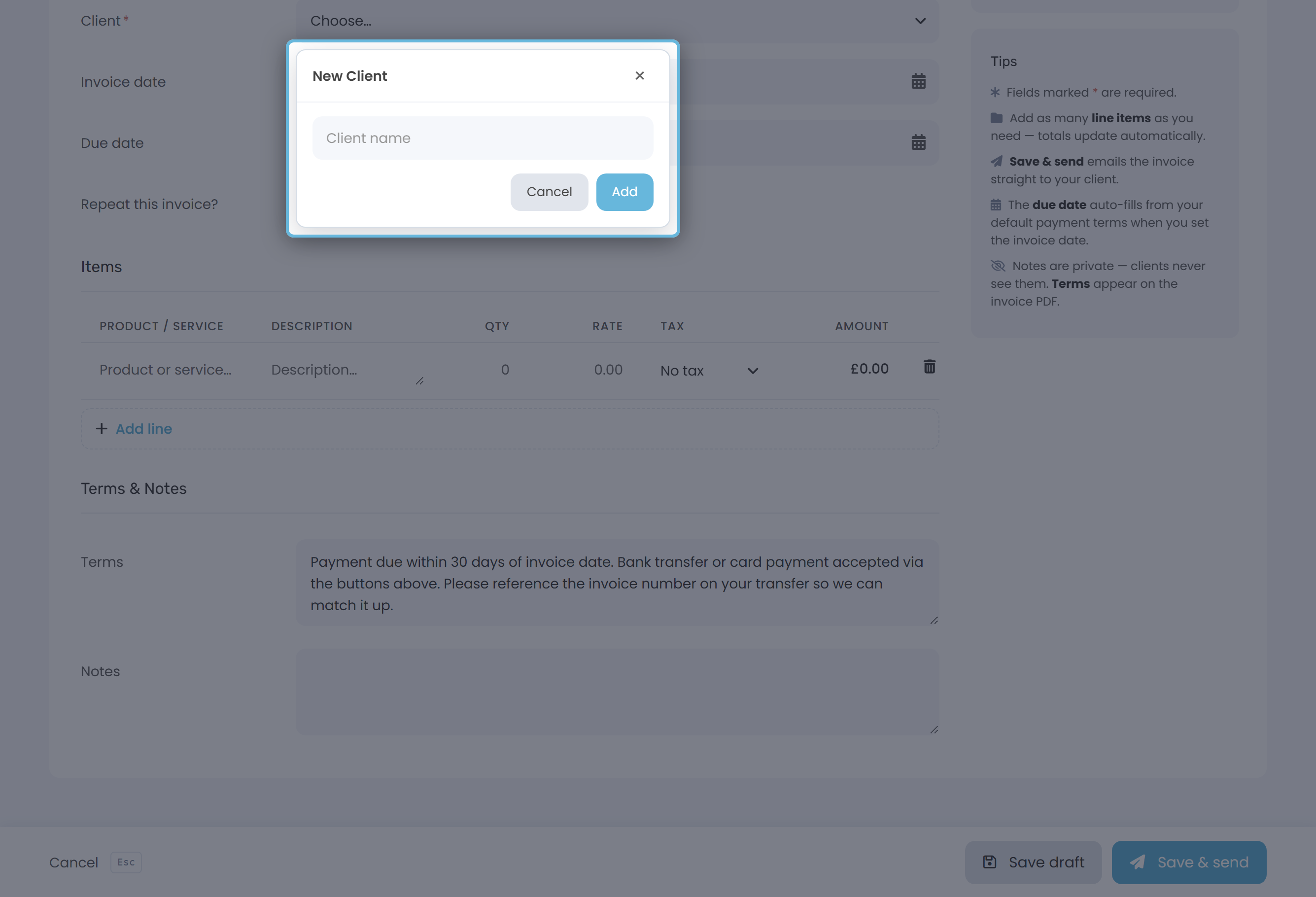
- Inline from any dropdown. If you're drafting an invoice or logging an expense and realise the client isn't in your list yet, open the Client dropdown and click + Add New Client at the top. A small popover lets you type the name and carry on without losing your place.
Fill in the Add Client form
The form has three sections: Organisation, Contacts and Address. Only the Organisation name is required - everything else is optional, but more detail now means less typing later.
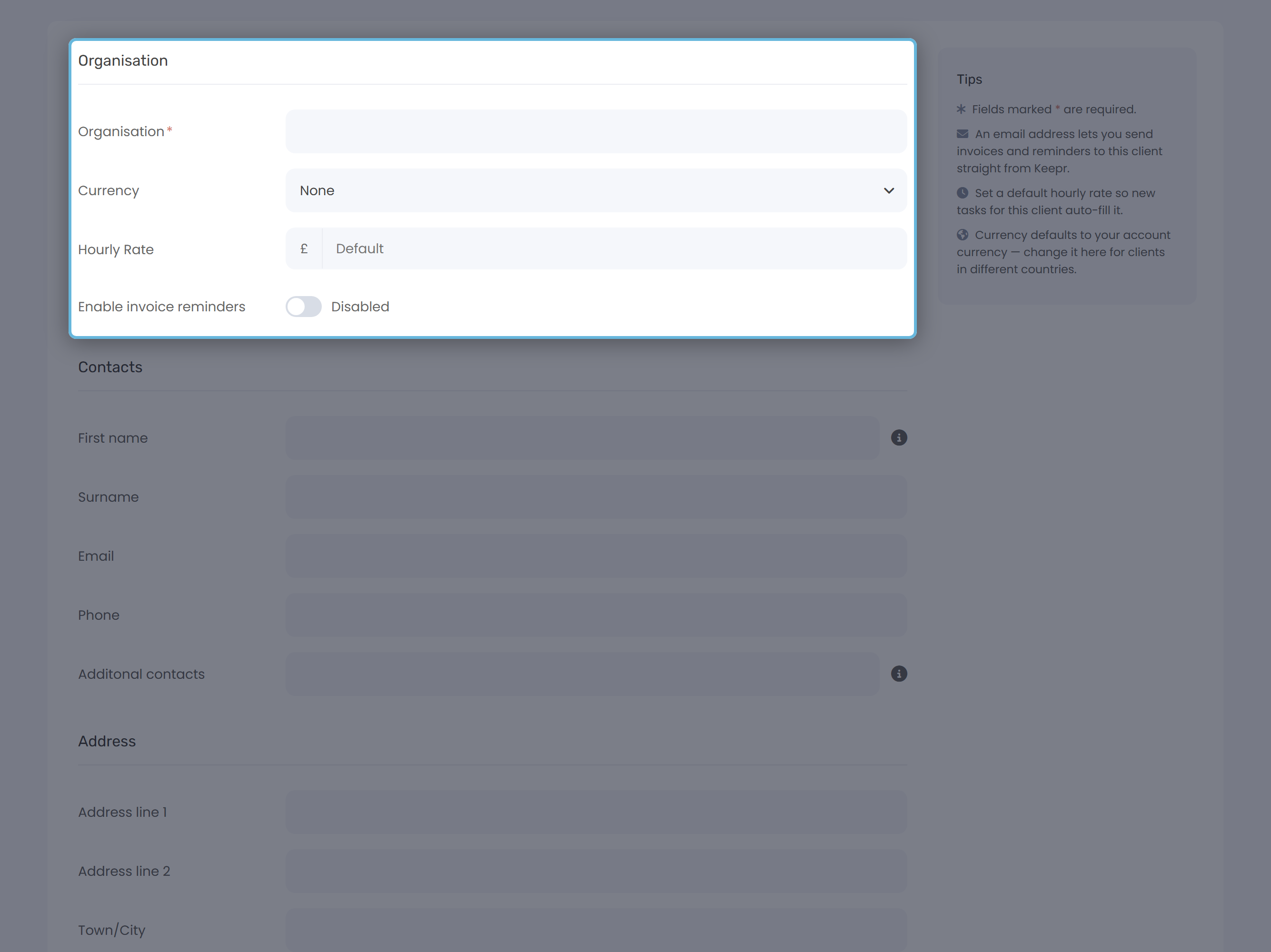
Organisation
- Type the client's business name into Organisation. This is the only required field and it's the name that appears on invoices, in reports and in dropdowns across Keepr.
- Leave Currency blank to use your account currency, or pick a different one for clients you bill in another currency. Invoices for this client will use whichever you choose.
- Set an Hourly Rate if you bill this client by the hour. New time entries and tasks for them pick this up automatically.
Contacts
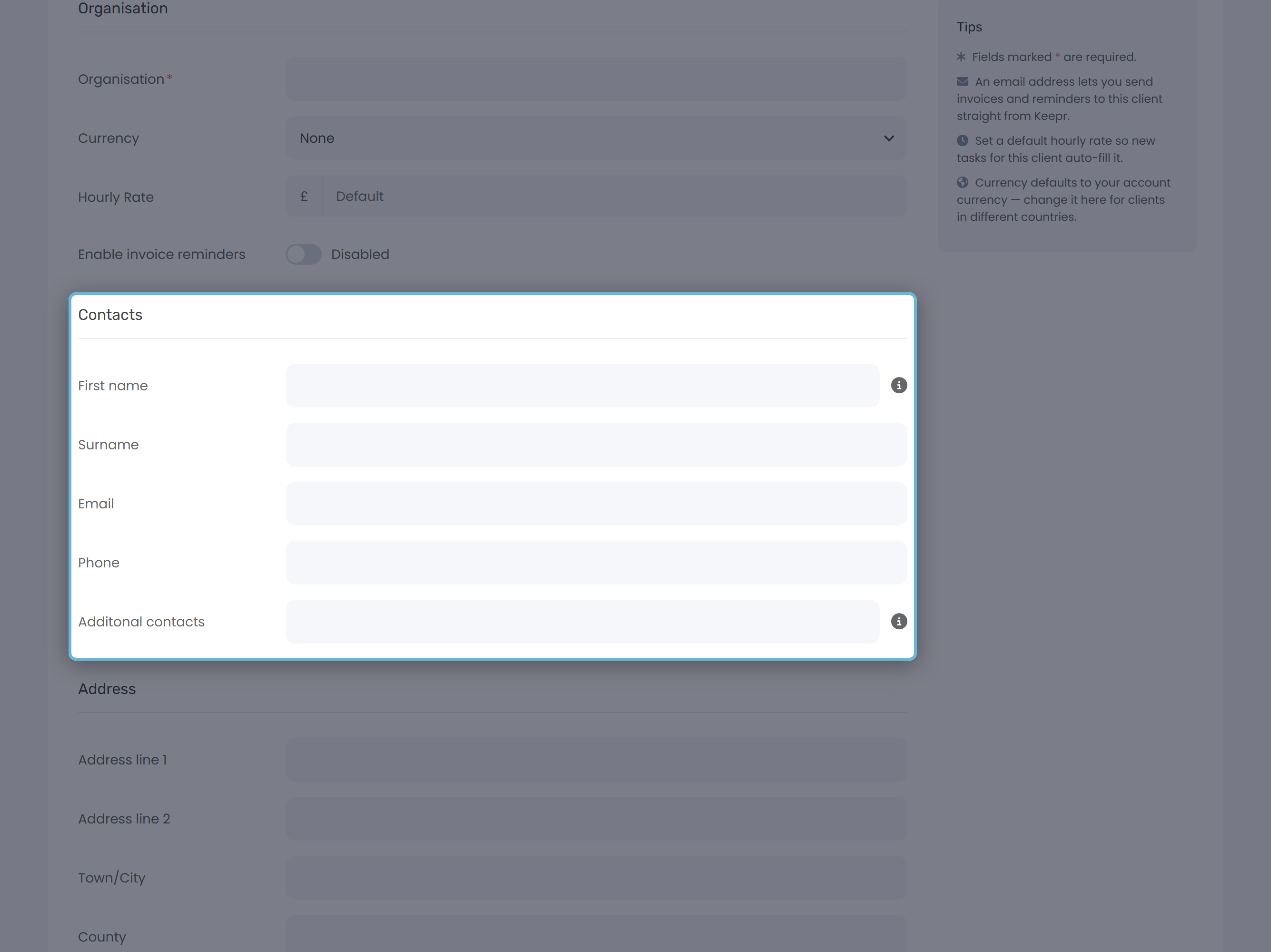
Add the main person you deal with: First name, Surname, Email and Phone. The email is what Keepr uses to send invoices and reminders. Use Additional contacts for anyone else who should be CC'd on invoice emails - an accounts inbox or finance manager - separated by commas.
Address
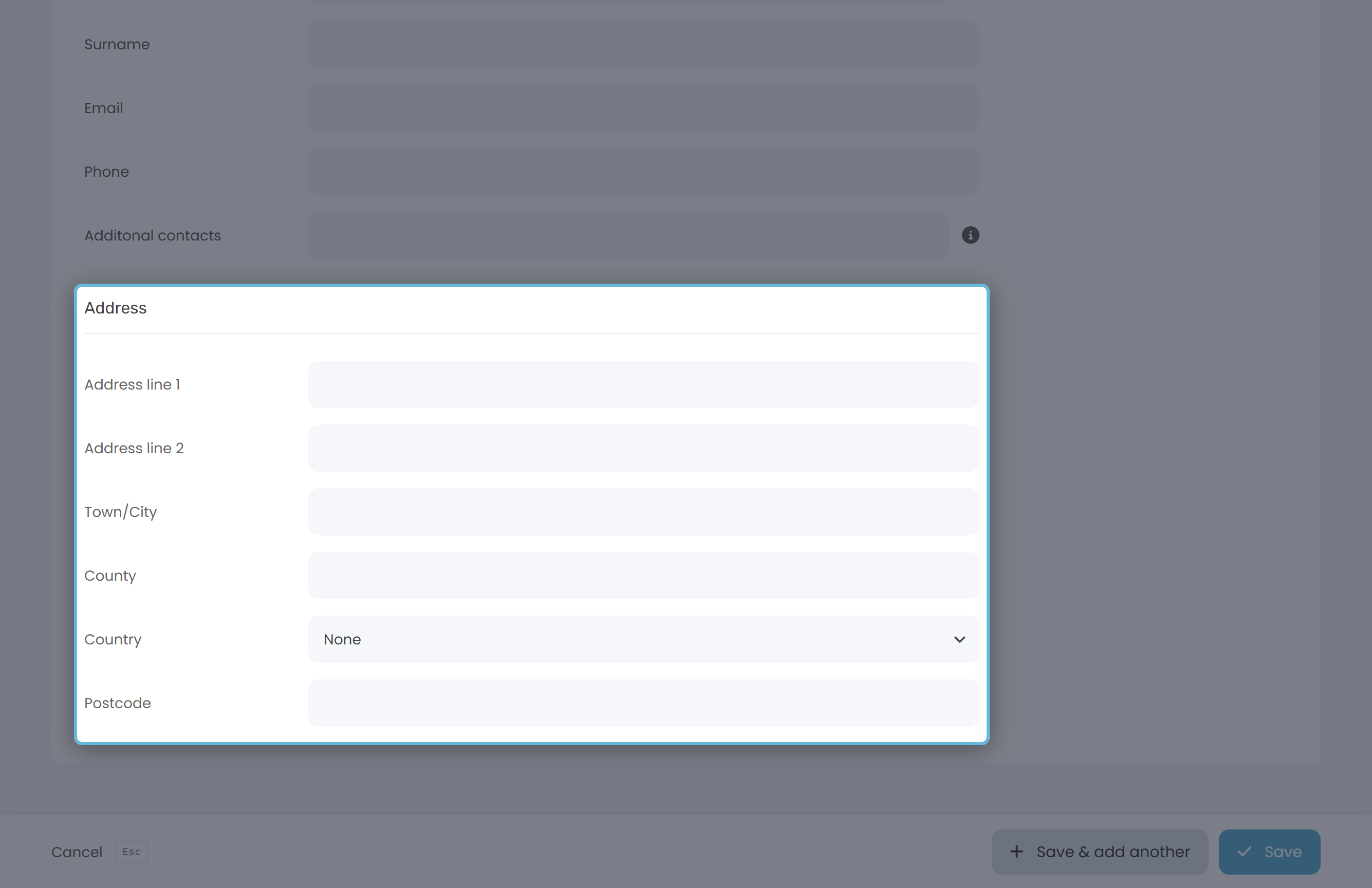
Fill in the full address (lines, town, county, country, postcode). Keepr drops these onto the billing block of every invoice you raise for this client, so it's worth getting right once.
How the hourly rate cascade works
Keepr resolves an hourly rate in three layers, picking the most specific one that's set. When you log time, Keepr stamps the resolved rate onto that entry so historical reports stay accurate if you change the rate later.
| Layer | Where it lives | Wins over... |
|---|---|---|
| Project rate | Hourly Rate on the project | Client rate and account default |
| Client rate | Hourly Rate on this form | Account default |
| Account default | Settings | Nothing - the fallback |
An empty or zero rate at any layer means “not set” and Keepr falls through. Setting a client rate gives a sensible default for all that client's work; only set a project rate for the odd job priced differently.
Worked example
You've picked up Acme Studios, a marketing agency, at £65 an hour - except their rush projects, which are £90.
| Field | Value |
|---|---|
| Organisation | Acme Studios Ltd |
| Currency | (blank - use account default) |
| Hourly Rate | £65.00 |
| First name | Priya |
| Surname | Patel |
| priya@acmestudios.example | |
| Additional contacts | accounts@acmestudios.example |
| Address line 1 | 12 Soho Square |
| Town/City | London |
| Postcode | W1D 3QA |
| Country | United Kingdom |
Hit Save and Keepr drops you back at the client list with a green toast. Any time entry, task or invoice line you start for Acme Studios now picks up £65 an hour by default. For rush jobs, set the higher rate on the individual project - the project rate beats the client rate.
Editing a client later
Open Clients, click the row, and you land on the same form titled Edit Client. Change anything and hit Save.
Changing the hourly rate opens a Change dialog, not a plain text edit. Keepr can re-stamp the rate on any unbilled time entries for this client so your work-in-progress reflects the new figure, or you can keep the change forward-only. Every change is recorded so you can see the history later.
Removing a client
If you've stopped working with someone, open the client list and use the delete action on their row. Keepr removes the client from your dropdowns so no new work can be attached. Invoices you've already raised and time you've already logged stay intact.