
Setting hourly rates in Keepr
Set one default rate for your account, override it per client, and override it again per project. Keepr handles the rest.
Keepr lets you set an hourly rate in three places: a default for your whole account, an override per client, and an override per project. When you log time, Keepr picks the most specific one that's set and stamps it onto the entry. Most people set one default and forget; the client and project overrides are there for when one customer pays more, or one job runs on a different deal.
Set your account default
Start here. The account default is the rate Keepr falls back to when nothing else is set - perfect if you charge the same hourly to almost everyone.
- Open Settings from the sidebar (the cog at the bottom).
- Click the Work tab.
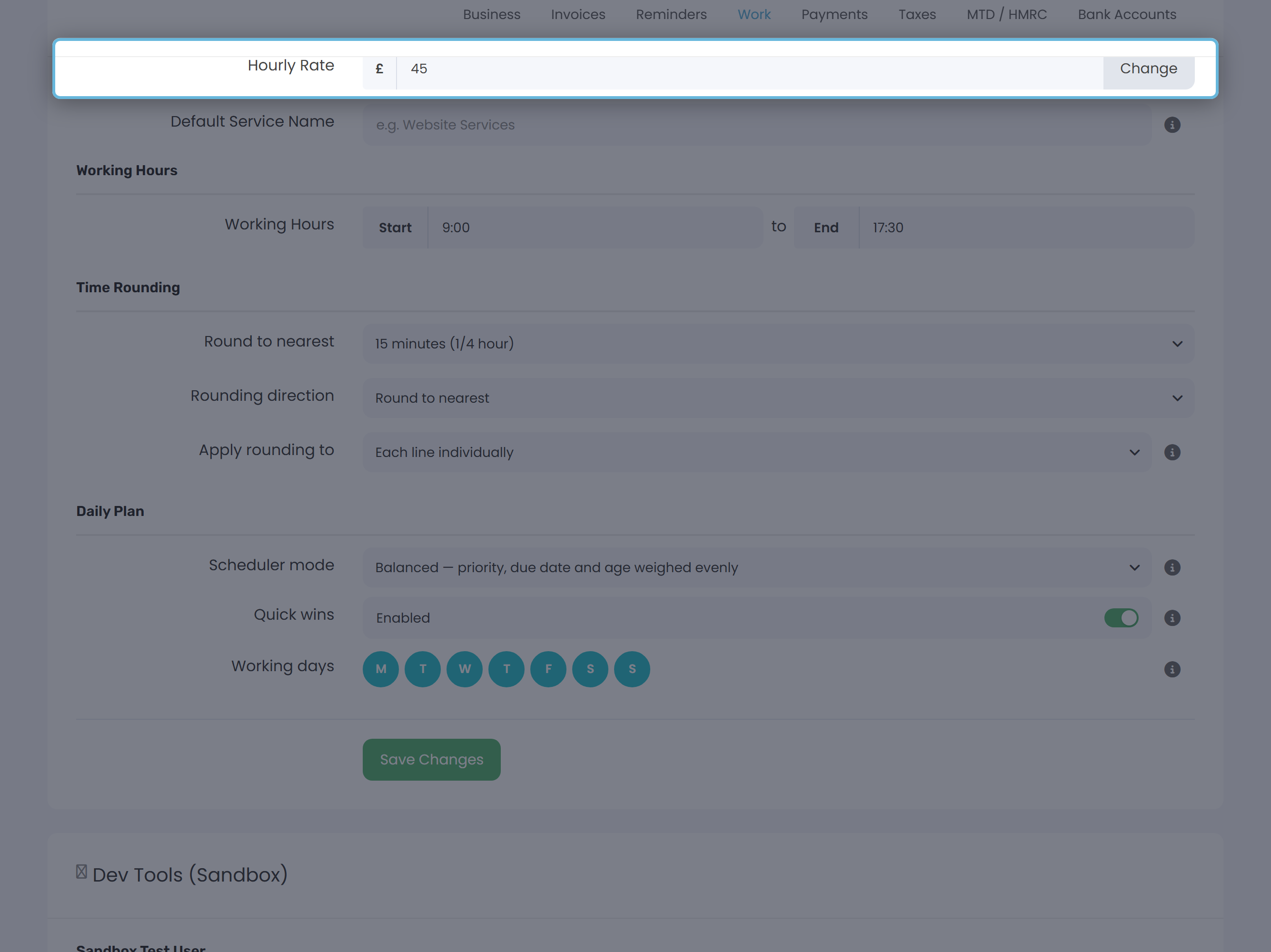
- Find the Hourly Rate field at the top of the Defaults section. The number you see is read-only - click the Change button next to it.
- Type the new rate in the modal and click Save. (We'll come back to the “Apply to” options in a moment.)
Override the rate for one client
Got a client who pays more than your usual rate? Set the override on the client record and every project, time entry and invoice for that client picks it up automatically.
- Open the client from Clients in the sidebar (or create one with + Add new → New Client).
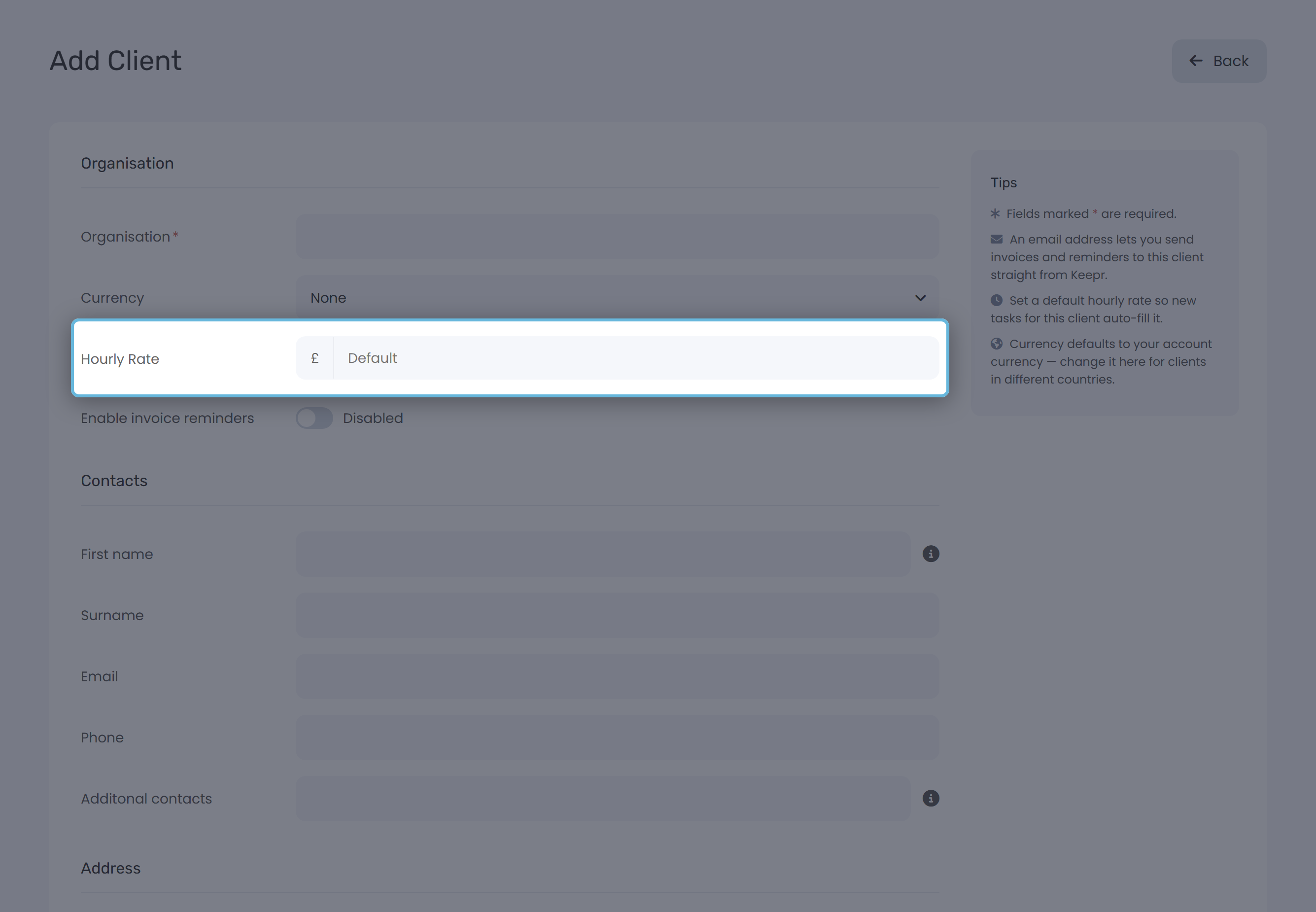
- Scroll to the Hourly Rate field. If it's blank (placeholder reads Default), this client is using your account default. Click Change to override.
- Enter the new rate in the modal and save.
Override the rate for one project
Project rates are useful for retainers, fixed-scope jobs, or any work where the effective hourly is different from what you charge the same client elsewhere.
- Open the project from Projects in the sidebar (or create one with + Add new → New Project).
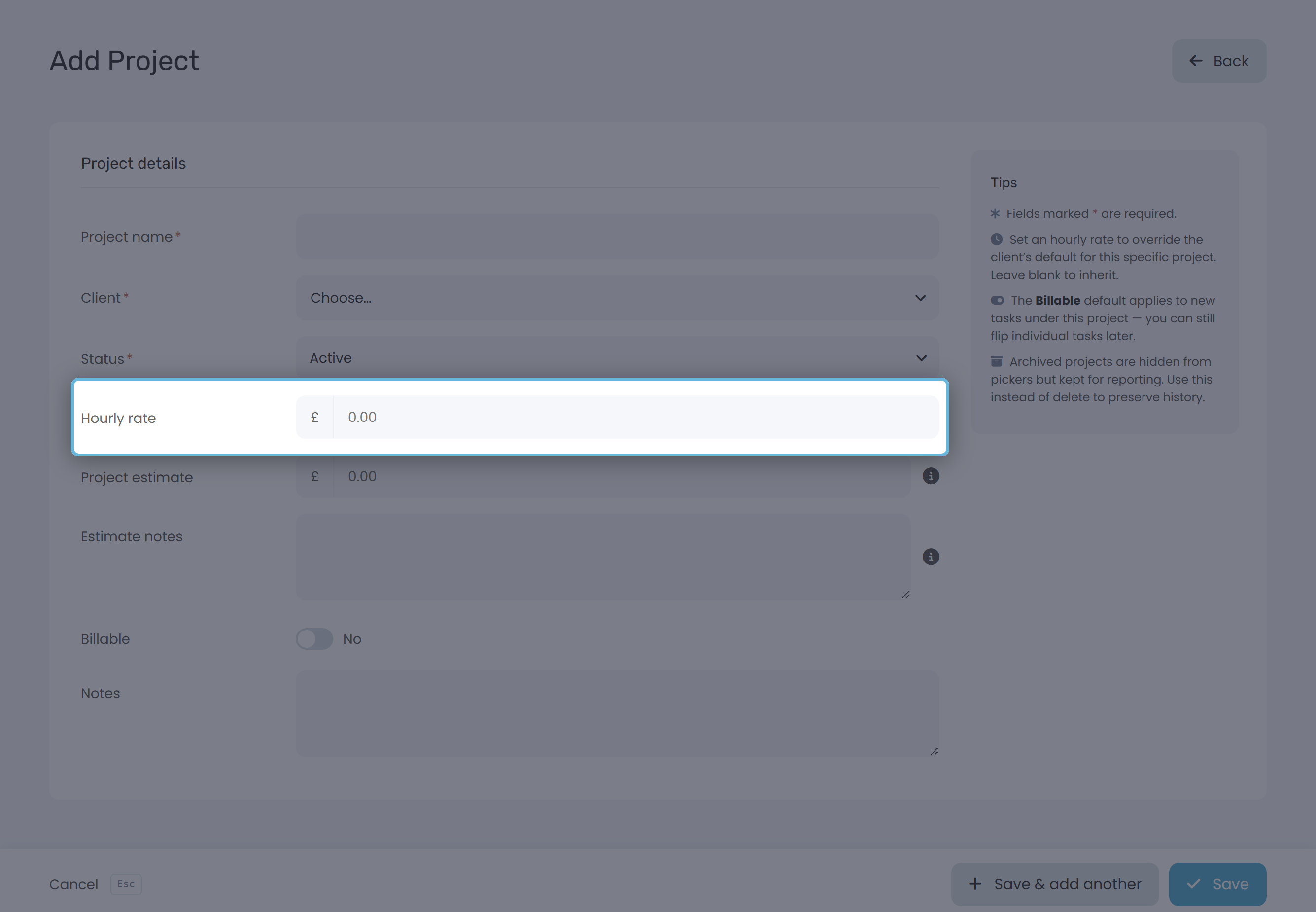
- Find the Hourly rate field. On a brand-new project, type the rate straight into the field. On an existing project, click Change to open the rate dialog.
How Keepr picks the rate for a time entry
When you log time, Keepr walks down a three-step cascade and uses the first rate it finds. Blank fields and zeros count as “not set” - Keepr keeps looking.
| Priority | Source | Wins when |
|---|---|---|
| 1 | Project hourly rate | The time entry is linked to a project that has its own rate. |
| 2 | Client hourly rate | The project has no rate of its own, but its client does. |
| 3 | Account default | Neither the project nor the client has a rate set. |
Worked example
Say you're a freelance designer:
· Your account default is £45/hr.
· You set £55/hr on a premium client, Acme Digital.
· For one long-term project under Acme, Acme - Monthly Retainer, you set a £35/hr project rate.
Now when you log time:
| Time entry on... | Rate Keepr uses | Why |
|---|---|---|
| A client with no overrides | £45/hr | Falls back to the account default. |
| Acme - any project except the retainer | £55/hr | Project has no rate; client rate wins. |
| Acme - Monthly Retainer | £35/hr | Project rate beats client rate. |
Snapshot: changing a rate doesn't rewrite history
When you stop a timer or save a manual entry, Keepr snapshots the resolved rate onto that entry. The snapshot is what shows on reports and invoices - not whatever the cascade resolves to today. So if you raise your account default from £45 to £50 next April, the hours you logged last year still show £45. Tax records, profit-and-loss numbers and old invoices all stay stable.
Applying a rate change to existing entries
Sometimes you need a change to reach backwards - for instance a price rise backdated to the start of the month. The Change Hourly Rate modal handles that with three “Apply to” options:
| Apply to | What it does |
|---|---|
| Time entries from [date] onwards (default) | Re-stamps every unbilled entry dated on or after the date you pick. Default date is today. |
| All past and future entries (unbilled) | Re-stamps every unbilled entry that uses this level of the cascade. |
| Future entries only | Leaves existing entries alone. Only entries you log from now on pick up the new rate. |
Which level should I set?
| Situation | Set the rate on... |
|---|---|
| You charge the same hourly to nearly everyone. | Account default. Don't bother with client or project rates. |
| One client pays a premium (or a discount). | Client. Leave the project rate blank so it inherits. |
| You're on a monthly retainer with a lower effective rate. | Project. Keep the client rate at the standard. |
| A specific job is fixed-price but you still want to track hours. | Project - set it to whatever rate matches the deal you struck. |
| You're tracking time you won't bill (admin, learning). | Use the £ billable toggle to mark it non-billable. Rate is irrelevant for non-billable hours. |
Frequently asked questions
0.00. Set a rate at any level, then use All past and future entries (unbilled) on the Change modal to retroactively stamp everything.For the timer and manual-entry side of time tracking, see How to track time on a project.